Feedback App
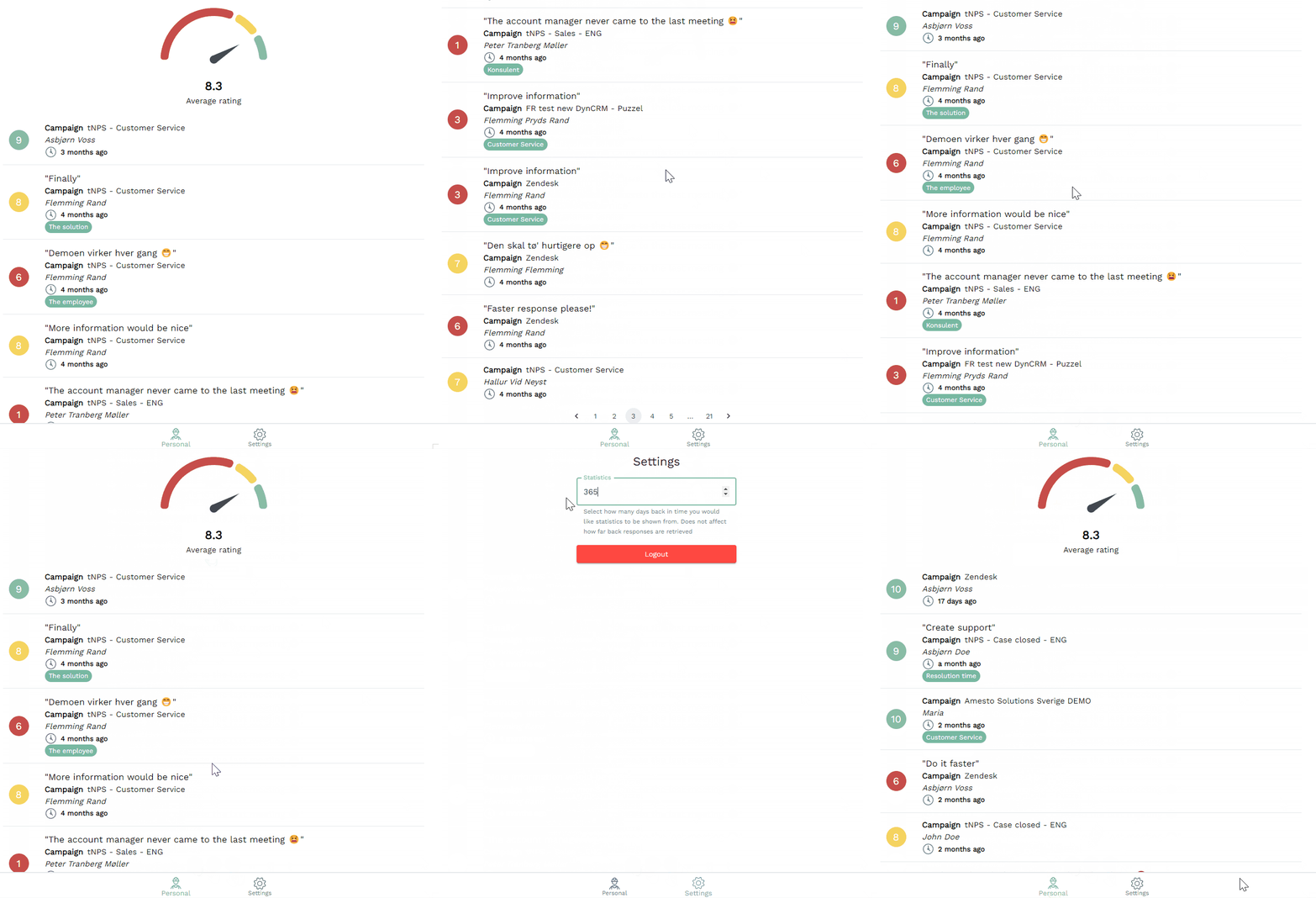
With the Feedback App you enable your employees to get their own dashboard to view their customer experience feedback in an easy and simple way.
Feedback App
Granting Access
When the Feedback App license is added to your account it will be visible under "Product Configuration".
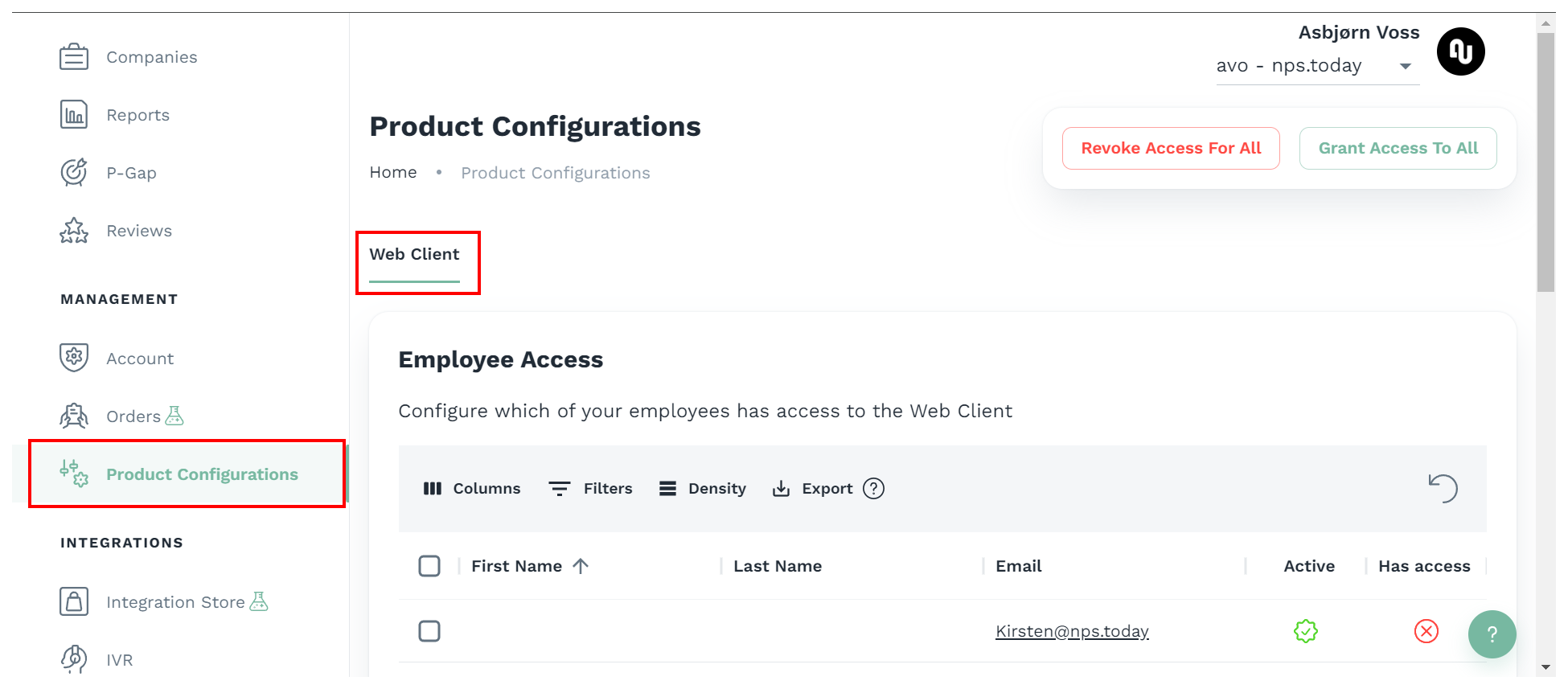
In the Feedback App Product Configuration you can manage Feedback App access to employees. To grant access to employees you need to be an nps.today Admin.
Add employees to nps.today
Notice that the list of employees shown is generated from your employee list in the "Employee-tab". If the you need to grant Feedback App access to a new employee, start by adding him/her as an employee in nps.today. See how to add an employee in nps.today here. The minimum requirement for the employee is an email address.
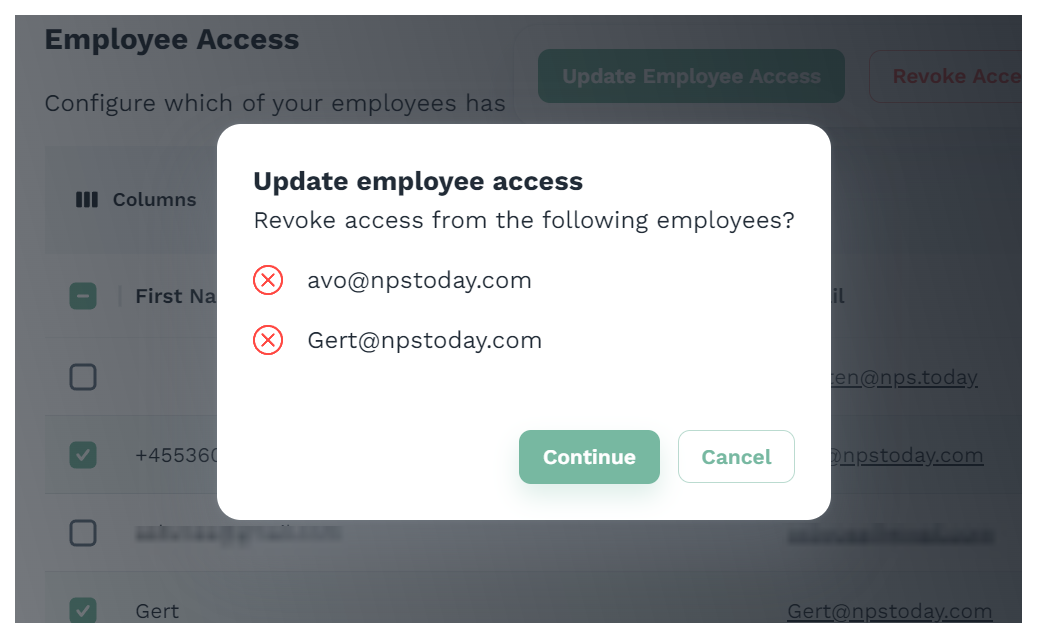
When granting access to employees select the preferred employees and click "Update Employee Access" and "Continue".
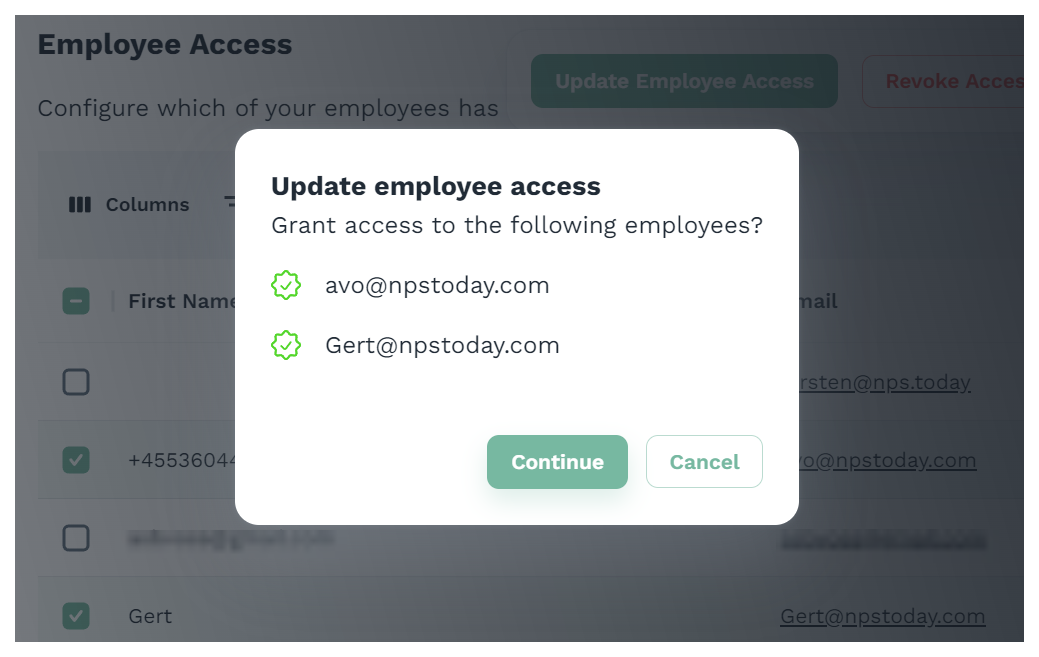
If you want to remove access, select the preferred employees and click "Update Employee Access" and "Continue" again.
 web
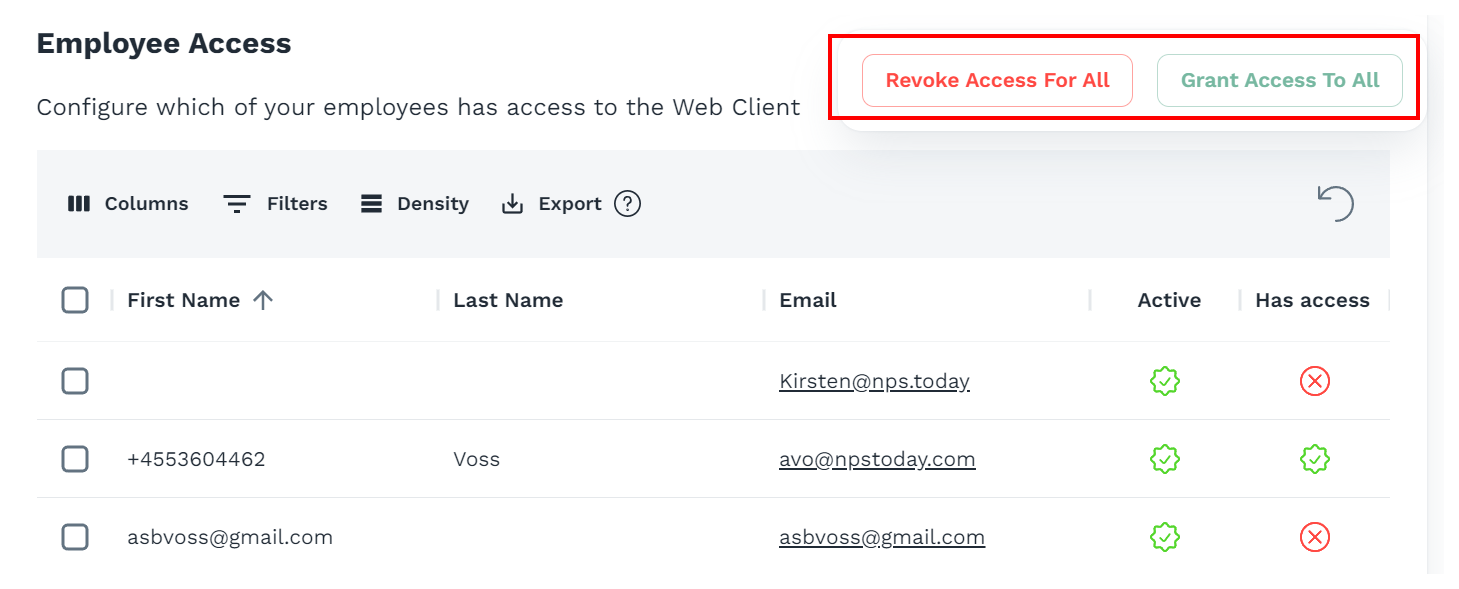
You can also grant or remove access to all employees by clicking ""Revoke Access For All or "Grant Access To All".
web
You can also grant or remove access to all employees by clicking ""Revoke Access For All or "Grant Access To All".
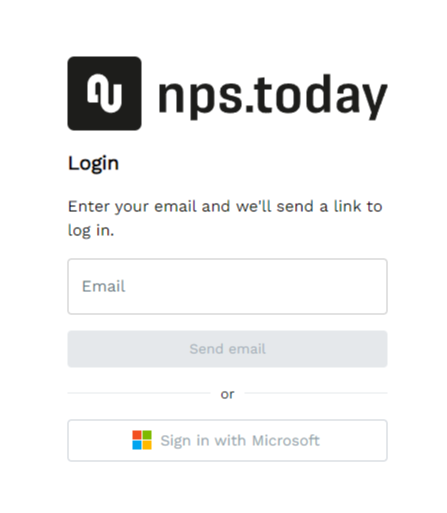
Log in
When logging in to the Feedback App go to below URL:
https://feedback.nps.today/
Here you can use your email address, which has been added as an employee in nps.today.
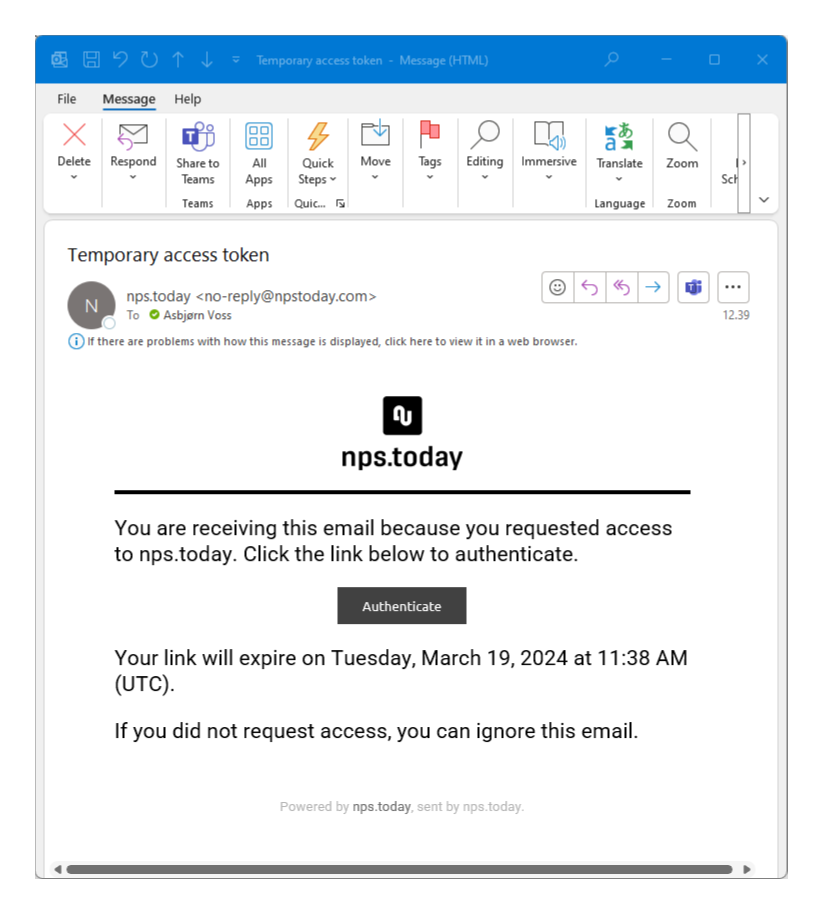
If you use your email address to access the Feedback App, you will receive an authentication email with a temporary access token.
Token expire time
The authentication link in the email, which grants you access to the token, will expire after 24 hours. This means you can access the token 24 hours after the authentication email has been sent. If the link expires you need to receive a new authentication email through the login page.
The token will expire after 7 days. This means you will be asked to login again after 7 days.
If the token has expired, please log in again with your email address and use a new temporary access token sent to your email.
Click "Authenticate" in the email to activate your token.
Authentication email example
Microsoft Single Sign-on (SSO)
You can also use Microsoft Single Sign-on (SSO) to log in to your Feedback App. This allows you to use your Microsoft login.
SSO Admin Permission
Remember logging in with SSO often requires permission from a Microsoft Admin.
Read more about different scenarios of how a permission request can look and be set up.
Setting up Feedback App
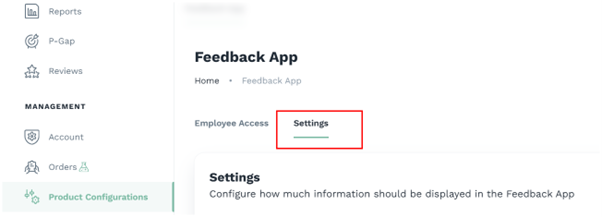
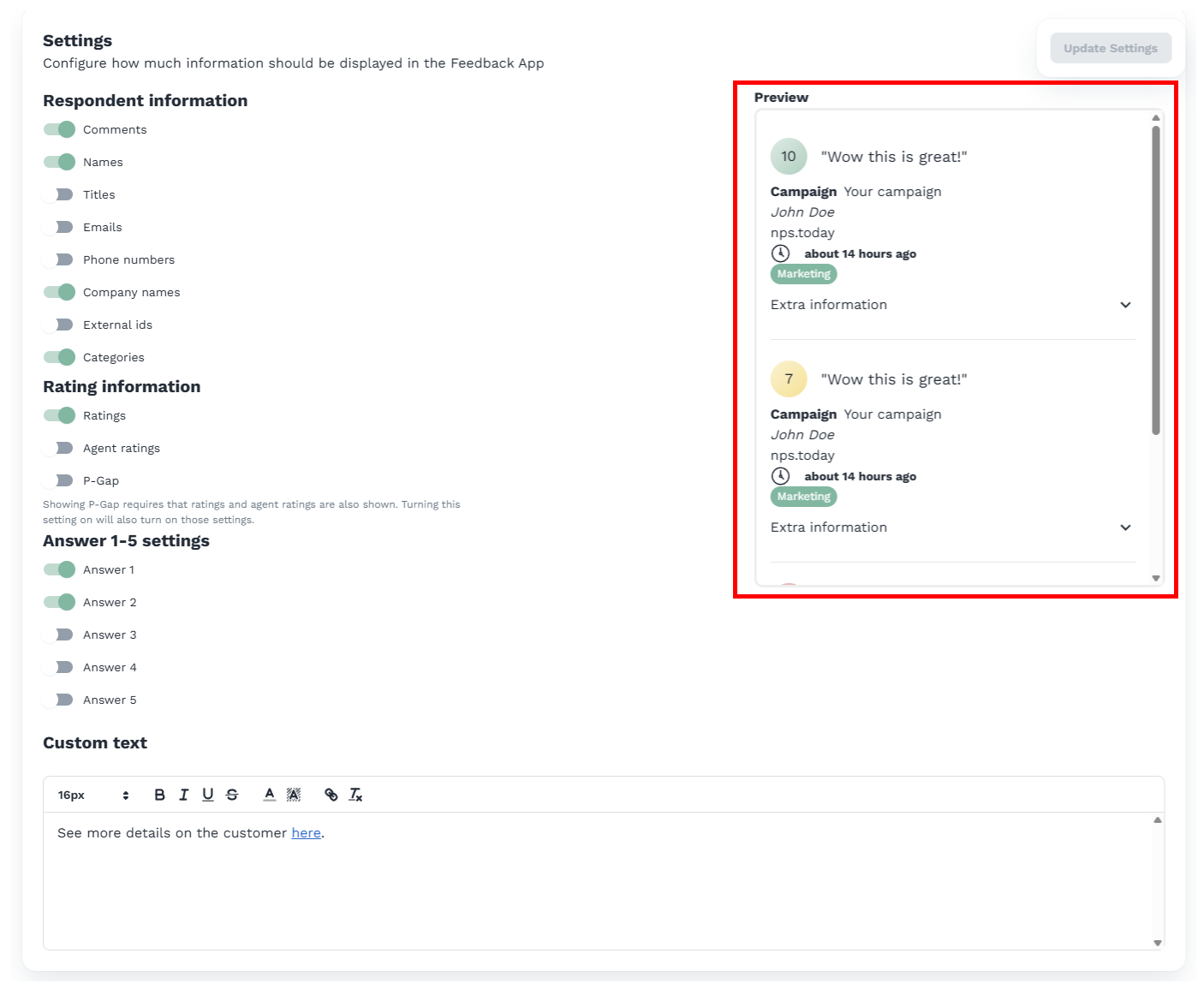
You can customize your Feedback App to show the data relevant to your specific use case. To do that, go to Product Configurations -> Feedback App -> Settings.
Respondent Information
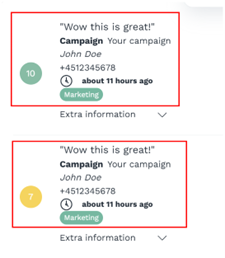
Under Respondent Information, you can choose what data should be available on the Feedback App.
This data will be visible here:
Answer 1-5 Settings
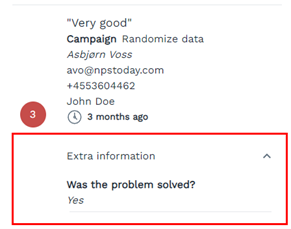
The Feedback App has a dropdown called Extra Information. Here, data from the sections Answer 1-5 Settings and Custom Text will be shown.
In Answer 1-5 Settings, you can choose if the respondents' answers to extra questions 1-5 should be visible in the Feedback App.
Custom Text
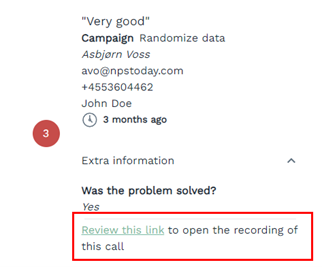
In Custom Text, you can add text that will be shown on all responses in the Feedback App.
Data from the respondent can be stored as a placeholder in the link to create unique links.
A common use case for this is linking to specific webpages or interactions related to the response.
Review this guide: Merge Fields Guide to learn more about placeholders.
Remember, you always have a preview on the right side of the settings page.
Features
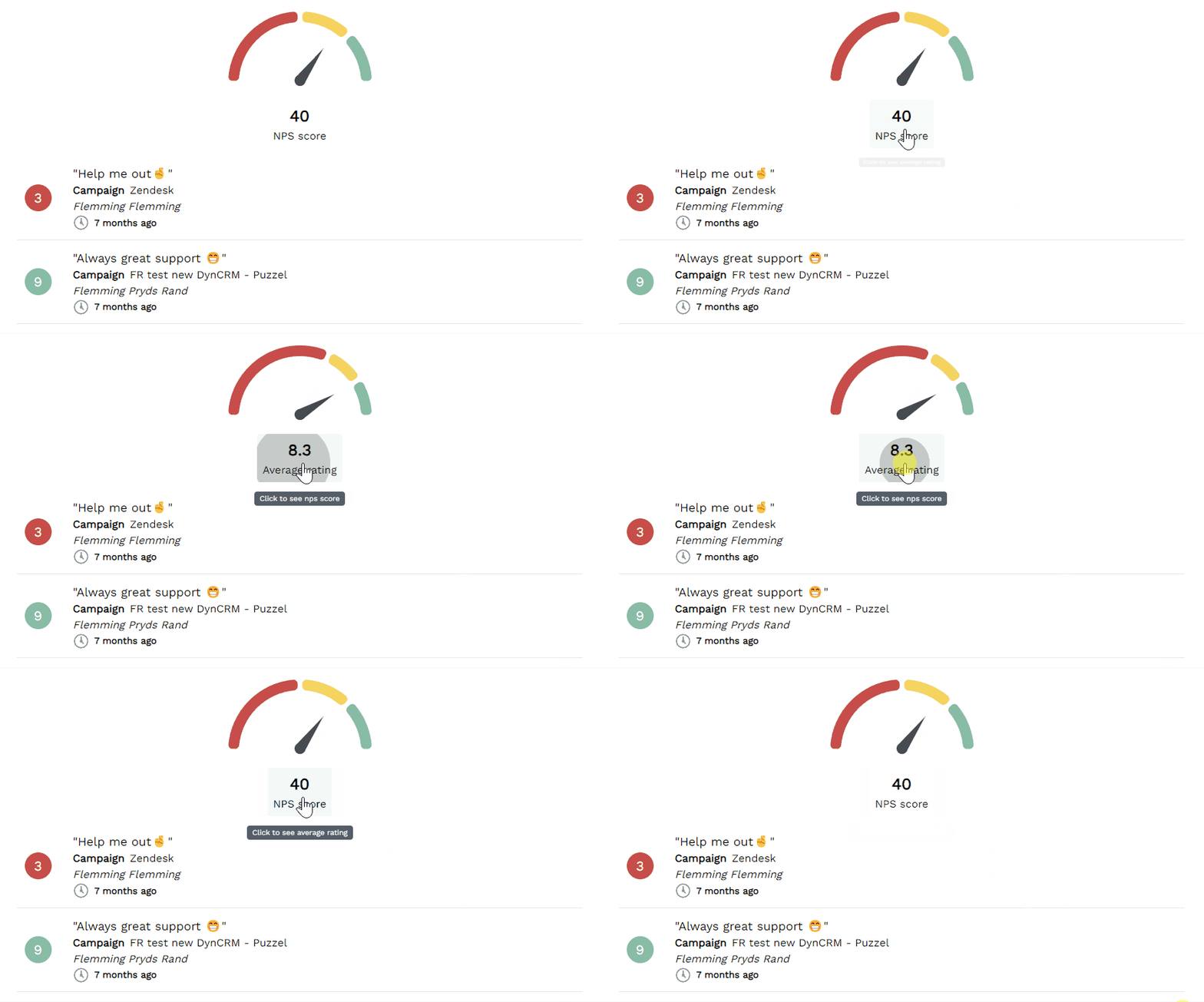
Toggle score
Toggle between viewing your average rating and NPS score.
View feedback
View feedback related to a specific User across all campaigns in nps.today.
You will see 10 answers per page.
Statistics
When logged in to your Feedback App go to “Settings”.
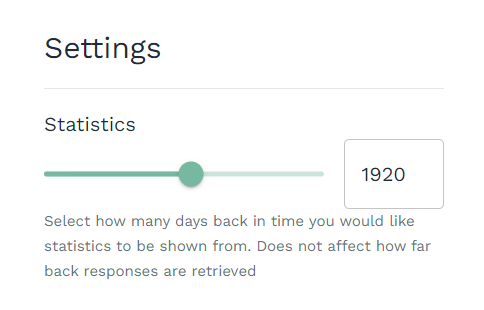
Select how many days back in time you would like statistics to be shown from.
When the number of days is set, go back to “Personal” to refresh the Feedback App with your new setting.
Change organisation
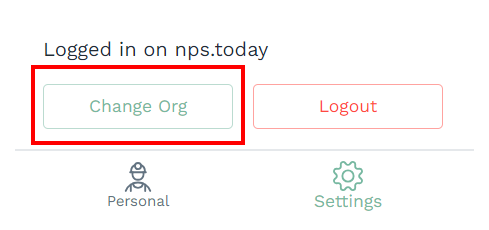
If your Feedback App User is connected to several in nps.today, you can switch between them in "Settings" by clicking "Change Org".