NPS Notifications
The documentation will guide you through how to build and use NPS Notification. With NPS Notifications you can build your own notifications for employees or respondents with all relevant data available.
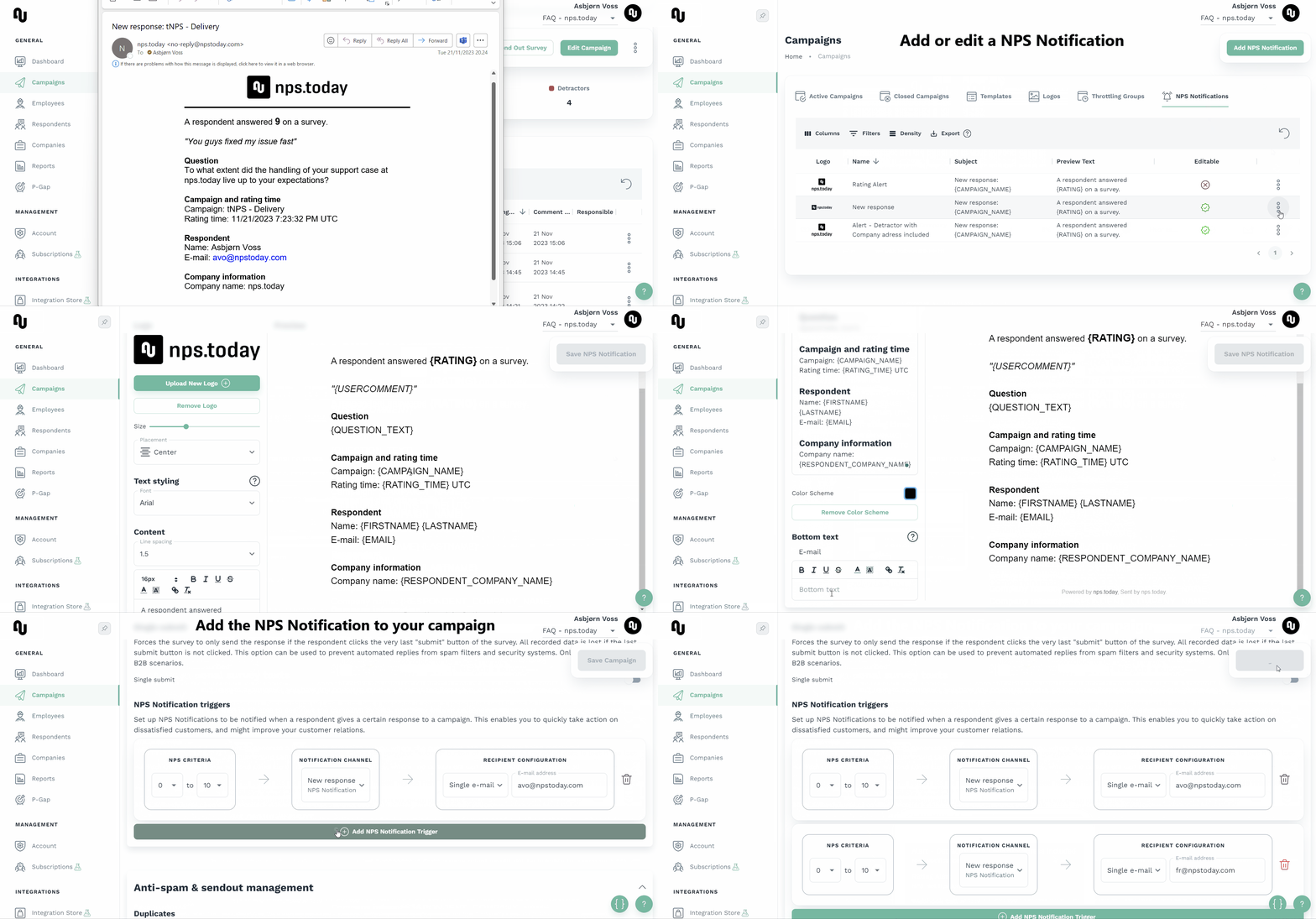
Add a NPS notification to your campaign
When applying a NPS Notification to a campaign go to the Campaign editor -> Settings - > NPS Notifications triggers.
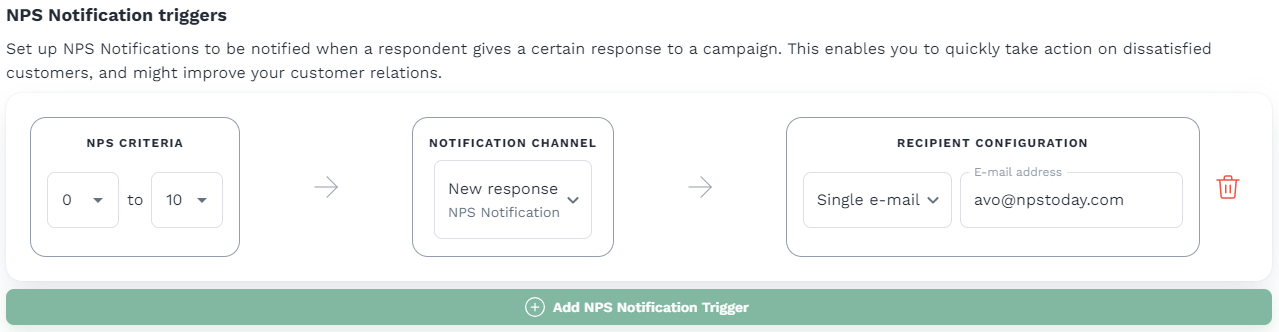
NPS Criteria: Here you decide what ratings should trigger the NPS Notification.
Notification Channel: Here you choose what notification you will trigger to the recipients. Go to the next chapter to see how you build your own NPS notifications.
A webhook call is available as a notification channel. Read more about the webhook notification in the custom notification chapter.
Recipient Configuration: Here you choose who should receive the notification.
Below you will find an explanation of the different types of recipients:
Single e-mail (recommended)
Will send an email notification to the mail you provide.
E-mail to sender
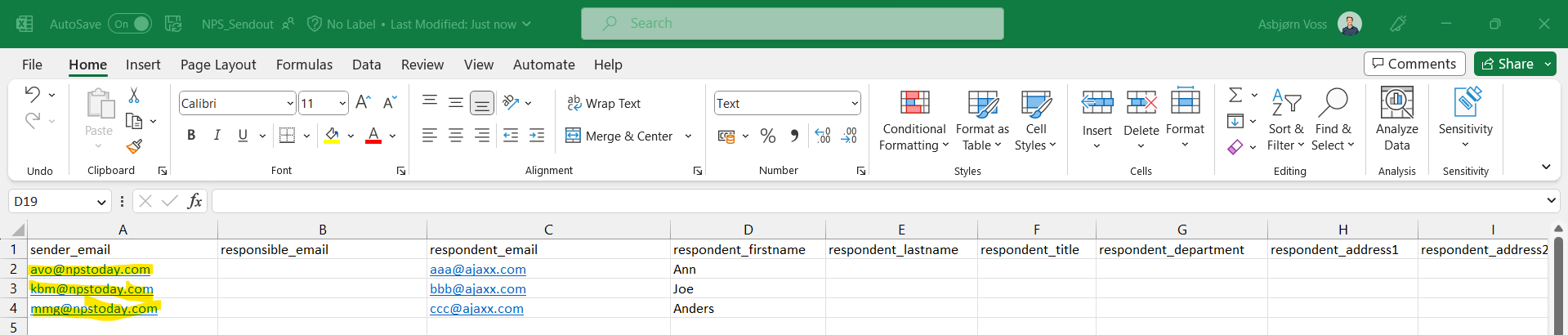
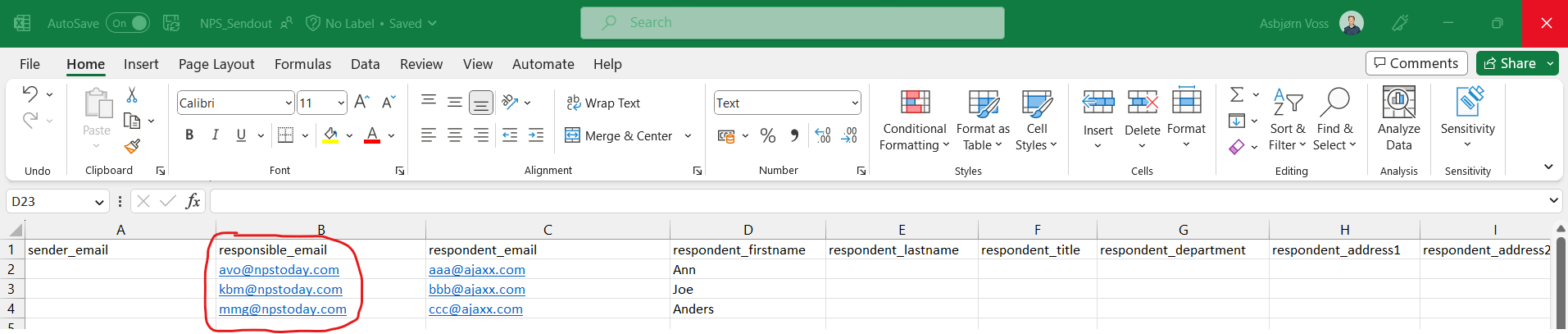
Will send an email notification to the sender of the survey. Use this if you change sender depending on who or what triggered the survey and the notification should be returned to the same email as sender. You can add specific email sender via our API or with our respondent template as seen below.
E-mail to responsible employee for respondent
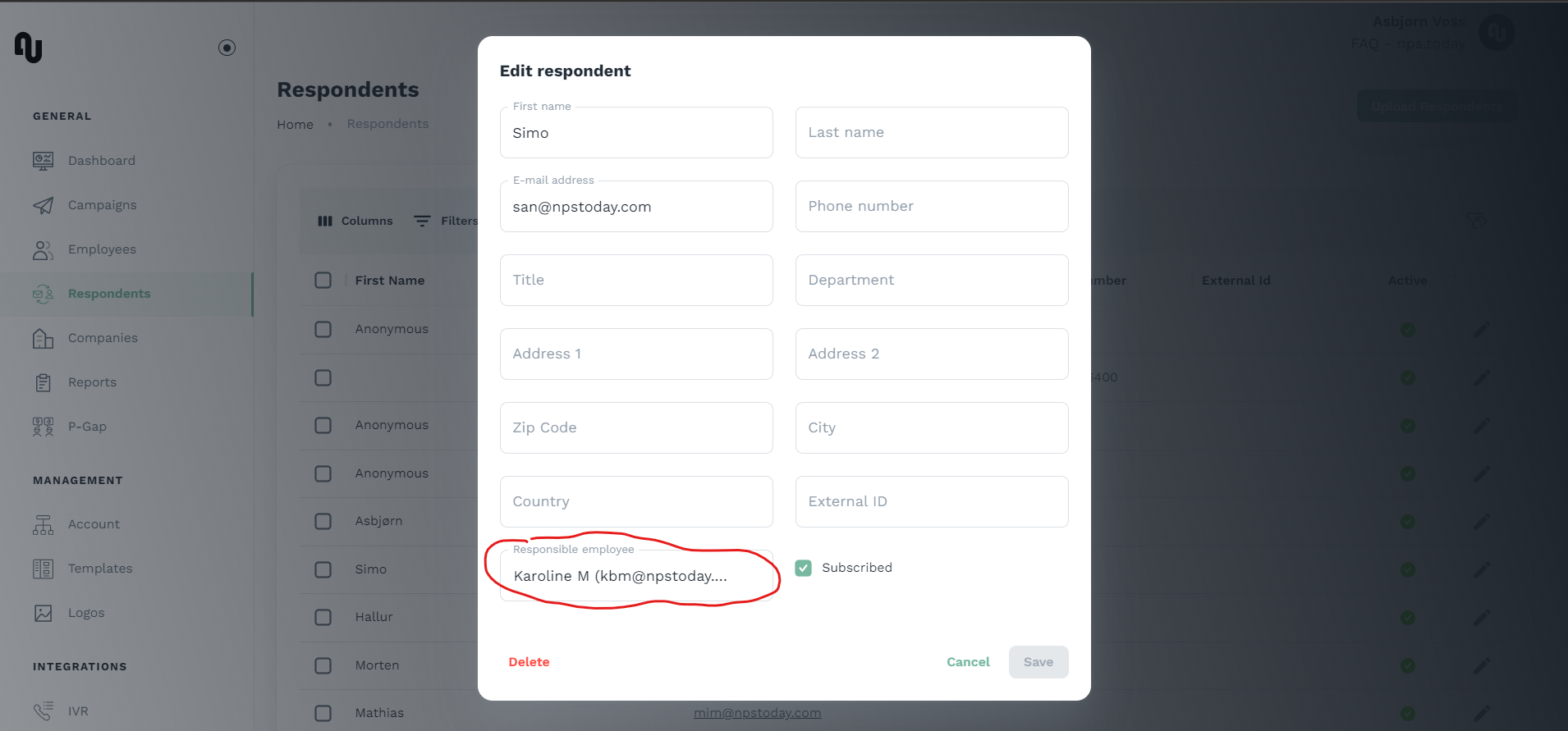
Will send an email notification to the employee who is set as the responsible for a respondent. This is only used if you knowingly have configured an employee to be responsible for a specific respondent at all times, like a key account manager.
The responsible employee for a respondent will appear in the Respondent tab in nps.today on each respondent.
E-mail to responsible employee on recipient (recommended)
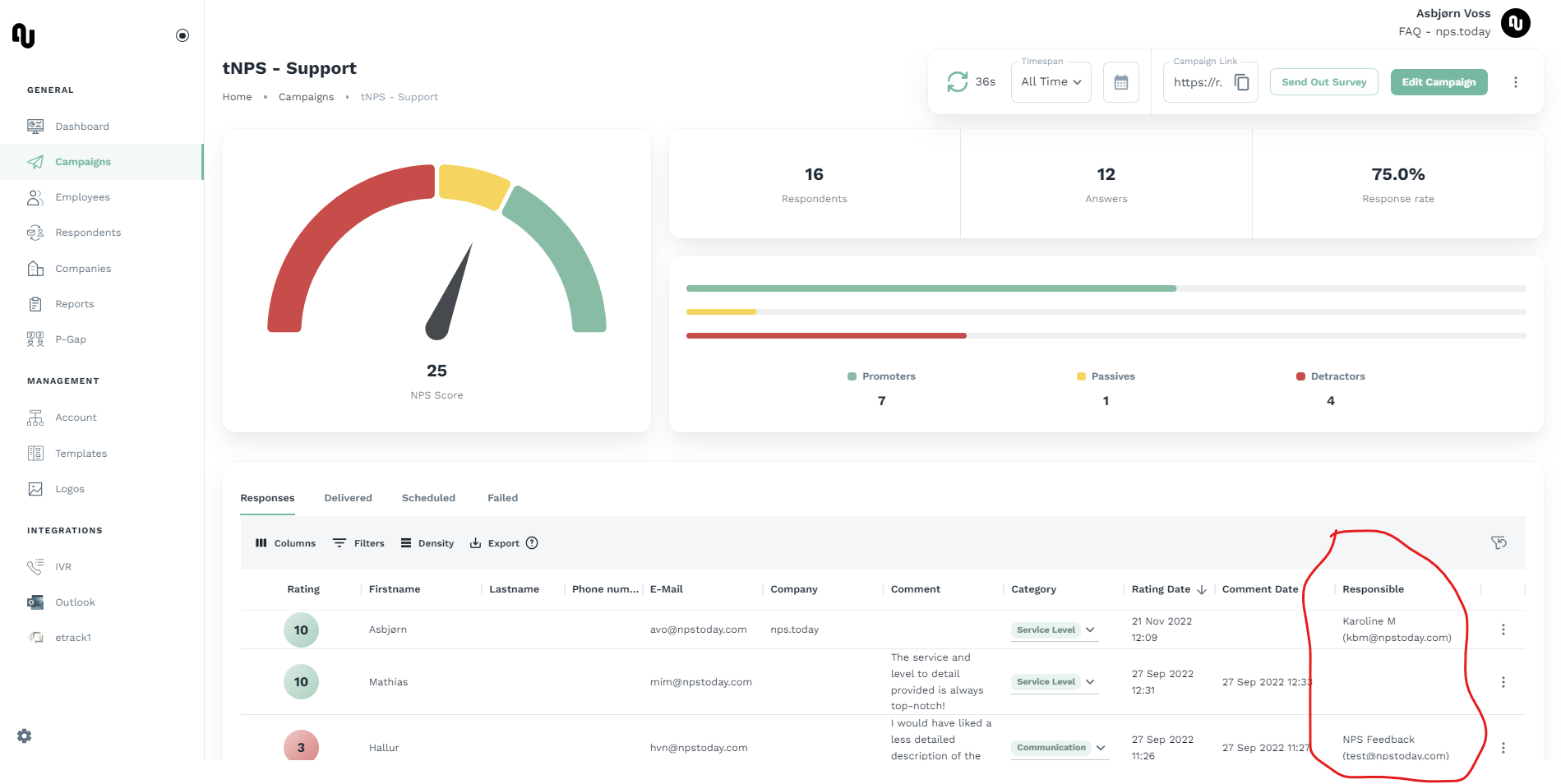
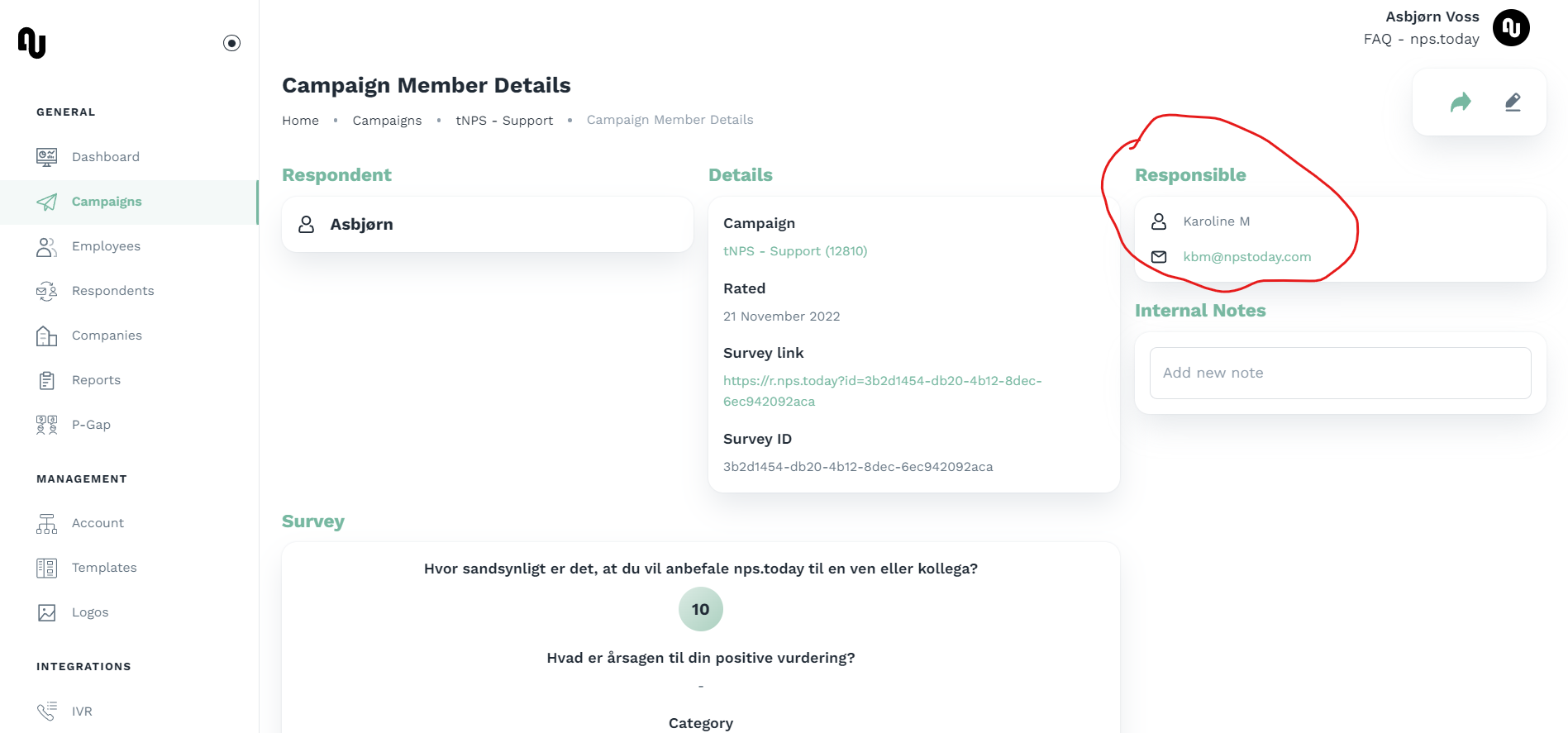
Will send an email notification to the responsible employee to the recipient related to the survey that is sent. The responsible employee for a recipient will appear in the campaign member table:
and the campaign member detail page:
You can add specific responsible employees via our API or with our respondent template as seen below.
E-mail to respondent
This will send an email notification to the respondent who has given a rating within your NPS Criteria.
Notification sender
For e-mail notifications, the sender's address is determined by the type of recipient. E-mails sent to the Respondent use the sender defined in the campaign, while all other emails are sent from [email protected].
| Recipient | Sender |
|---|---|
| Single e-mail | [email protected] |
| E-mail to sender | [email protected] |
| E mail to respondent owner | [email protected] |
| E-mail to responsible on recipient | [email protected] |
| E-mail to respondent | Defined by the sender on the campaign |
Create a NPS Notification
When creating a new NPS notification go to Campiagns -> NPS Notifications -> Add NPS Notification.
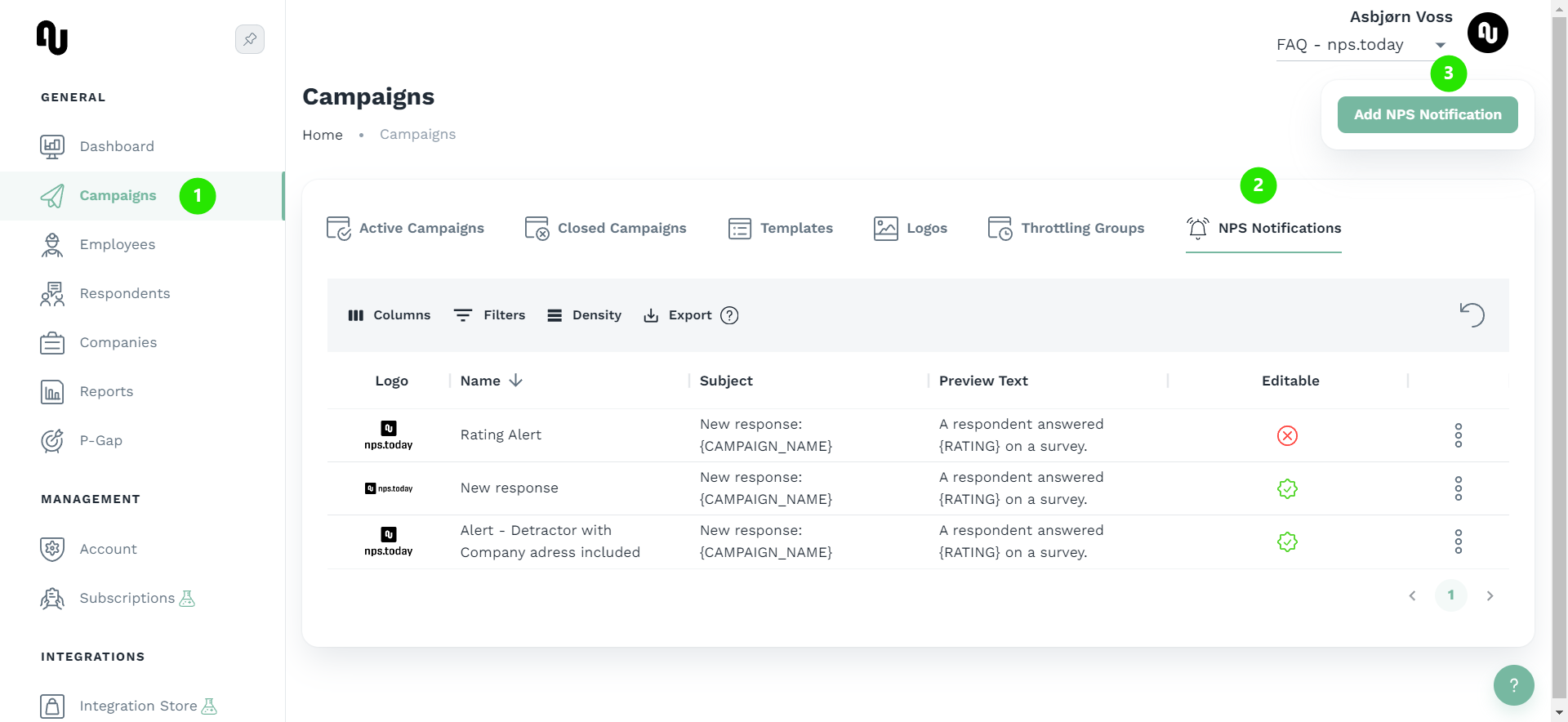
On On the NPS Notification page you will see all your available notifications. The "Rating Alert" notification is a standard template, that you can not change. the NPS Notification page you will see all your alvailable notifications. The "Rating Alert" notification is a standard template, that you can not change.
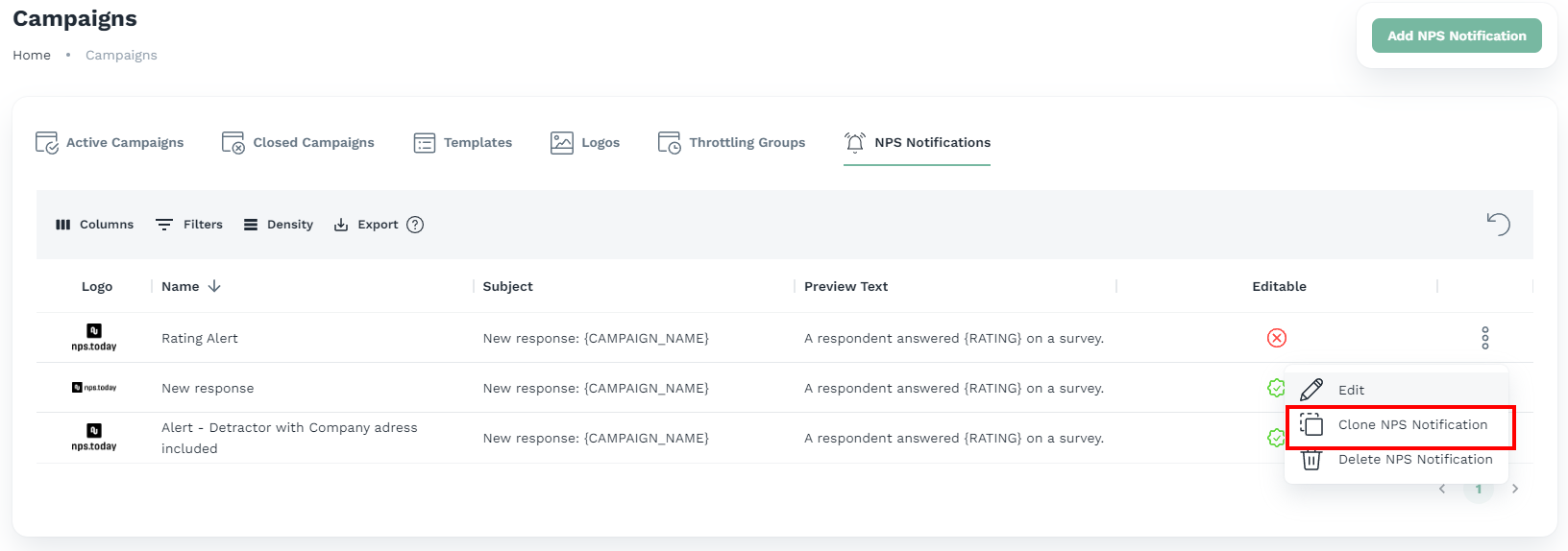
Note that you can clone your NPS Notifications - see screenshot below:
Now give the NPS Notification a proper Name, Subject, and Preview text.
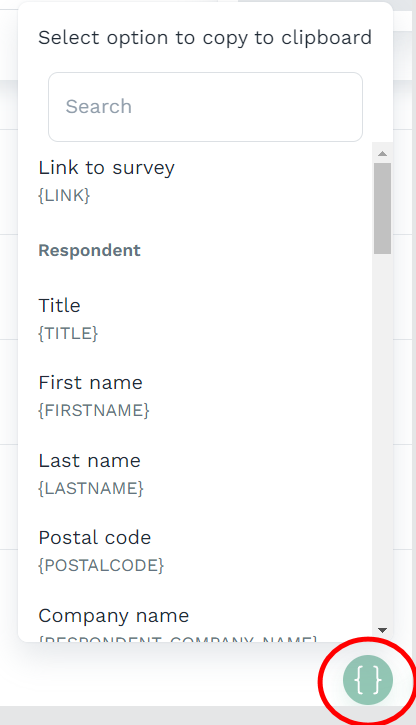
You can design your NPS Notification with logo, color, bottom text, and the content. Use merge fields to put in relevant information and meta data. See here for more information on merge fields or use the merge field icon to add merge fields to your clip board:
NPS Notification text example
Below is an example of content a NPS Notification could consist of.
A respondent answered **{RATING}** on a survey.

"{USERCOMMENT}"

**Question**
"{QUESTION_TEXT}"

**Campaign and rating time**
Campaign: {CAMPAIGN_NAME}
Rating time: {RATING_TIME} UTC

**Respondent**
Name: {FIRSTNAME} {LASTNAME}
E-mail: {EMAIL}

**Company information**
Company name: {RESPONDENT_COMPANY_NAME}
NPS Notification example
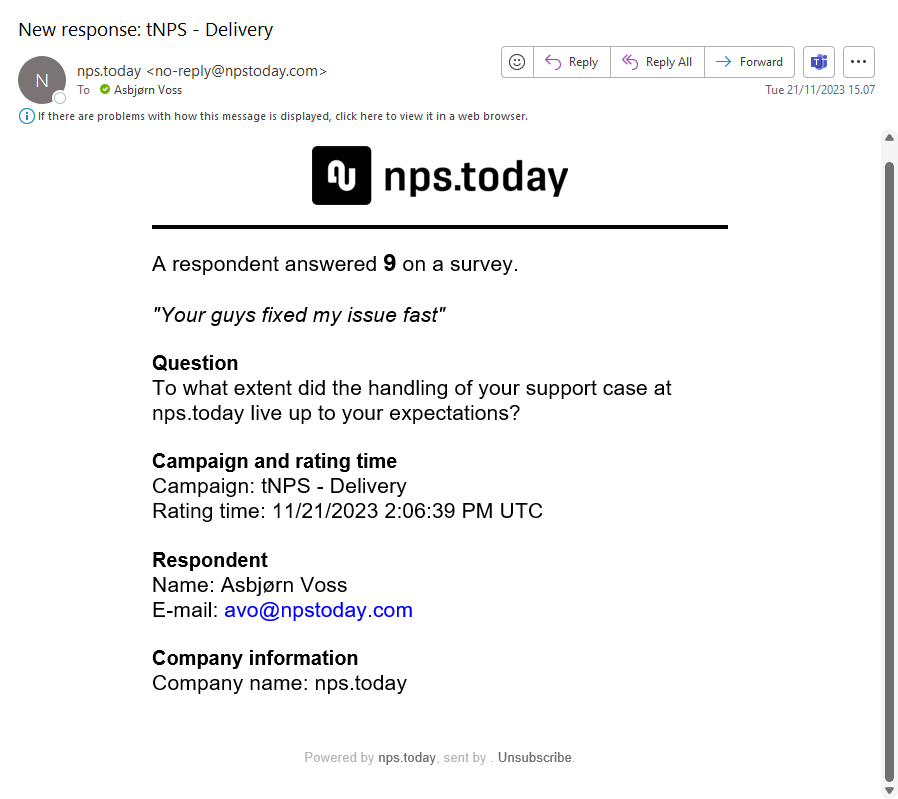
Below is an example of a NPS Notification email
Webhook Notification
NPS Notification has a channel called "Webhook". This channel provides you the tools to send a request to a URL. This is used to fetch response data and process it in our system or a middleware solution like Zapier and Power Automate providing the URL.
Please use the test button to get an example payload send to the URL you provided.

Below is a test example on how the raw content, when using the webhook notifications, can look like.
Webhook content
{
    "DoNotContact":false,
    "AgentRating":null,
    "IsPublic":false,
    "Sender":123,
    "SurveyOpenedTime":"2023-04-17T09:28:25.7821525+00:00",
    "ReminderOpenedTime":"2023-04-17T09:28:25.7821514+00:00",
    "SurveySendTime":"2023-04-17T09:28:25.7821523+00:00",
    "SurveyScheduledTime":"2023-04-17T09:28:25.7821523+00:00",
    "ReminderScheduledTime":"2023-04-17T09:28:25.7821508+00:00",
    "ReminderSendTime":"2023-04-17T09:28:25.7821508+00:00",
    "SurveyBouncedTime":"2023-04-17T09:28:25.7821524+00:00",
    "ReminderBouncedTime":"2023-04-17T09:28:25.7821513+00:00",
    "History":null,
    "OrgId":"7b923cd1-d919-4ad7-9e69-9bf13995438a",
    "Device":"Mozilla/5.0 (Windows NT 10.0; Win64; x64) AppleWebKit/537.36 (KHTML, like Gecko) Chrome/78.0.3904.97 Safari/537.36",
    "Answer1":"",
    "Answer2":"",
    "Answer3":"",
    "Answer4":"",
    "Answer5":"",
    "MsCrmId":"Some Id for MsCrm",
    "Custom":{},
    "AllowedForPublicUse":false,
    "SurveyAnswers":null,
    "SurveyAnswersSimple":null,
    "AdminComment":"Customer happy, no action required",
    "AdminCommentBy":"Jane Doe",
    "CampaignName":"Test Campaign",
    "CampaignMemberId":56789,
    "CampaignMembershipGuid":"4e1592e6-75b7-4f9b-9bb4-798636c234fc",
    "ResponsibleEmployee":1234,
    "Category":{
        "Id":65,
        "Name":"Payment"
    },
    "Respondent":{
        "Id":1234,
        "Address1":"Nowhere 1",
        "Address2":"",
        "City":"Notown",
        "Country":"Denmark",
        "ZipCode":"1234",
        "EmailAddress":"[email protected]",
        "FirstName":"John",
        "LastName":"Doe",
        "Active":true,
        "Title":"Mr.",
        "Company":{
            "Id":1234,
            "Name":"Testers Inc",
            "EmailAddress":"[email protected]",
            "Industry":"",
            "Address1":"Somewhere",
            "Address2":"",
            "City":"Notown",
            "Country":"",
            "ZipCode":"1234",
            "AccountNo":"1234",
            "Segment":"",
            "PhoneNumber":"12345678",
            "PrimaryEmployee":null,
            "Managers":null
        },
        "Employee":{
            "Id":1324,
            "Email":"[email protected]",
            "FirstName":"Jane",
            "LastName":"Doe",
            "Title":"Ms",
            "Department":"Acme Denmark",
            "Team":"A-team",
            "Division":"Primary",
            "PhoneNumber":"12345678",
            "Active":true,
            "ExternalId":null
        },
        "Department":"Sales",
        "PhoneNumber":"12345678",
        "ExternalId":"677777685858"
    },
    "Id":1234567,
    "Rating":7,
    "RatingTime":"2023-04-17T09:28:25.7821482+00:00",
    "Anon":false,
    "RatingBy":"John Doe",
    "UserComment":"This is a webhook, it works!",
    "UserCommentBy":"John Doe",
    "CommentTime":"2023-04-17T09:28:25.78215+00:00"
    "CampaignId":1234,
    "Closed":false
    }
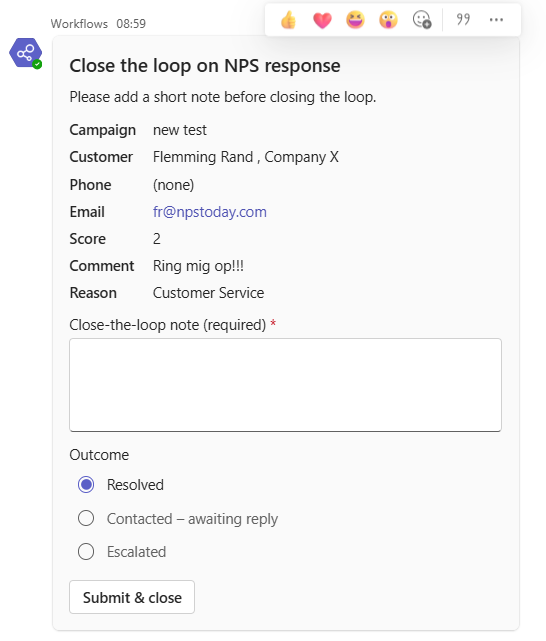
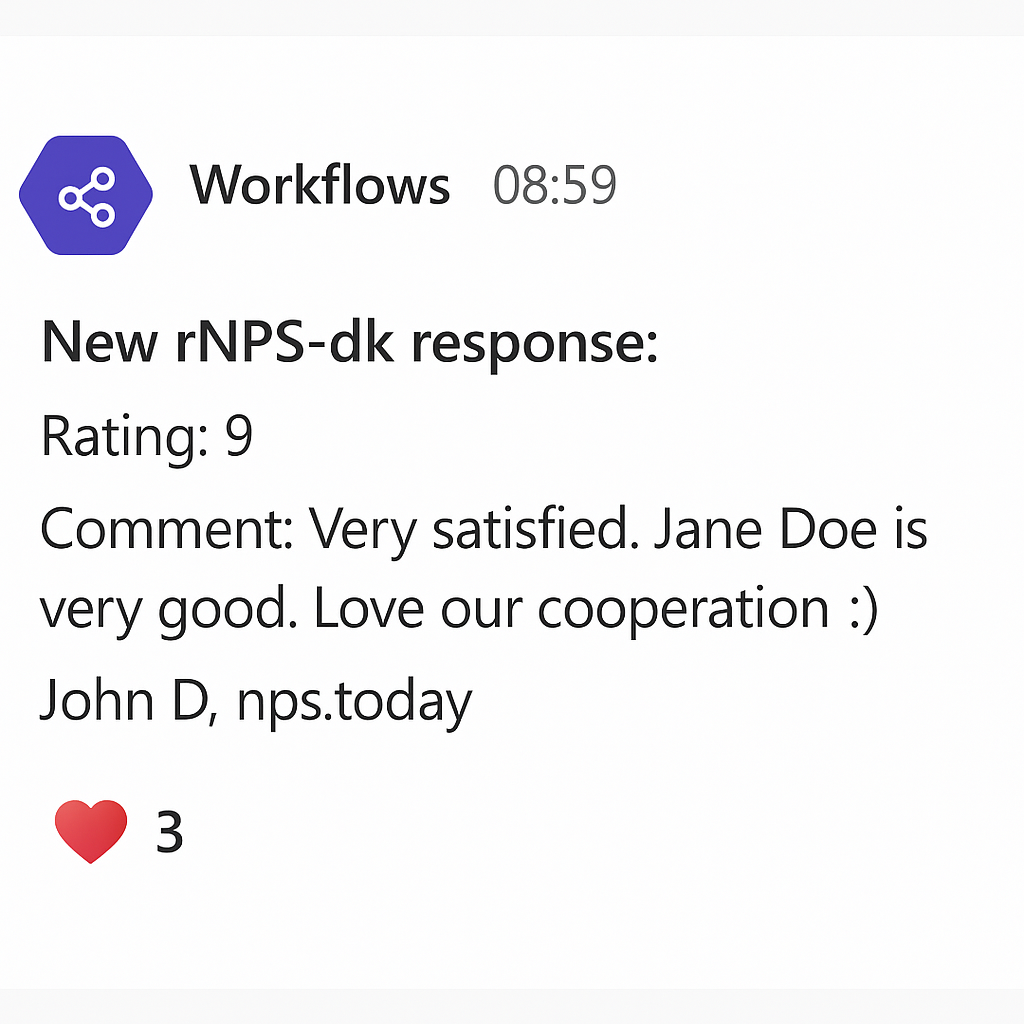
A common use case for this is to notify employees in Teams on specific channels. This could be in a message containing the responses information or a Teams card to give the employee the possibility to act on the message.
Teams Message example
Teams Card example