Building Your Survey with the Advanced Survey Module (ASM)
This guide provides a step-by-step introduction to creating surveys using ASM. Before distributing your survey, we recommend familiarizing yourself with the module and thoroughly testing your survey to ensure it works as intended. ASM offers a wide range of question types and functions, which this guide covers at a general level.
1. Prepare a Campaign and Add an ASM Template
You can build an ASM survey within an existing campaign or start a new campaign from scratch. ASM is located in the Campaign Builder.

A. Select a Campaign
Choose an existing campaign or create a new one. Add a default template to enable ASM functionality.
B. Template Guidelines The default template mirrors the structure of a main question with follow-up questions. Edit questions in the Campaign Builder (not directly in the template).
How to Add a Template: Refer to the GIF below for instructions on initiating your survey and adding a template.
Add a Template

2. Design Your Survey
The visual drag-and-drop interface in ASM makes it easy to add and customize questions.
Common Question Types
Rating Scale

Free Text Field

Category Question

3. Customize Question Settings
Each question in the survey can be customized through its settings. To access these settings, select a question in the designer.
Access Question Settings

Key Customization Options
- Name: Unique identifier for the question.
- Title: The text displayed to the respondent.
- Required: Makes the question mandatory.
- Rate Values: Sets the scale range for rating questions.
- Choices: Customizes the number of selectable options for checkbox questions.
- Logic: Adds conditions to show or hide questions based on responses.
4. Test Your Survey
Thorough testing ensures that your survey functions correctly and collects data as expected.
Testing Methods
Universal Link Test
- Use the Universal Link Campaign feature to generate a test link.
- Add the link to your browser and test the survey flow.
- Refresh your browser after making changes to preview updates.
- Enable Universal Link
Single Sendout Test
- Test the full survey flow by sending a test email or SMS to yourself.
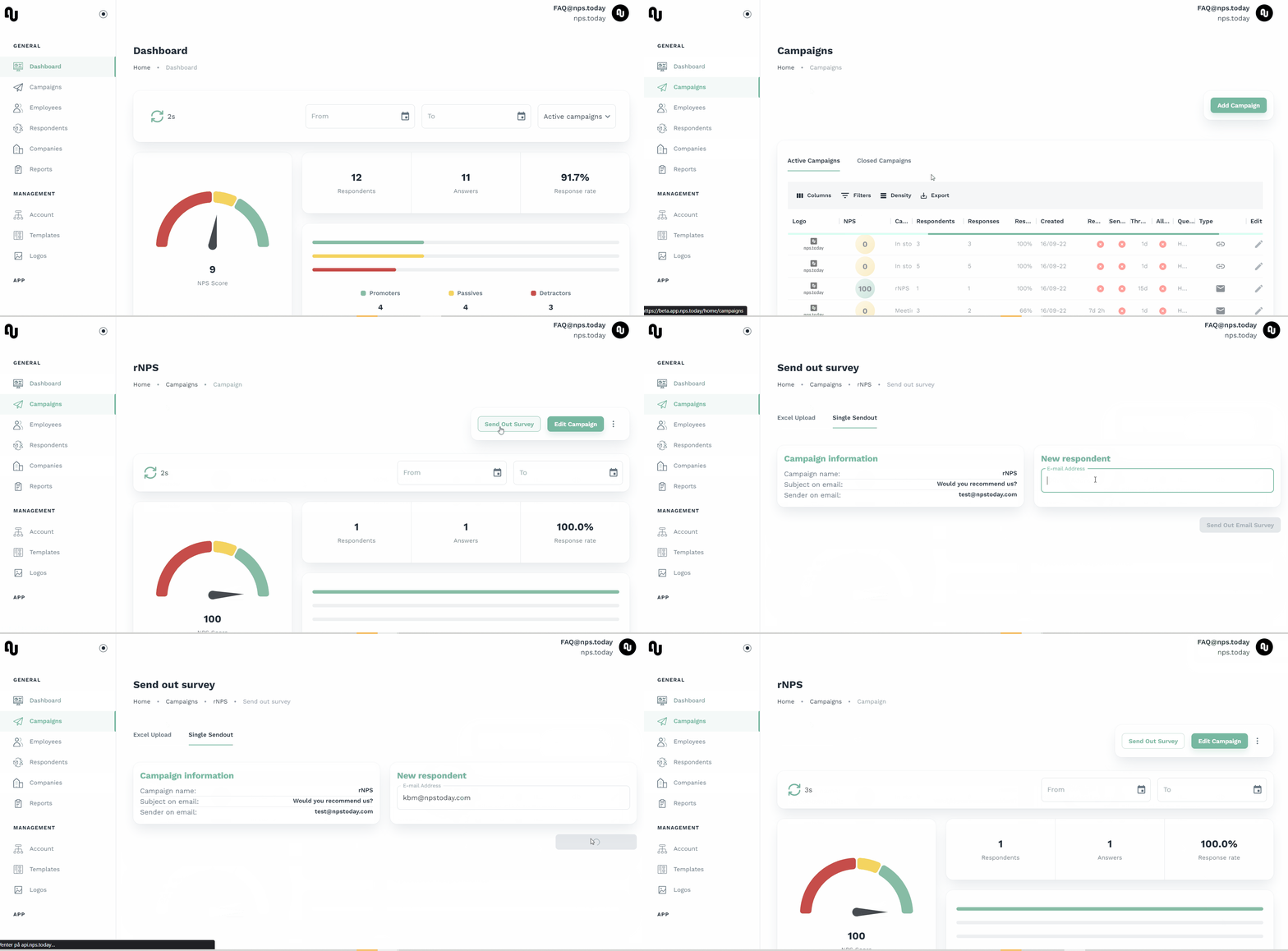
Export Test Answer Data
- Submit test responses to validate data collection.
- Export your test data to Excel and ensure it appears as expected.
- Use the Full Expanded Report - With ASM Question Header for detailed data validation.

5. Survey Elements and Configuration
Some ASM features require configuration in the General Campaign Settings. Below is an overview of these elements:
Logo
- Displayed at the top of each survey page.
- A colored line beneath the logo is styled through campaign settings.
Color Scheme
- Defines the color of the logo underline and action buttons.
Main NPS Rating
- Serves as the primary rating question (mandatory in advanced surveys).
- The NPS score range is determined by the "Maximum rate value" (e.g., 5 or 10).
- Text for each question is automatically retrieved from the General Campaign Settings.
Follow-Up Questions
- Includes predefined questions for various experiences:
disappointing_experiencepassive_experiencesatisfied_experience- These serve as follow-ups to the main NPS rating.
Category Selection
- Adds categories if enabled in the General Campaign Settings.
- Automatically incorporates the specified categories.
Anonymous Option
- Displays an anonymity option if the "Show Anonymity" setting is active.
- If enabled, this becomes a required field.
These elements and configurations ensure that surveys are visually consistent and aligned with campaign requirements.