Adversus
With our integration to Adversus you can trigger surveys through your Journey work flow. This documentation will give you a detailed description of how to set up the connection between nps.today and Adversus.
Journey flow
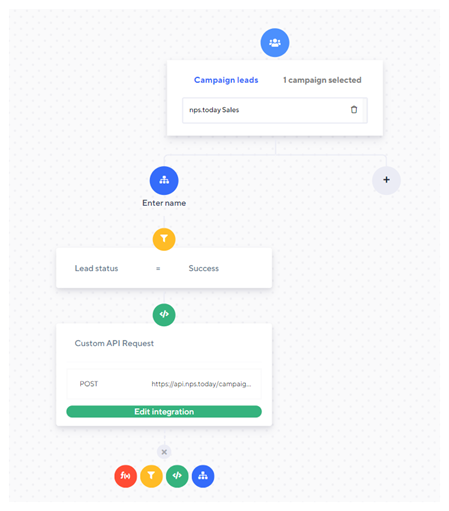
Below you see a simple Journey which triggers a survey after a Lead status is saved as “Success”.
Journey example
To create the connection between nps.today and Adversus add the action ‘Add integration’.
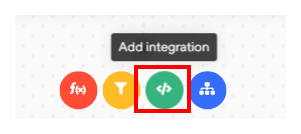
Integration setup
URL
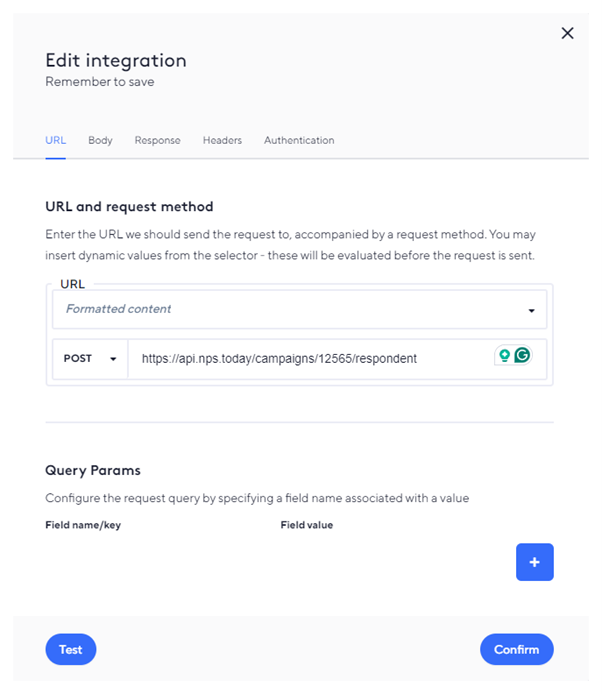
When editing the integration add the endpoint for your campaign as a POST. The URL should look like this with your preferred campaign ID added:
https://api.nps.today/campaigns/{campaignId}/respondent
See here how to find your campaign ID.
URL screenshot example
Body
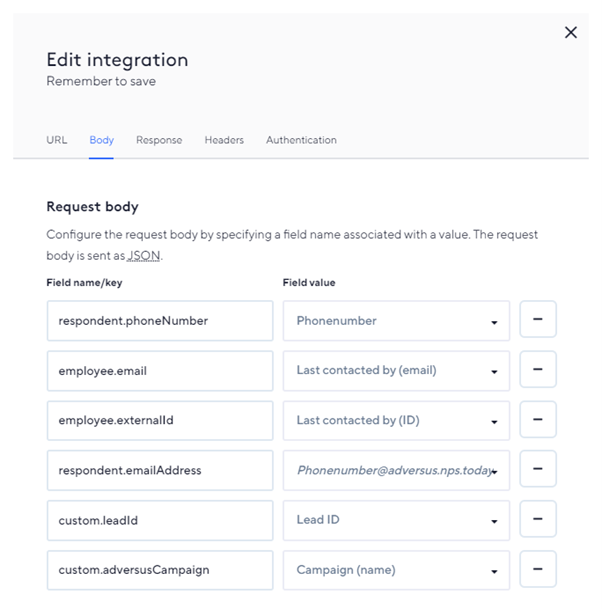
In the ‘Body’ section you can map data from Adversus to your respondent. The data should be mapped according to our respondent JSON structure.
See example below.
nps.today JSON structure example
{
"respondent": {
    "sendEmailAt": "yyyy-MM-dd hh:mm:ss",
    "address1": "Surveystreet 42",
    "address2": "",
    "city": "Copenhagen",
    "country": "Denmark",
    "zipCode": "1000",
    "emailAddress": "[email protected]",
    "firstName": "john",
    "lastName": "doe",
    "active": true,
    "title": "Mr.",
    "department": "",
    "phoneNumber": "+4512345678",
    "externalId": "Enter any unique identifier from your system that you would like to pass to other systems",
    "company": {
        "name": "Acme INC.",
        "emailAddress": "[email protected]",
        "industry": "Outdoor Equipment",
        "address1": "",
        "address2": "",
        "city": "",
        "country": "",
        "zipCode": "",
        "accountNo": "",
        "segment": "",
        "phoneNumber": ""
    }
},
"note": "The customer bought several items, seemed very happy",
"employee": {
    "email": "[email protected]",
    "firstName": "Jane",
    "lastName": "Doe",
    "title": "Customer Relations Expert",
    "department": "Customer Service",
    "team": "A",
    "division": "Nordics",
    "phoneNumber": "+4512345679",
    "active": true,
    "externalId": "ext123"
},
"doNotContact": false,
"guid": "Generate a valid guid here, delete entire line or set to null if you dont provide a guid yourself",
"custom": {
    "key1": "Put any valid json here, note that this is still partly in development",
    "key2": "Data included in custom is saved, but only visible through API/Power BI"
}
}
Required 'Field values'
To send out a survey a phone number or email is required, why one of these values should be mapped in the request body.
When typing in your ‘Field name/key’ do it as follows.
Mapping of respondent phone number:
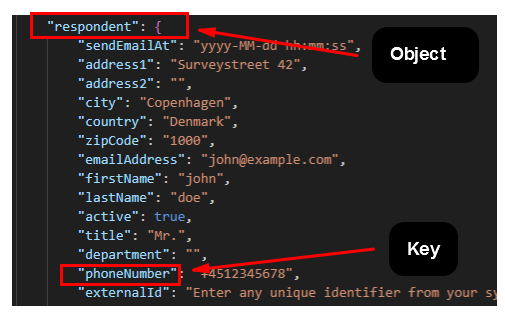
JSON Object = respondent
JSON Key = phoneNumber
Field name/key = respondent.phoneNumber
Object & Key examples
Now insert your desired ‘Field value’.
See more example in Adversus below:
Adversus body screenshot example
Headers
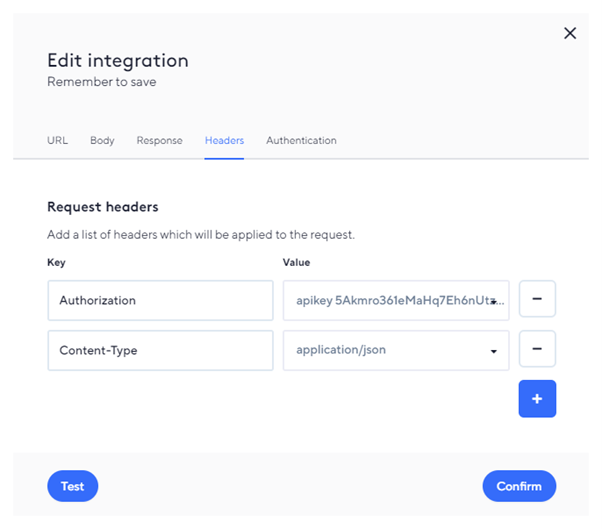
In the Headers section put in the following:
Content-Type = application/json
Authorization = apikey {your nps.today apikey value}
See here how to find or create an apikey in nps.today.
Adversus headers screenshot example
Now confirm your settings and save your Journey.
Also remember that the Journey needs to be Active.