How to change the Sent by name
At the very bottom of the survey email and the survey landing page, respondents see the line "Powered by nps.today, sent by ...", followed by your organization name.
You can change the name shown after "sent by" per campaign, so the sender matches your brand, department, or another customer-facing identity.
Changing the Sent by name
- Open your campaign in the campaign builder and go to the Design Survey section.
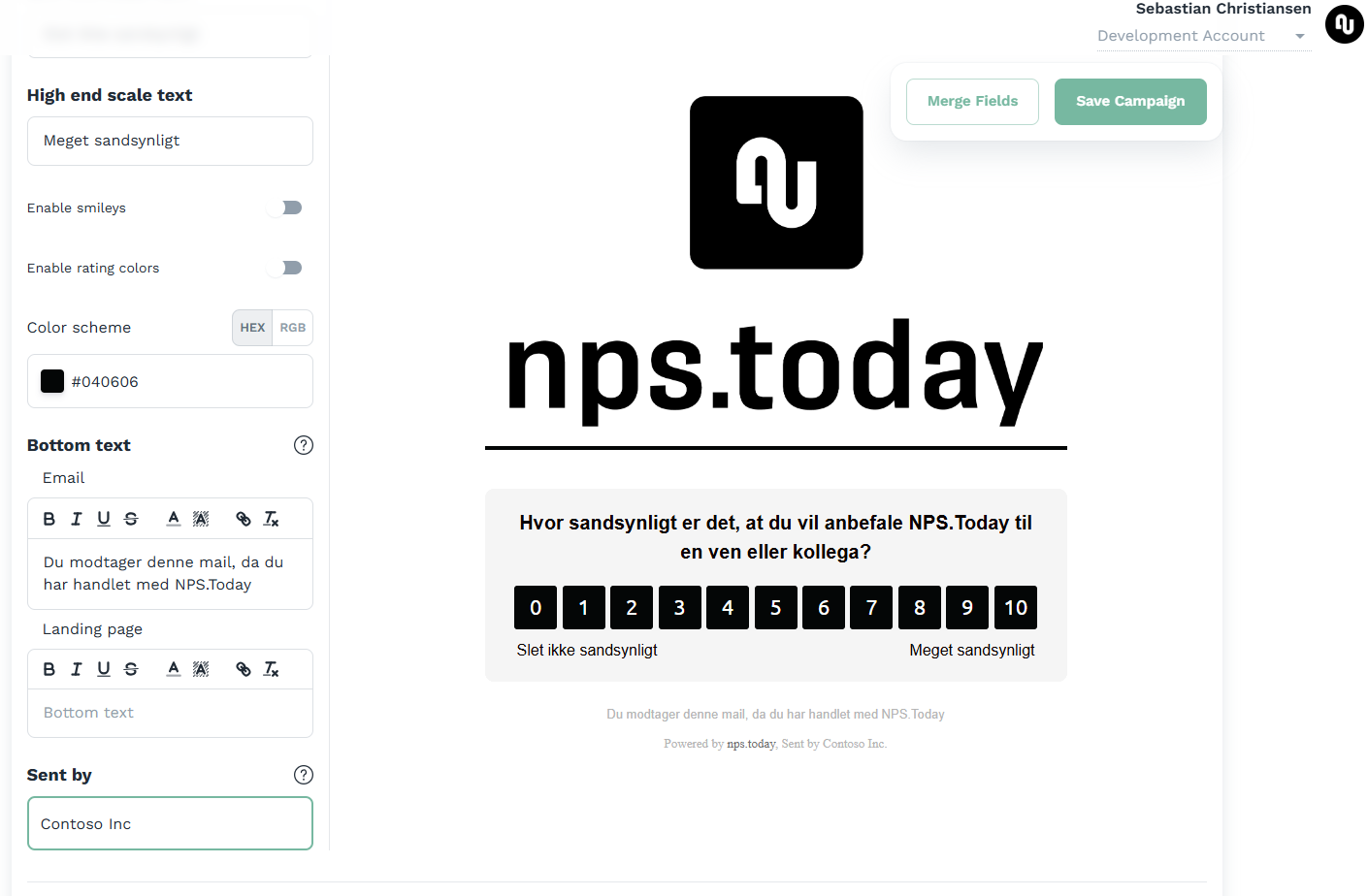
- Find the Sent by field below Bottom text.
- Enter the name respondents should see. The preview updates as you type, so you can validate how the footer will look.
- Save the campaign.
If the field is left empty, your organization name is used.
See below where to find the Sent by field
Tip
Merge fields can be used in the Sent by name, for example {EMPLOYEE_FIRSTNAME} to show the responsible employee as the sender. Click here to find more information on merge fields.
This only changes the name displayed in the survey footer. It does not change the sender email address. Click here to learn how to change the email sender.