Integrated nps.today surveys using Puzzel Chat
Note
This guide assumes you are familiar with setting up Puzzel Chat. If you are not, please read the Puzzel Chat documentation first.
There are two ways to set up integrated surveys for Puzzel Chat:
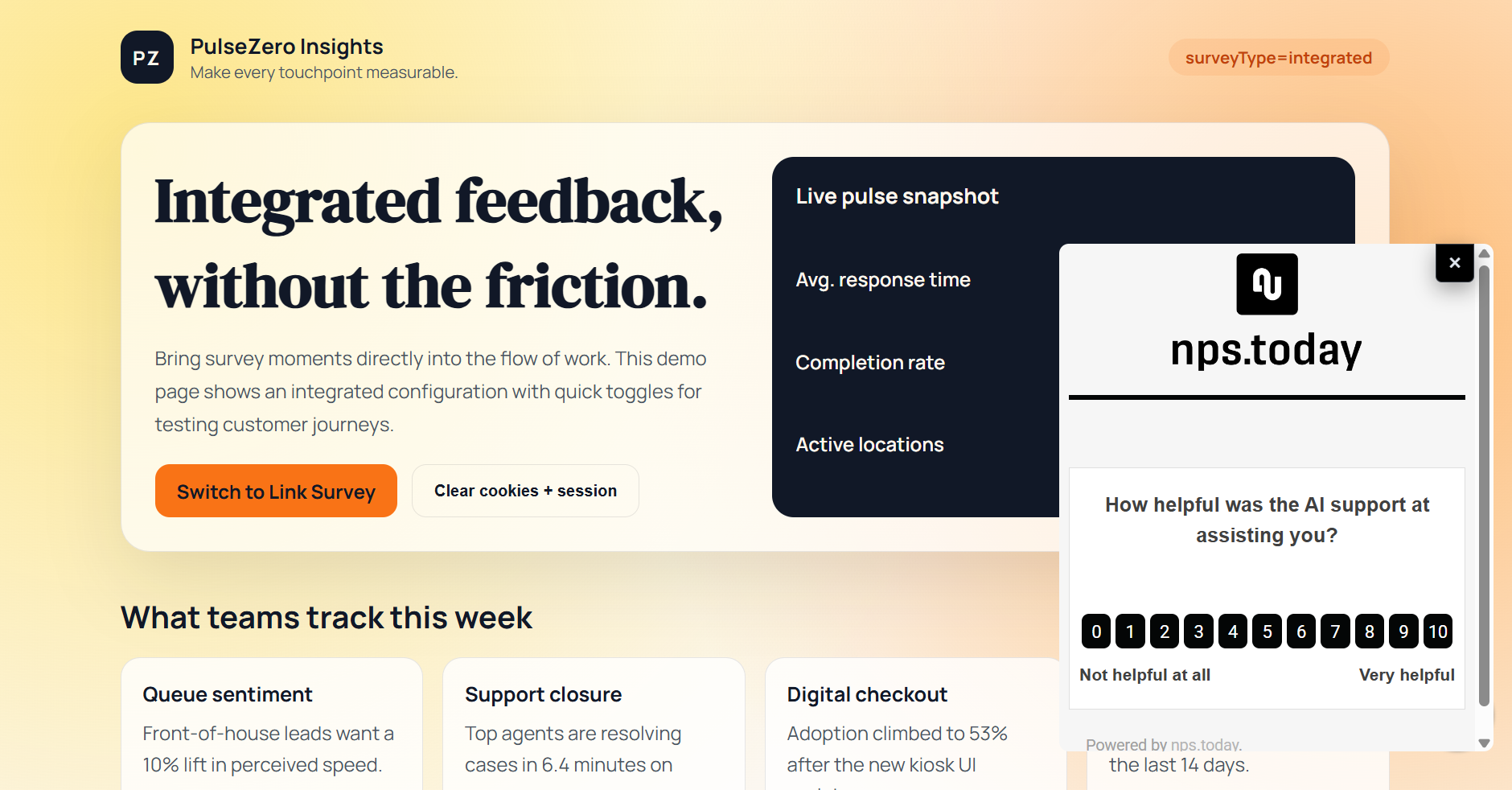
1. Integrated as part of Puzzel Chat
Integrated Survey Example
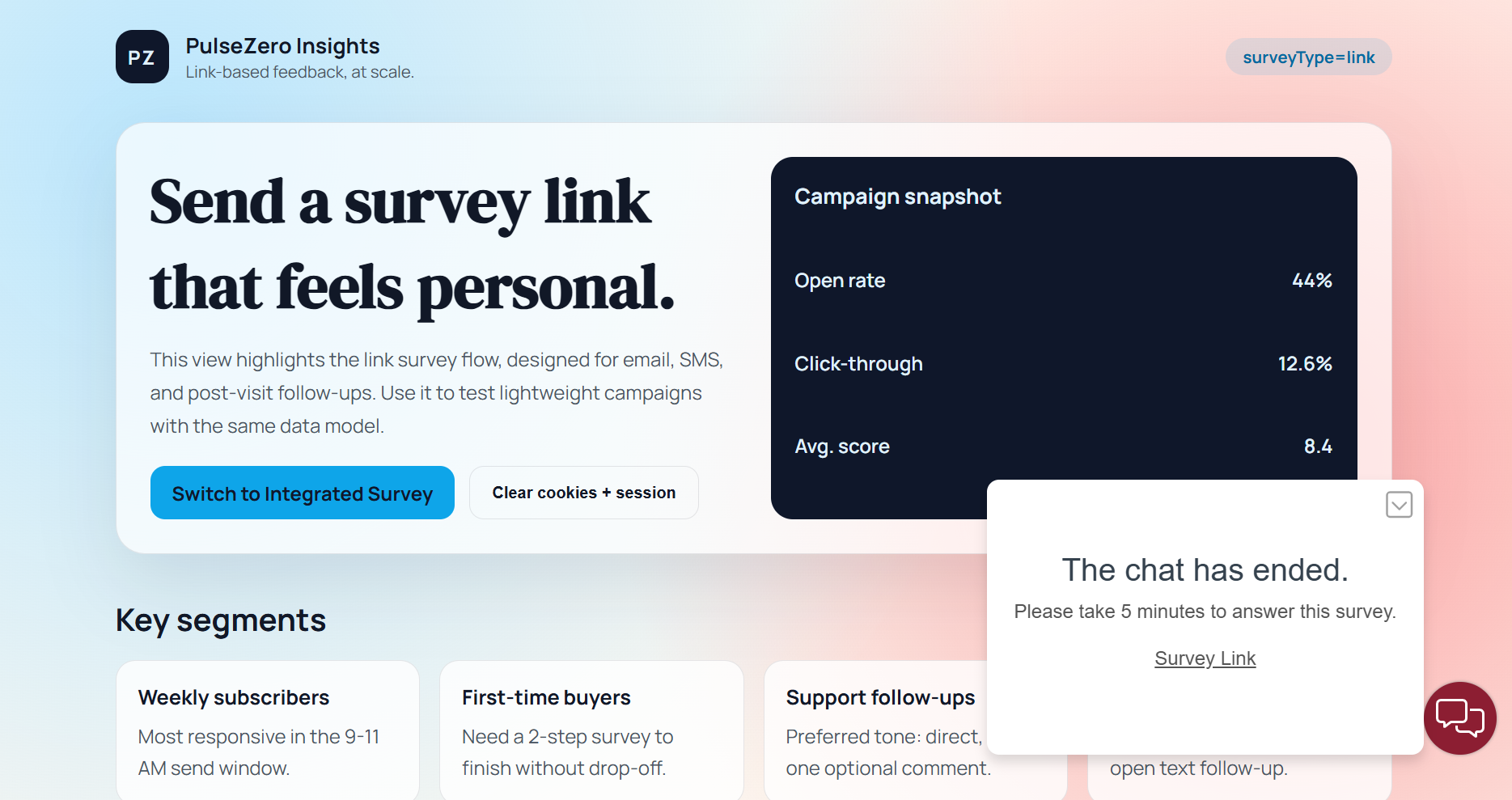
2. Link for the user to click when the chat ends
Link Survey Example
General setup
Support
Showing nps.today surveys after the end of a chat is only supported for the Puzzel Chat (New) type. The old chat is no longer supported by Puzzel.
For each type, you need to set up a Universal Link Campaign in nps.today. See this guide for information about how to set up a Universal Link Campaign. After creating it, locate the campaign's universal link ID and save it for later. See How to find Campaign Link ID for details.
You also need to set up a chat configuration in the Puzzel admin center. This configuration differs slightly depending on which survey type you are setting up. Start by creating a new Chat configuration. You can find your configurations by clicking "Services" and selecting "Puzzel Chat (New)".
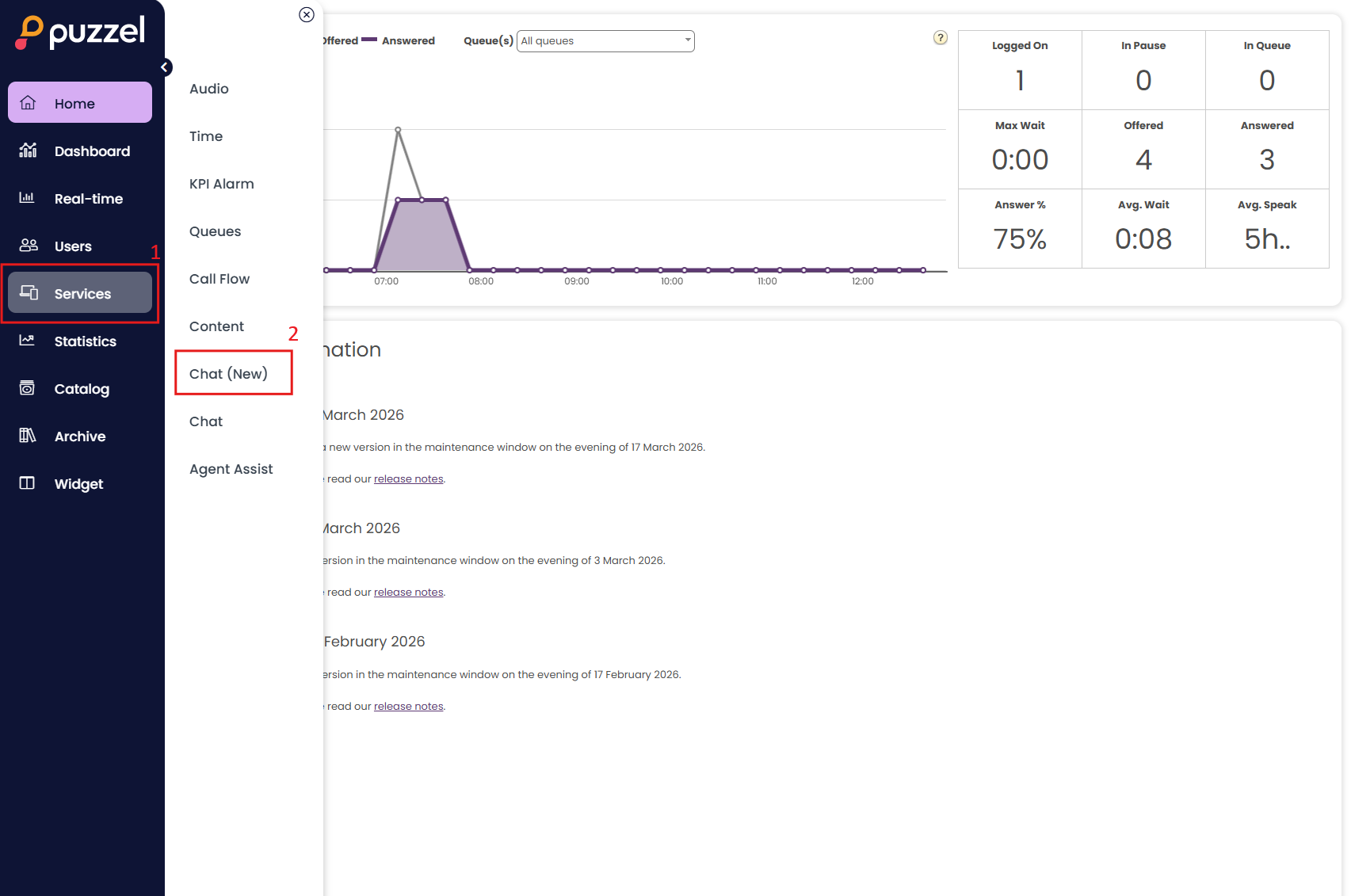 From here, click the plus button in the top right corner. This will create a new configuration for you to edit. After it has been created, click the edit configuration button.
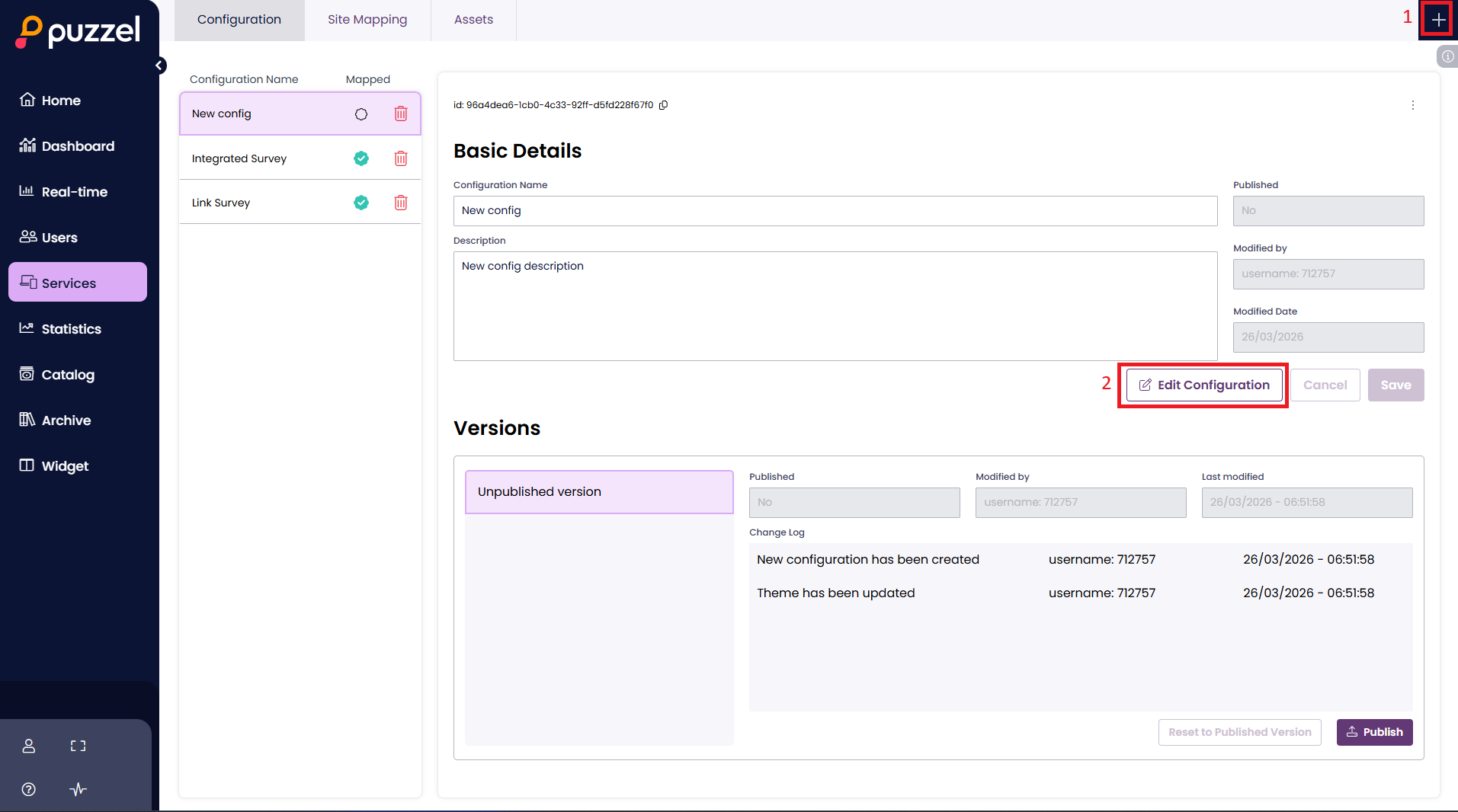
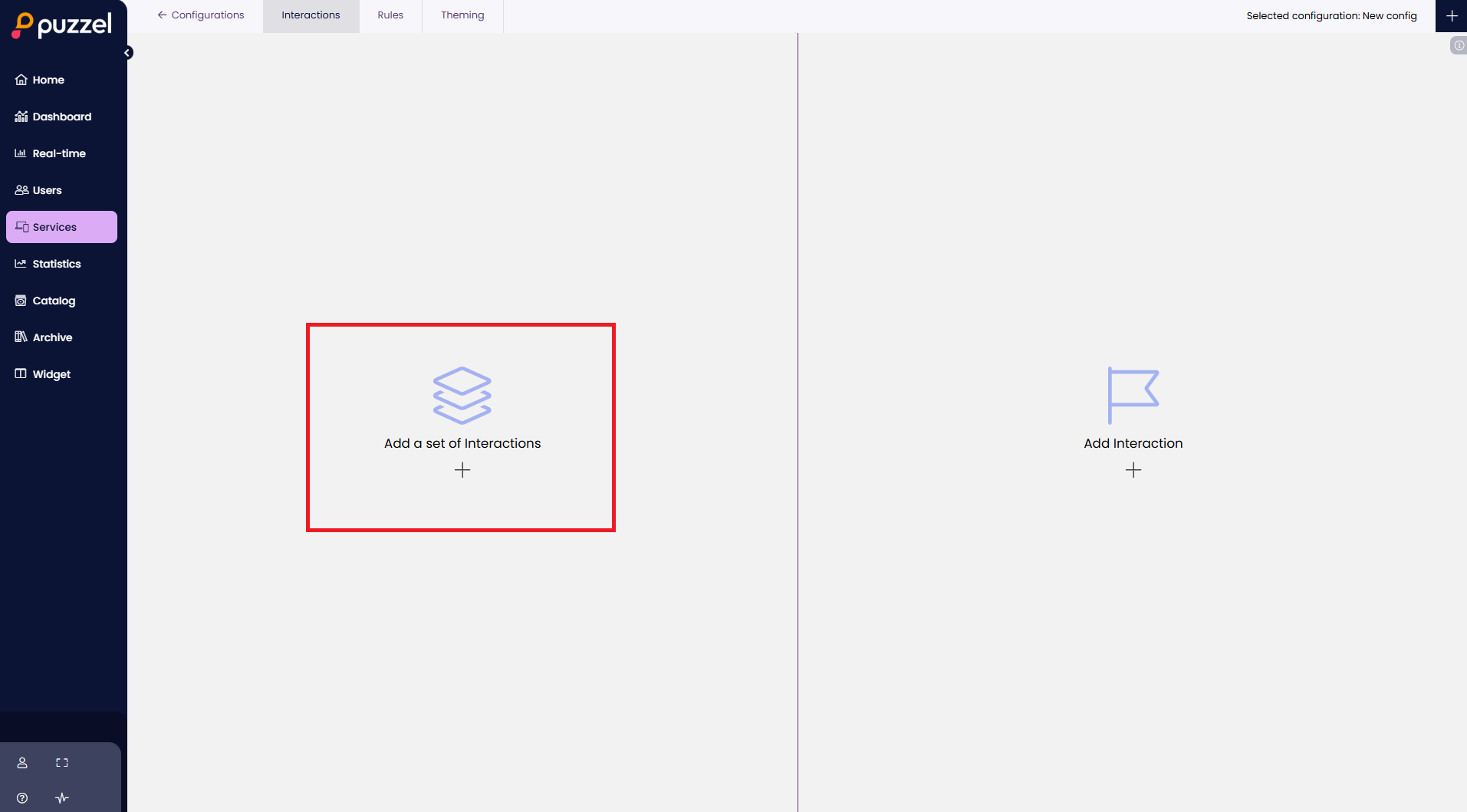
From here, you will need to set up the interactions. Both survey types need a pre-chat panel interaction and a chat interaction. The easiest way to get started is to add a set of interactions.
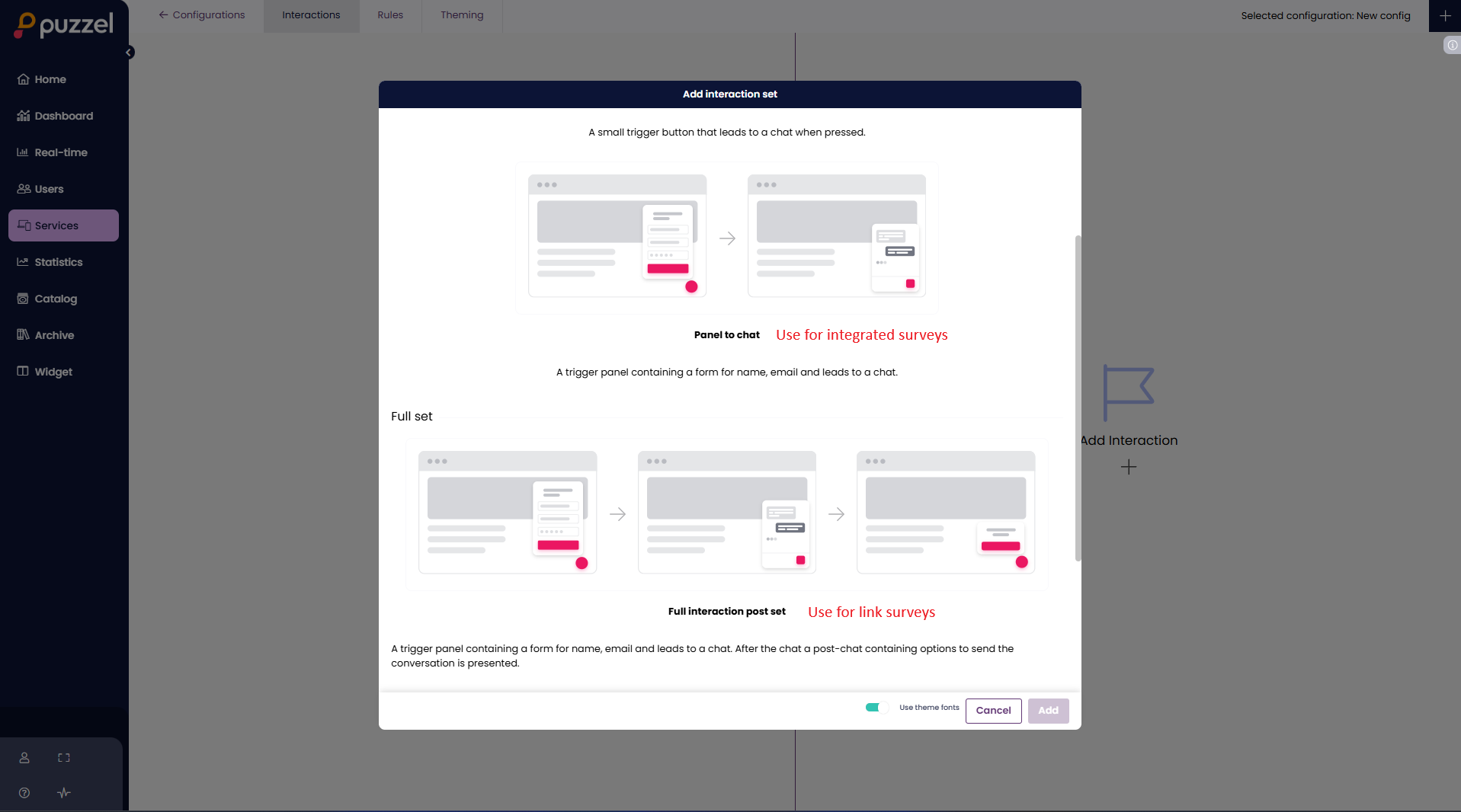
 Choose the "Panel to chat" option if you are setting up the integrated survey type. Choose the "Full interaction post set" if you are setting up a link survey.
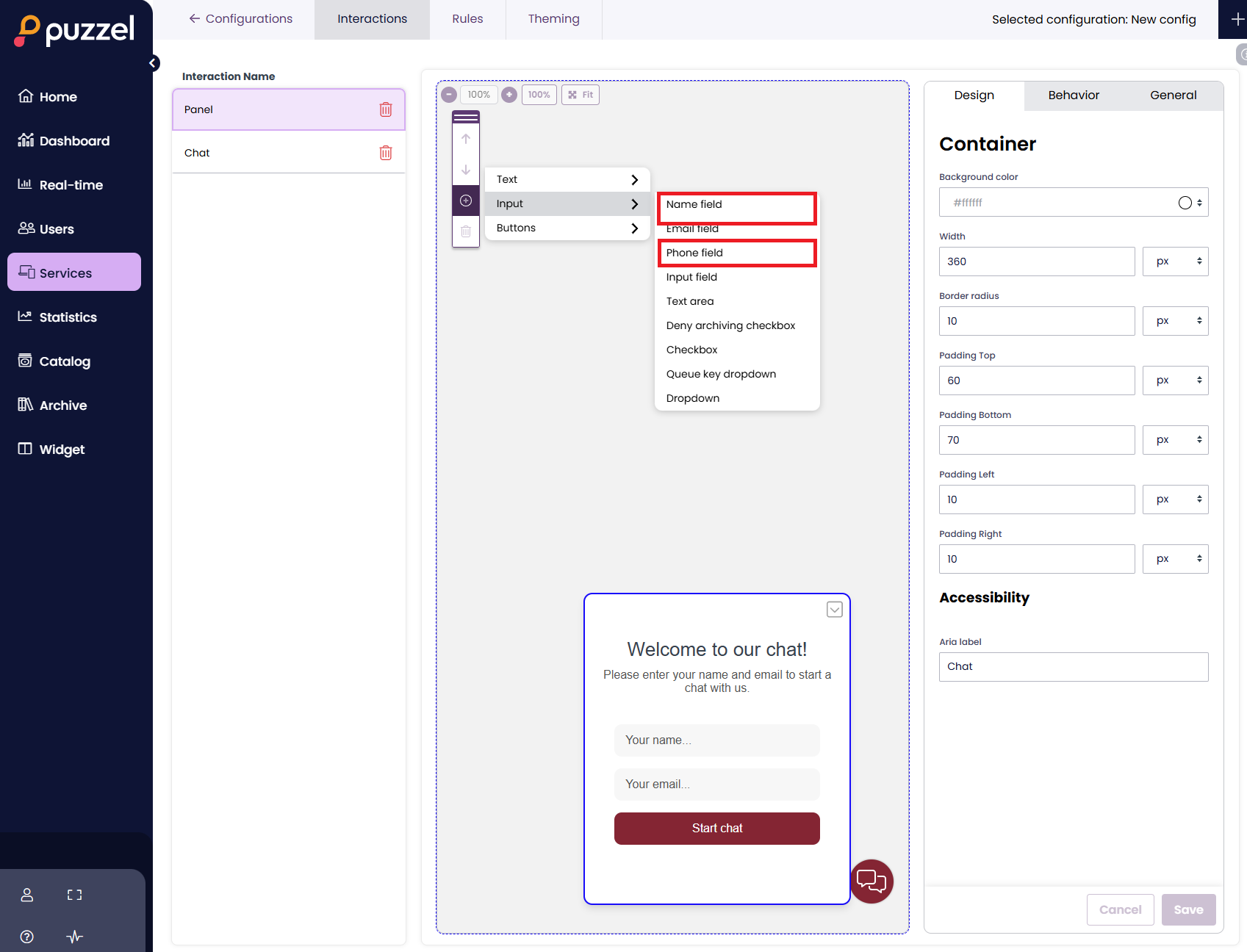
Once you have selected your interaction set, you can start customizing it. For the pre-chat panel, add either an email or a phone input field so nps.today can link the chatter to a respondent in our system.
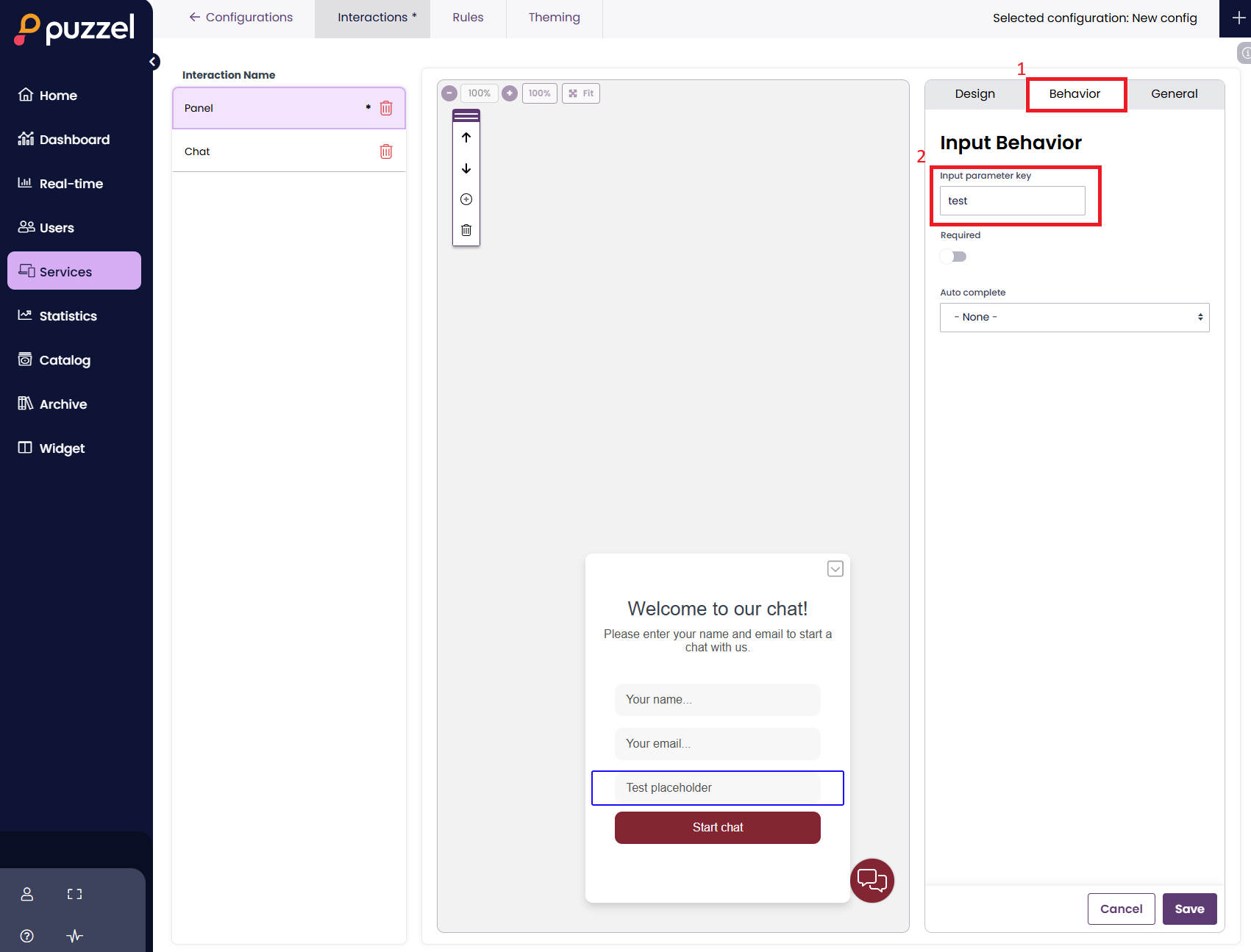
You can also set up a generic input field. Data from this input field is added to the dynamic "Custom" property on the respondent in nps.today. Add an input field, click the "Behavior" tab, and fill out the "Input parameter key" field. This key is the name under which the value will be saved in "Custom" on the respondent. In the following example, the value would be saved under "test".
 You will also need to set up the rules and site mappings for your configuration. These properties depend on your specific use case. Please read the Puzzel documentation for rules and site mappings and configure according to your needs.
Once this is set up, proceed to the guide for the survey type you chose. One additional common requirement is that both survey types need a script tag on your site. This tag imports a script from nps.today that handles the survey logic and sets up Puzzel Chat. The tags differ slightly depending on the survey type. An example of the shared attributes:
<script
  data-customer-id="{yourCustomerId}"
  data-require-agent="true"
  src="https://npstoday.blob.core.windows.net/javascript-modules/{chosenSurveyType}.js"
  type="text/javascript"
></script>
Explanation of the attributes:
| Attribute | Description | Type |
|---|---|---|
data-customer-id |
Your Puzzel customer ID. This is needed to set up the Puzzel Chat flow. | number |
data-require-agent |
Controls whether to show a survey after the chat has ended based on agent interaction with the chatter. If set to true, an agent must have sent at least one message in the chat for the survey to be shown. If set to false, a survey is always shown regardless of agent interaction. |
boolean |
You can find your customer ID at the bottom left in the Puzzel admin center. It is the number listed below your account name.
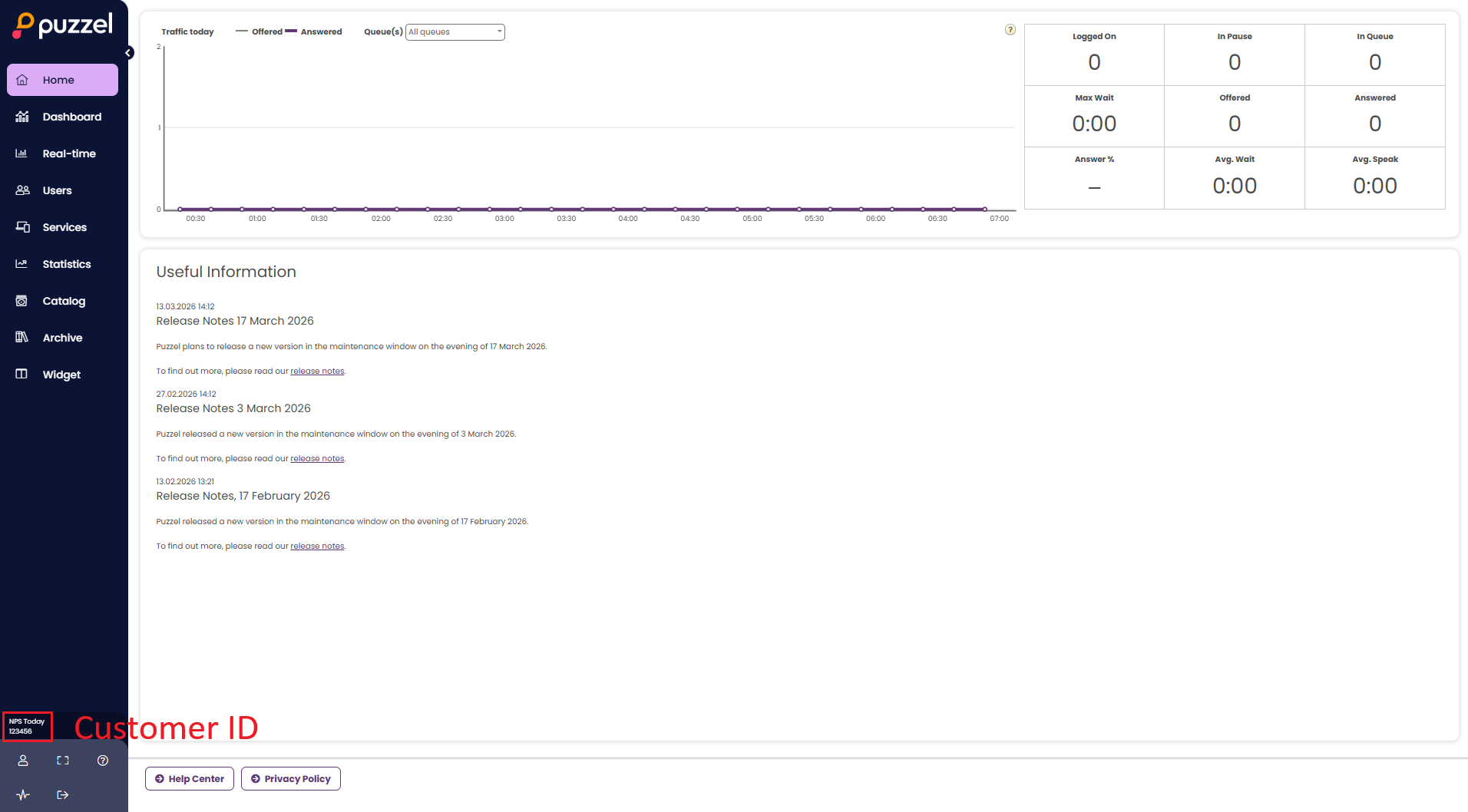
The scripts will add any information the chatter was prompted for in the pre-chat panel to the survey. They will also control when the survey is shown.
Assigning agents as responsible employees in nps.today
There are two requirements for automatically assigning agents as the responsible employee to a respondent coming from Puzzel.
- The agent must exist as an employee on the nps.today platform.
- The agent's external ID property must match the agent's ID from Puzzel.
See this guide for how to add employees to nps.today. Once this is in place, every time a respondent answers a survey from Puzzel, the last agent they chatted with will automatically be set as the responsible employee in nps.today.
Integrated as part of Puzzel Chat
This survey type pops up and replaces the Puzzel chat window when the chat ends. To set it up, you need an iframe HTML element on the page where you make Puzzel Chat available. Use the following snippet:
<iframe
  id="{yourIframeId}"
  src="https://r.nps.today?campaign={yourCampaignUniversalLinkId}"
  title="Puzzel Demo"
  style="
    border-radius: 8px;
    border: 0;
    width: 100%;
    overflow: hidden;
    display: none;
    visibility: hidden;
    pointer-events: none;
  "
></iframe>
You can alter the styling to suit your needs, but leave the display, visibility, and pointer-events properties as shown. You must specify the ID of the iframe and save it for later use. You also need to add a script tag to your site. Use the following snippet for the integrated survey type:
<script
  data-customer-id="{yourCustomerId}"
  data-iframe-id="{yourIframeId}"
  data-require-agent="true"
  data-close-button-bg="#0f172a"
  data-survey-after-interaction-id="{yourInteractionId}"
  src="https://npstoday.blob.core.windows.net/javascript-modules/pzl-integrated-survey-hooks.js"
  type="text/javascript"
></script>
Explanation of the attributes:
| Attribute | Description | Type |
|---|---|---|
data-iframe-id |
ID of your iframe. | string |
data-close-button-bg |
Background color of the survey close button. Use this attribute to align the close button with your survey style. | string |
data-survey-after-interaction-id |
ID of the interaction you would like your survey to be shown after. This allows you to inject the survey in the middle of an interaction chain, which can be useful if you, for example, have a post-chat template that you would like to present to the user after they have answered the survey, but before the actual end of the interaction chain. After the user closes the survey, the interaction chain will continue from where it left off before the survey was shown. Leave out this attribute if you just need to show the survey after the chat ends, and do not need to show it in the middle of an interaction chain. | string |
Finding your interaction ID
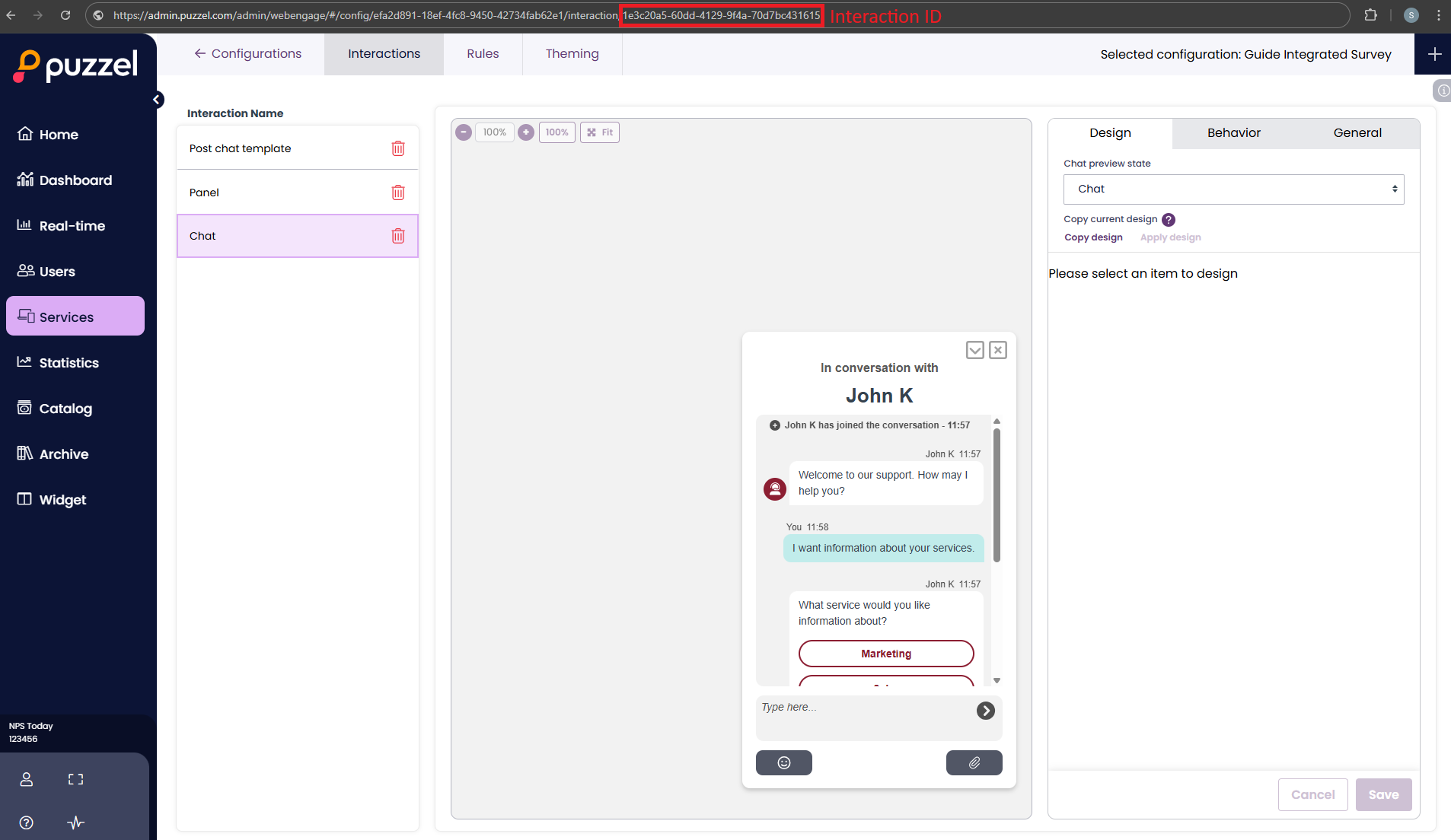
Interaction Id Location
You can find the ID of an interaction by clicking on the interaction in the interaction configuration editor in the Puzzel admin center and retrieving it from the URL.
Link for the user to click when the chat ends
This survey type presents the chatter with a link to an nps.today survey after a chat ends. Clicking the link opens a new tab where they can answer the survey. If you selected the "Full interaction post set" during setup, a post-chat interaction is already in place. Otherwise, go back to the Puzzel admin center and add one. The post-chat interaction must contain a hyperlink to this URL: https://r.nps.today?campaign={yourCampaignUniversalLinkId}
Use the following snippet for the link survey type:
<script
  data-customer-id="{yourCustomerId}"
  data-require-agent="true"
  src="https://npstoday.blob.core.windows.net/javascript-modules/pzl-link-survey-hooks.js"
  type="text/javascript"
></script>
This snippet only uses the shared attributes. See the General setup section for attribute descriptions.