Closed Loop: follow up on customer feedback
At a glance
- What it does: Track customer follow-up with Contacted, Closed, and Reopened, keeping notes, authors, and timestamps in the response history.
- Where to start: Open Campaigns → your campaign → Campaign member details → History. No additional setup or license is required in this view.
- Other access options: Use the notification email's Close the loop link, a response link, or the Feedback App. Existing Feedback App access and permission rules apply to these routes.
- How to save an action: Select the action, enter a note, and select Log event. A completed survey does not mean the follow-up is closed.
About Closed Loop
Closed Loop helps you manage the follow-up on a survey response. Record customer contact, mark the follow-up as closed when it is resolved, and reopen it if further action is needed.
Each recorded action adds to the response history, so you can see what happened, when it happened, and who recorded it. Your team can use this history to understand previous actions before continuing the follow-up.
The follow-up is a separate track from the survey itself. A respondent completes a survey; an employee completes the follow-up. Closed Loop is where that second half is recorded.
Licensing
The campaign member view uses your existing nps.today access, so no additional setup or license is required.
The Close the loop link in a notification email, a response link, and the Feedback App all open the response on its own page rather than inside the campaign view. Existing Feedback App access and permission rules therefore apply.
For information about Feedback App access and signing in, see the Feedback App guide.
Open the follow-up for a response
The controls are the same wherever you open a response: review the feedback, then use Contacted, Closed, or Reopened in History to record what you did. Only the way in differs. Select the tab that matches how you reached the response.
Closed Loop is integrated directly into the campaign-member view in nps.today, where you can see the survey, its history, and the follow-up controls together. Use your existing access to the relevant campaign member.
- Go to Campaigns and open the relevant campaign.
- Open the relevant campaign member to view Campaign member details.
- Review the customer's response in Survey.
- In History, use Contacted, Closed, or Reopened to record the follow-up action.
Example: Campaign member details with History
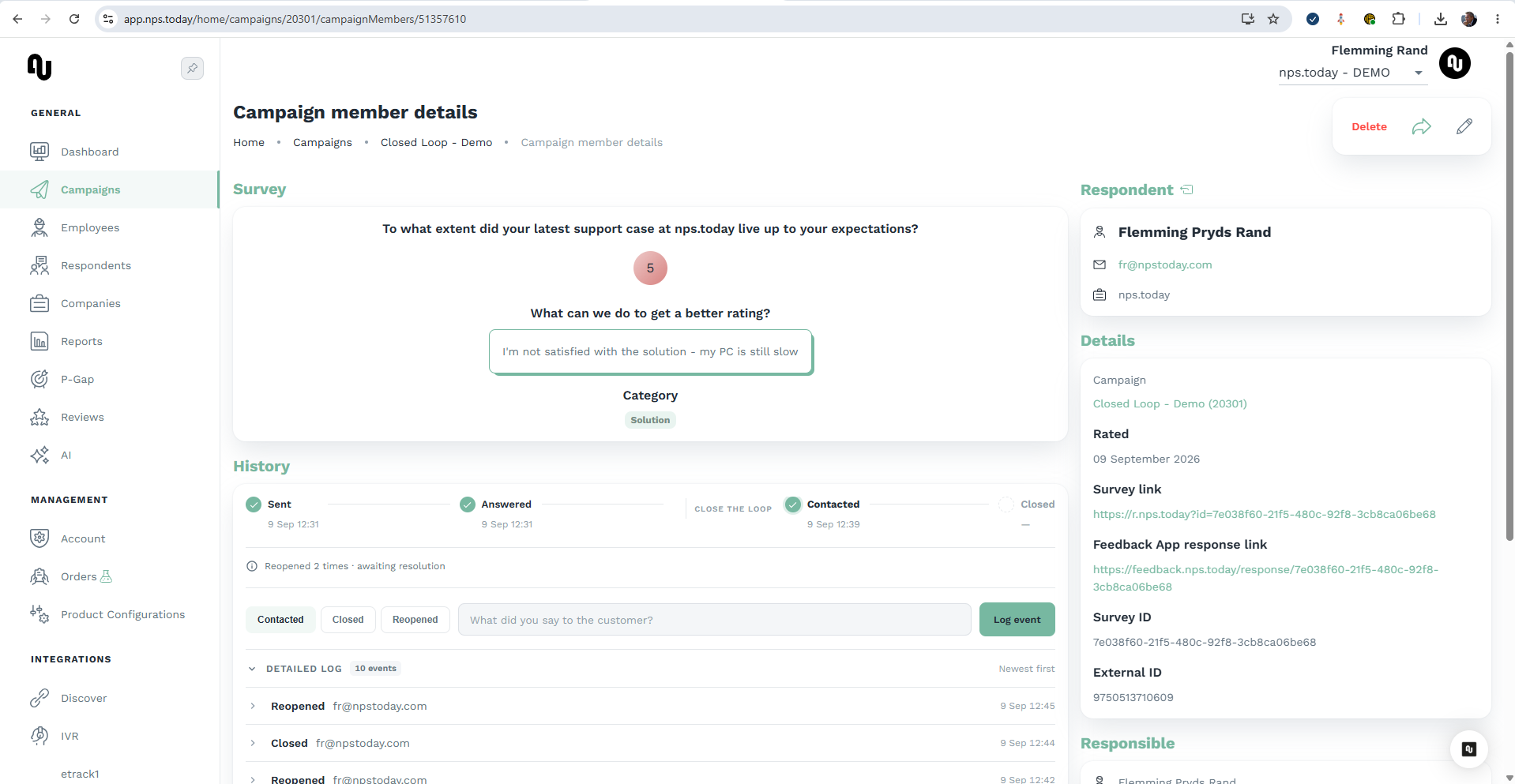
Manage follow-up directly in Campaign member details, alongside the survey response and its history. No additional setup or license is required.
If a notification email includes a Close the loop link, select it to open the response. Review the customer's rating and comment, then use History to record the follow-up.
Example: notification email with a Close the loop link
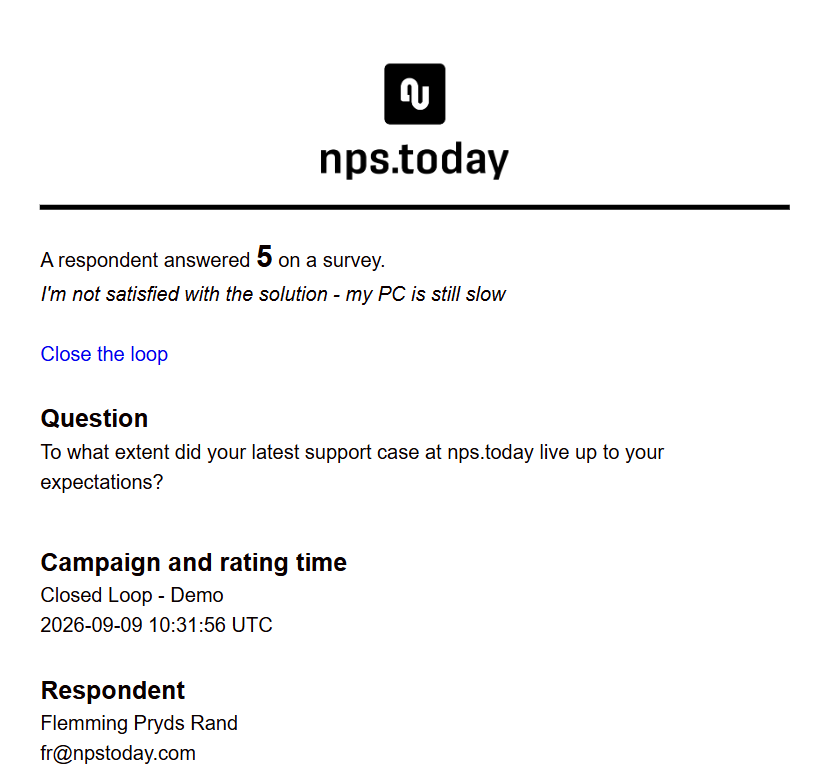
Select Close the loop in the notification email to open the response. Existing Feedback App access and permission rules apply.
Add the link to your notification email
The link is not included by default. Add it as an embedded link that uses the Feedback App Response Link merge field as the address. The merge field is replaced per recipient with the full address of the response, so each email opens that one response.
{FEEDBACK_APP_RESPONSE_LINK}
- Open the notification email and place the cursor where the link should appear.
- Write the text the recipient should select, for example Close the loop, and highlight it.
- Insert a link on the highlighted text, and use the merge field above as the link target.
- Save the notification email.
Place the merge field in the link address
Add {FEEDBACK_APP_RESPONSE_LINK} in the link's address field. The recipient
then gets a working link that opens the response.
For the other fields available in notification emails, see the Merge Fields Guide.
Open the Feedback App and find the relevant response in your Personal view. Each response shows the available feedback and a History section.
Expand History beneath the response to see its progress, review previous events, and use Contacted, Closed, or Reopened to log the next action.
Example: Personal view with History expanded
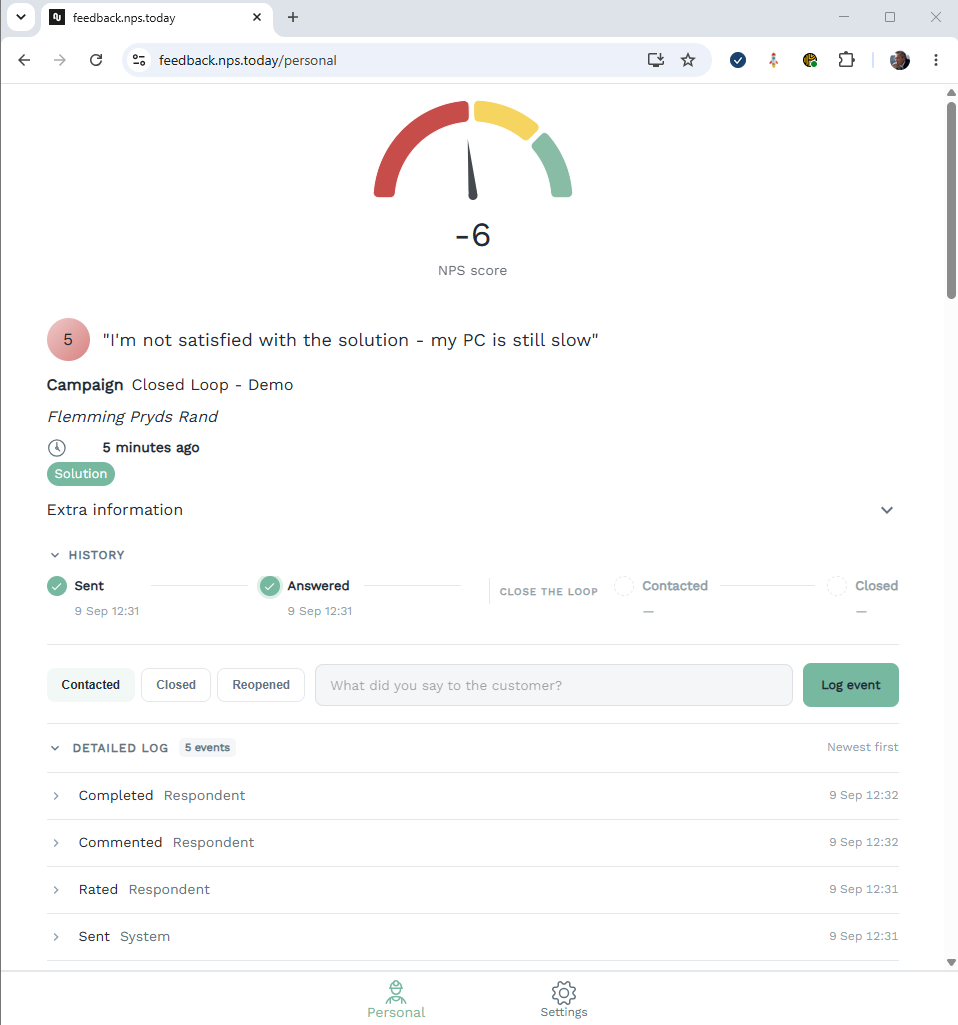
Expand History to manage follow-up directly from the Personal view.
Open a direct response link, or select Feedback App response link under Details in the campaign-member view. Review the rating, comment, campaign, and survey question, then expand History.
Example: response overview opened from a response link
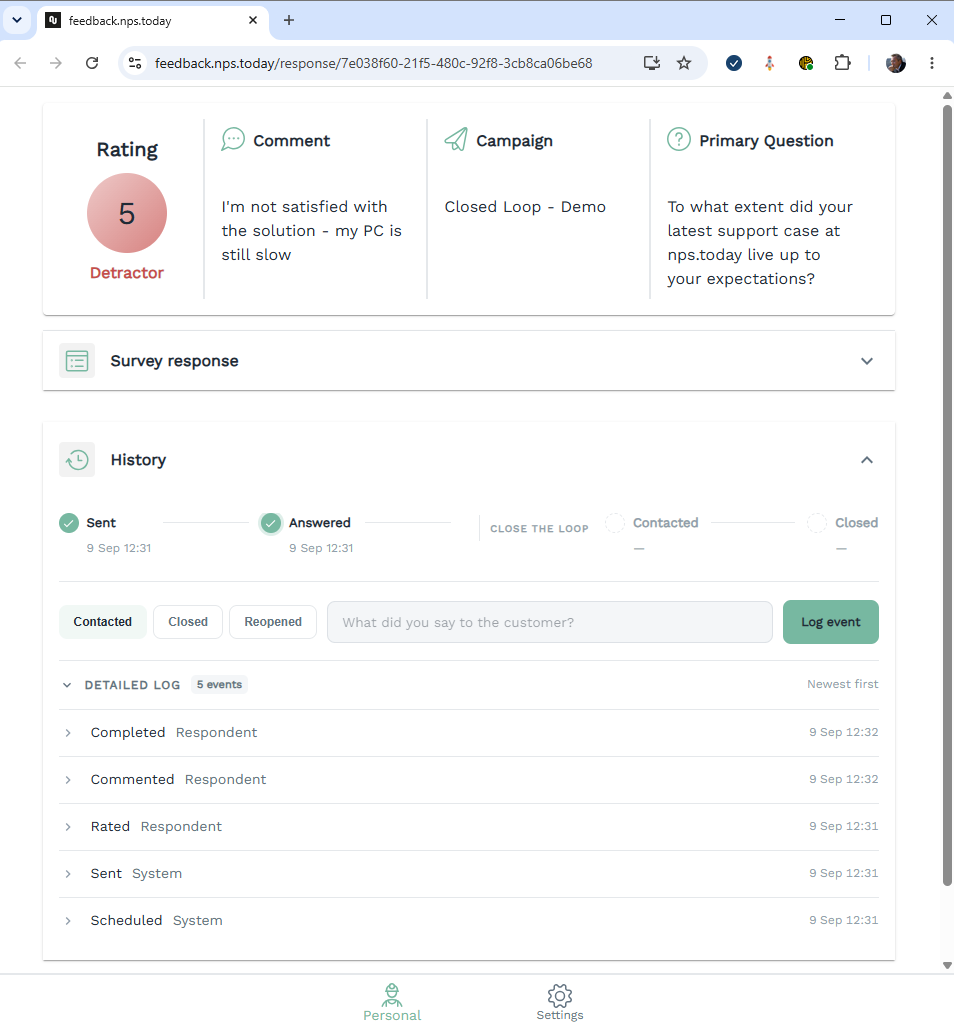
The response link provides another way to review the feedback and manage its follow-up, subject to Feedback App access and permissions.
The history combines survey activity with follow-up activity. Its progress view shows Sent, Answered, Contacted, and Closed. The detailed log provides the individual events behind that progress.
Understand the follow-up statuses
| Status | Meaning |
|---|---|
| Open | The reporting view identifies the follow-up as open. Review the response to determine the next action. |
| Contacted | A contact action or attempt has been recorded. The follow-up has not necessarily been resolved. |
| Closed | The follow-up has been marked as resolved or complete by a user. |
| Reopened | A previously closed follow-up needs further action. Earlier actions remain in the history. |
Note
Answered and the respondent's Completed event describe survey activity. They do not mean that an employee has completed the follow-up. To record that the follow-up is complete, use Closed.
For the full list of status codes and their descriptions, see the Status codes reference.
Record customer contact
After contacting the customer or making a contact attempt:
- Open History for the response.
- Select Contacted.
- Enter a note in What did you say to the customer? Describe what happened and any next step.
- Select Log event to save the action.
Example
For example: “Left a voicemail and am waiting for a callback.”
The history records the contact event, the user who logged it, and its date and time. Expand the event in Detailed log to read the note and see the status change.
Warning
A recorded contact attempt does not necessarily mean that you have spoken with the customer or resolved the issue. Use the note to make the outcome clear.
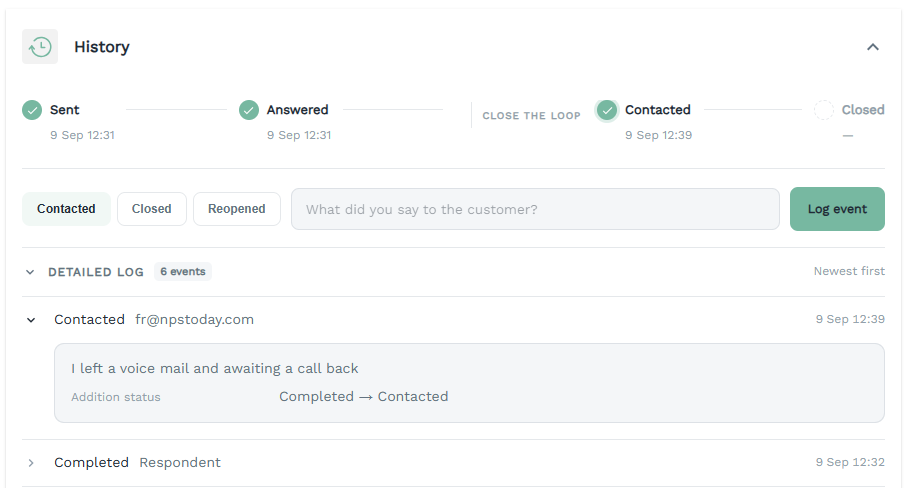
Record the contact attempt and the next step in the response history.
Close the follow-up
When the follow-up is resolved:
- Open History.
- Select Closed.
- Describe the outcome in How was it resolved?
- Select Log event.
Example
For example: “Spoke with the customer and resolved the issue.”
The progress view marks Closed with a date and time. The detailed log records the closing action, its author, the note, and the status change.
Note
Closing the follow-up does not change the customer's survey answers, rating, or comment.
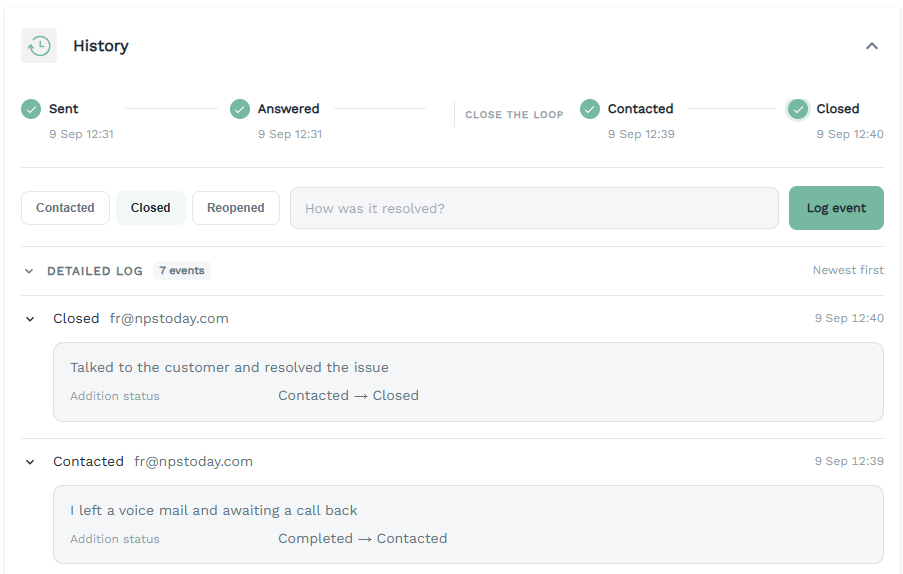
The closing event records the resolution alongside the earlier contact.
Reopen a follow-up
If a customer gets back in touch or the issue needs more work:
- Open the response's History.
- Select Reopened.
- Explain the reason in Why is this being reopened?
- Select Log event.
Example
For example: “The customer requested a follow-up call to confirm that the solution is still working.”
The history adds a Reopened event and indicates that the follow-up is awaiting resolution. The earlier contact and closure events remain available in the detailed log. When the additional follow-up is complete, record the outcome using Closed again.
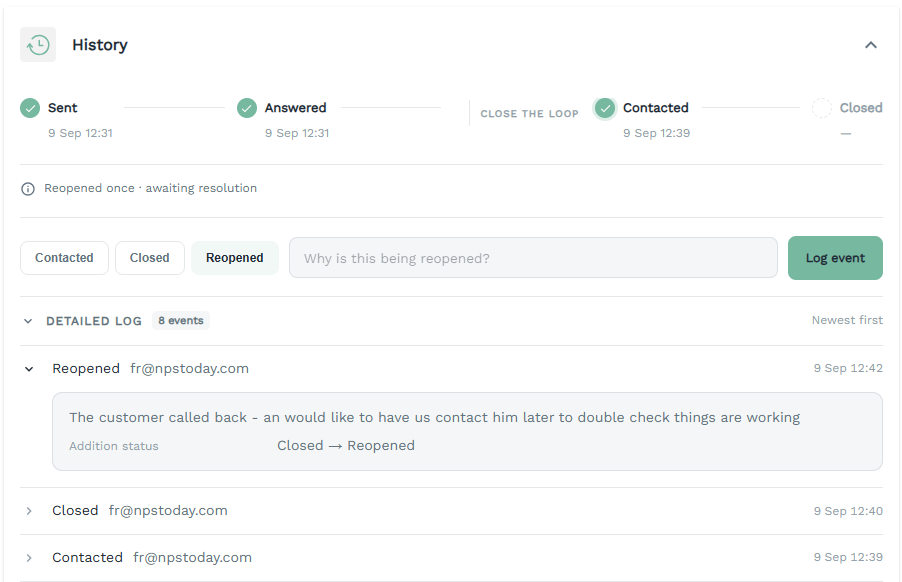
Reopening preserves the previous actions and records why further follow-up is needed.
Review the detailed history
Expand Detailed log to review survey and follow-up events, with the newest events first. Expand an individual event to see the available details.
Follow-up entries show the action, the user who recorded it, the date and time, the accompanying note, and the status transition. Survey events can show Respondent or System as the actor.
Tip
Use the history to understand what has already been done and why a follow-up was reopened. The recorded author identifies who logged an action; it should not be interpreted as a separate assignment of case ownership.
Follow-up reporting
Closed-loop information supports reporting on follow-up progress. The example Closed Loop report includes:
- Status filters for Open, Contacted, Closed, and Reopened.
- Filters for date, rating, campaign, category, and employee.
- A status overview and follow-up cases by category.
- A follow-up worklist with status, a survey link, rating, response date, respondent, category, and comment.
Note
This is an example report layout. Available visuals and filters depend on the report configured for your organization.
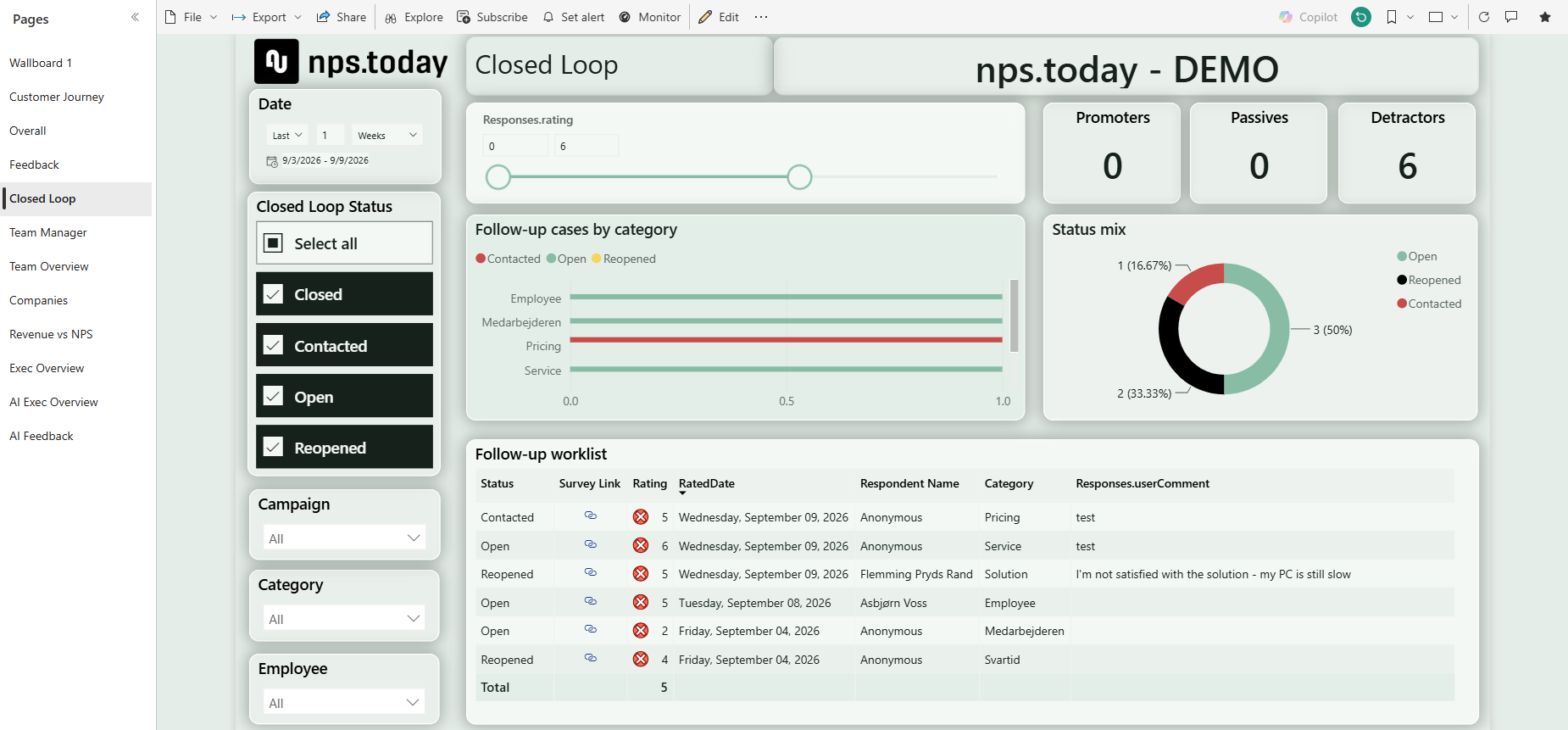
Example Power BI report showing follow-up status and a worklist.
Example: a support issue that needs a second follow-up
Example
A customer gives a rating of 5 and reports that their computer is still slow. An employee leaves a voicemail and logs Contacted, explaining that they are waiting for a callback. After speaking with the customer and resolving the issue, the employee logs Closed with a resolution note.
The customer later asks for another call to check that everything is working. The employee logs Reopened and records the reason. The earlier actions remain visible, giving the next person the context needed to continue.
Frequently asked questions
Do I need a Feedback App license to use Closed Loop?
No additional license or setup is required to use Closed Loop directly in the campaign-member view. Access through a response link or the Feedback App follows existing Feedback App access and permission rules.
Does Log event send a message to the customer?
It records the follow-up action and note. Contact the customer through your usual communication channel, then document what happened.
Does an answered or completed survey mean the follow-up is closed?
No. Survey completion and follow-up closure are different events.
Can I reopen a closed follow-up?
Yes. Select Reopened, explain why further action is needed, and select Log event.
Does Closed Loop add automatic reminders or escalations?
This feature covers follow-up status and history. Automated follow-up reminders and escalation workflows are outside its scope. Existing notification functionality is documented in How to use NPS Notifications.
Learn how this workflow supports your wider customer experience process in Close the loop with nps.today.