Puzzel call flow authentication with Puzzel ID
When a call ends, the Puzzel call flow sends the call details to nps.today, and nps.today surveys the caller. Before it sends the request, the call flow looks up the email address of the agent who handled the call, so each response can be linked to the right agent.
The agent lookup uses the Puzzel Contact Centre API, and the call flow signs in to it with a Puzzel ID client. This guide shows how to set up that client and connect it to the call flow. Everything is configured in your own Puzzel solution. Nothing needs to be set up in nps.today for this part.
Two different credentials
The nps.today widget in Puzzel signs in to nps.today with your nps.today API key, see Widget. The call flow described here signs in to Puzzel with a Puzzel ID client. You need both.
Already using the call flow with a username and password?
Earlier setups sign in with the API user's username and password in puzzel_auth.xml. Puzzel is retiring this method, see Migrate the Puzzel call flow to Puzzel ID.
What you'll do, and who does it:
| Step | What | Who |
|---|---|---|
| 1 | Create a Puzzel ID client | You, as Puzzel administrator |
| 2 | Link the client to a Puzzel API user | You, as Puzzel administrator |
| 3 | Create a client secret | Your Puzzel certified partner or Puzzel Support (recommended), or you |
| 4 | Create the auth file with the client details in your solution | Your Puzzel certified partner or Puzzel Support |
| 5 | Add the nps.today lines to the call flow's finally script | Your Puzzel certified partner or Puzzel Support |
| 6 | Make a test call | You, together with your partner or Puzzel Support |
When you have done Steps 1 and 2, send the change request template to your Puzzel certified partner or Puzzel Support so they can do Steps 3 to 5. When they create the client secret themselves, it goes straight into the auth file and never has to be shared.
Time needed: about 30 minutes, plus a test call.
How it works
Puzzel ID
The call flow signs in with a Puzzel ID client, using the OAuth 2.0 client credentials flow: the client identifies itself with a client ID and a client secret and receives an access token for the Contact Centre API. Puzzel documents how to create the client, add product access and a secret, and request a token in its article Contact Centre - API - Getting Started.
If the link no longer works, search for the article title in the Puzzel help centre.
The parts of the setup
| Part | Where | Maintained by |
|---|---|---|
| Puzzel ID client with a linked API user | Puzzel Organisation Settings | You |
| Client secret for the Puzzel ID client | Puzzel Organisation Settings | Your Puzzel certified partner or Puzzel Support, or you |
Auth file puzzel_id_auth.xml with the client ID, secret and scope |
Your solution: /Integration/puzzel_id_auth.xml |
Your Puzzel certified partner or Puzzel Support |
| Finally script that loads the auth file and the nps.today script | Your call flow | Your Puzzel certified partner or Puzzel Support |
nps.today script NPSToday_CallEnded_v2.xml with the request logic |
nps.today's solution: /450893/Integration/NPSToday_CallEnded_v2.xml |
nps.today in collaboration with Puzzel |
When a call ends:
- The finally script loads
puzzel_id_auth.xmlfrom your solution, thenNPSToday_CallEnded_v2.xmlfrom the nps.today solution. - The nps.today script gets an access token from Puzzel ID, using the values in your auth file.
- With the token, it looks up the agent's email address in the Contact Centre API.
- It sends the call details and the agent's email address to nps.today, which surveys the caller.
Advanced: how the token is fetched
NPSToday_CallEnded_v2.xml gets the token through Puzzel's common script /Common/PuzzelAPI/PuzzelId/GetAccessToken.xml, which Puzzel maintains. The script reads pid.client_id, pid.client_secret and pid.scope from your auth file and requests a token with the client credentials flow. If one of the variables is missing, it skips the request without an error, which is why the variable names must match exactly.
For how Puzzel ID clients and tokens work, see Puzzel's article under Puzzel ID.
Prerequisites
- The nps.today widget and your campaigns set up in Puzzel, as described in Widget and Call flow.
- Administrator access to Puzzel Organisation Settings, to create the client and link the API user.
- A Puzzel certified partner, or Puzzel Support, to create the client secret and the auth file and change the call flow.
- A phone and an agent who can take a short test call on a queue where nps.today is enabled.
Step 1: Create a Puzzel ID client
Who: you, as Puzzel administrator
Steps 1 and 2 are done in Puzzel Organisation Settings and need administrator access. Your Puzzel certified partner can help if needed.
Read Puzzel's guide first
Steps 1 to 3 are done in Puzzel Organisation Settings, and Puzzel describes them in its article Contact Centre - API - Getting Started. We recommend reading it through before you start. The steps below show the settings nps.today needs. If Puzzel's screens have changed since this guide was written, follow Puzzel's article.
- Sign in to Puzzel Organisation Settings at app.puzzel.com/settings, and check that your solution is shown at the top of the page.
-
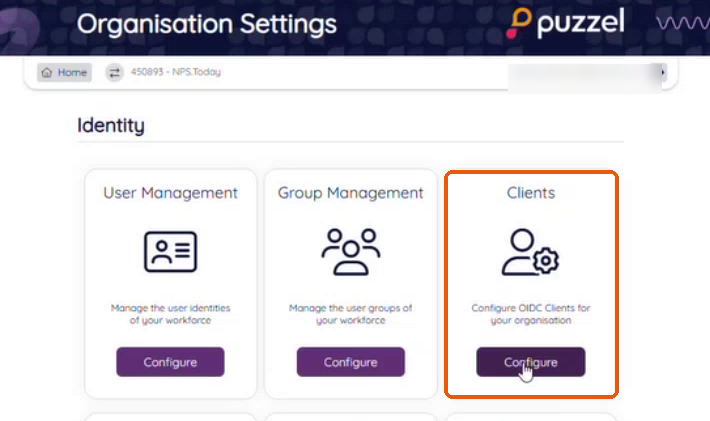
Under Identity, find the Clients card and click Configure.
-
In Client Configuration, click Add and fill in:
- Client name: a descriptive name, for example
nps.today call flow - Grant type:
Client Credentials - Description: for example
Used by the call flow to trigger nps.today surveys - Allowed Scopes:
contact-centre
- Client name: a descriptive name, for example
-
Save the client. The client's page opens.
- Open the Access tab and check that Allowed Scopes contains
contact-centre. Add it if it's missing, leave Allow offline access unchecked, and click Save. -
Copy the Client ID at the top of the page with the copy icon, for example
123456-blue-123. You need it in Step 4.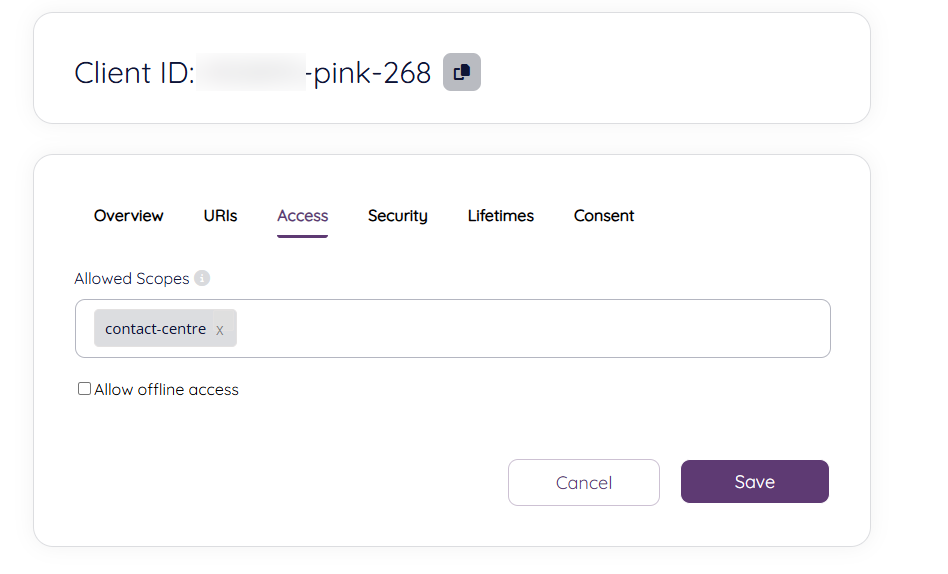
The scope must be contact-centre
contact-centre is the only scope the call flow needs, and it can't get a token without it.
Use a dedicated client
We recommend a separate client for nps.today. Then you can renew or disable its secret without affecting other integrations.
Step 2: Link an API user
Who: you, as Puzzel administrator
Done in Puzzel Organisation Settings, like Step 1.
The client signs in as a Puzzel API user in your solution. Puzzel calls this link Product Access.
-
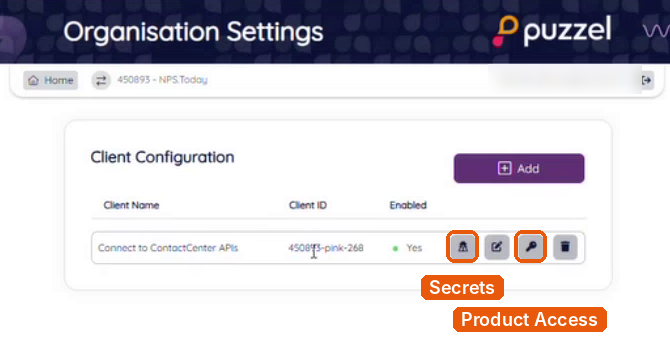
Go back to the Client Configuration list. Each client has four icons on its row. You need two of them: Secrets (the first icon) and Product Access (the key icon).
-
Click the Product Access icon on your client's row.
-
Click Add and select:
- Platform:
Contact Centre (PCC) - Solution: your Puzzel solution
- Platform:
-
Choose the user:
- If you already have an API user for nps.today, select it.
- If not, create one here: select the user group your solution uses for API users, set the user type to
API, and enter a unique username, for exampleapiusernpstoday.
-
Save. The user is now listed with its Solution, Solution ID, Username and User ID.
-
Click the copy icon on the user's row. This copies the full scope for the client, in this format:
contact-centre:SOLUTION_ID:USER_IDFor example
contact-centre:12345:654321. You need it in Step 4.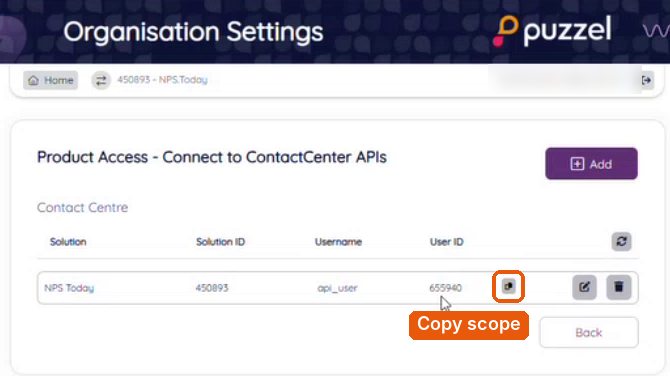
Which user group?
Most Puzzel solutions have a dedicated user group for API users, and that is usually a better choice than the Admin group. The permissions the API user needs depend on how your solution is configured. The call flow uses the user to look up the agent's details. If you're unsure which group to use, ask your Puzzel certified partner or Puzzel Support.
Note
Keep the API user for as long as the integration runs. The client acts as this user, so deleting or disabling it stops the agent lookup.
Step 3: Create a client secret
Who: your Puzzel certified partner or Puzzel Support (recommended), or you
Done in Puzzel Organisation Settings, on the client from Step 1. We recommend that your partner or Puzzel Support creates the secret when they create the auth file in Step 4. Then the secret goes straight into the file, and nobody has to send it. Ask them to tell you the expiration date they set.
If you create the secret yourself, share it with your partner through a secure channel, not in the ticket.
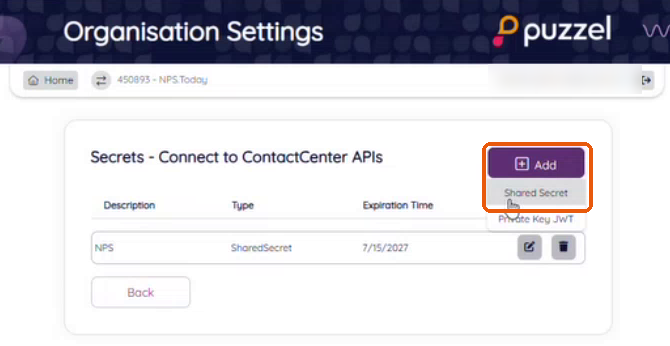
- In the Client Configuration list, click the Secrets icon (the first icon) on your client's row.
-
Click Add and select Shared Secret.
-
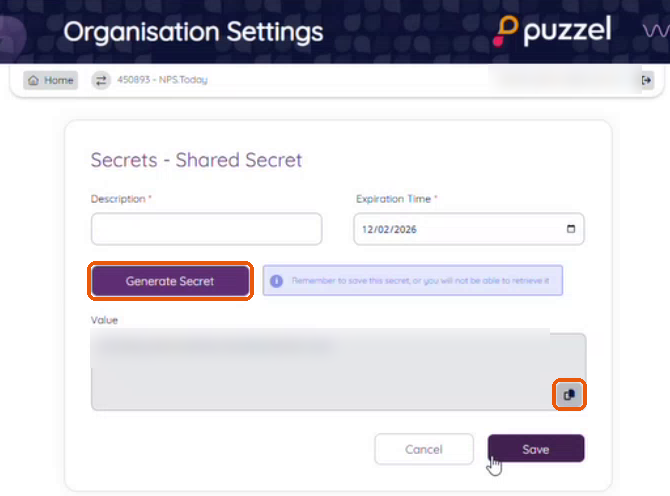
Fill in:
- Description: for example
nps.today call flow - Expiration Time: the date the secret stops working, see Plan for the expiration date
- Description: for example
-
Click Generate Secret, then copy the Value with the copy icon.
-
Click Save.
The secret is shown only once
Puzzel can't show the secret again after you leave the page. Paste it into the auth file in Step 4 right away, or store it somewhere safe (for example a password manager) until it is there. If it is lost, create a new secret.
Plan for the expiration date
Every secret has an expiration date. When it passes, the call flow can no longer get a token, so the agent's email address can't be looked up and nps.today surveys are sent without the agent. Calls are still handled as normal. Nothing warns you before this happens, so:
- Choose the date on purpose. Pick a date that fits your security policy. A longer period means fewer renewals, a shorter period means a leaked secret is useful for less time.
- Add a reminder to your calendar a few weeks before the date, and note who is responsible for renewing it.
- Check the date at any time in the client's Secrets list, in the Expiration Time column.
Before the date, do one of the following:
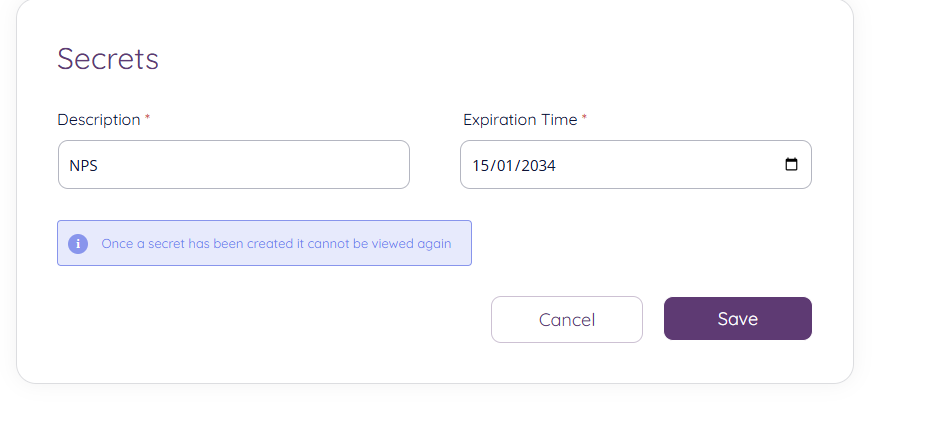
- Open the client's Secrets list and click the edit icon on the secret.
- Set a new Expiration Time and click Save.
The secret value stays the same, so the auth file doesn't need to change.
- Ask your partner or Puzzel Support to create a new shared secret as described above, and to replace the
pid.client_secretvalue in the auth file with it, encrypted as described in Encrypt the client secret. - Make a test call, see Step 6.
- Delete the old secret.
A client can have more than one secret at a time, so the old one keeps working until the new one is in place.
Step 4: Create the auth file
Who: your Puzzel certified partner or Puzzel Support
This step needs access to the call flow editor and Services → Editor, which is normally limited to Puzzel certified partners and Puzzel Support. They need your solution ID and the client ID from Step 1, which you send them with the change request template. The client secret comes from Step 3. This section describes what they add to your solution.
Your partner adds an auth file, puzzel_id_auth.xml, to the Integration folder in your solution. It holds the values from Steps 1 to 3, which the call flow uses to sign in with Puzzel ID.
Where the file is created: in the Puzzel admin portal at app.puzzel.com/admin, under Services → Editor, in the Integration folder. If the folder doesn't exist, it is created there. The file has the resource type Undefined XML.
The file contains:
<content>
  <assign variable="pid.client_id" value="YOUR_CLIENT_ID" restricted="true" />
  <assign variable="pid.client_secret" value="YOUR_ENCRYPTED_CLIENT_SECRET" type="xml" encrypted="true" restricted="true" />
  <assign variable="pid.scope" value="contact-centre:SOLUTION_ID:USER_ID" />
</content>
- The client ID from Step 1.
- The client secret from Step 3, encrypted in the call flow editor as described in Encrypt the client secret. The call flow decrypts it when it runs, so the secret isn't stored as plain text.
- The scope from Step 2.
restricted="true" hides the client ID and the secret in logs. The file still gives access to your Contact Centre API, so only give Editor access to people who need it.

The file name is up to your partner
This guide calls the file puzzel_id_auth.xml, but any name works, as long as the finally script in Step 5 loads the file by the same name.
Variable names must match exactly
The nps.today script reads pid.client_id, pid.client_secret and pid.scope. If a name is misspelled, no error is shown. The call flow just can't get a token, and surveys are sent without the agent's email address.
Encrypt the client secret
The client secret is encrypted with a Variable module in the call flow editor, before it goes into the auth file:
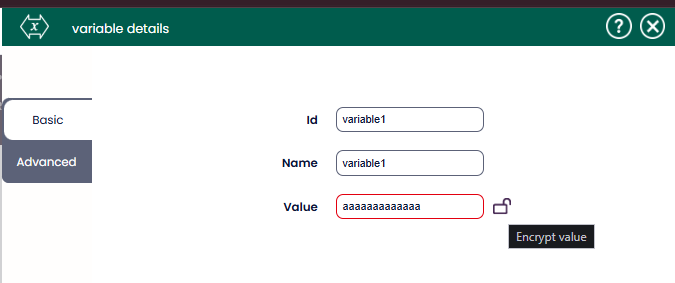
- In the call flow editor, add a Variable module and save the client secret as its Value.
-
On the Advanced tab, set Variable type to
XMLand check Enable encryption.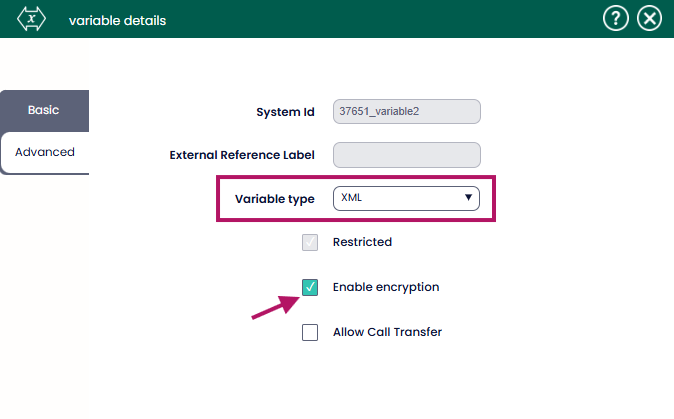
-
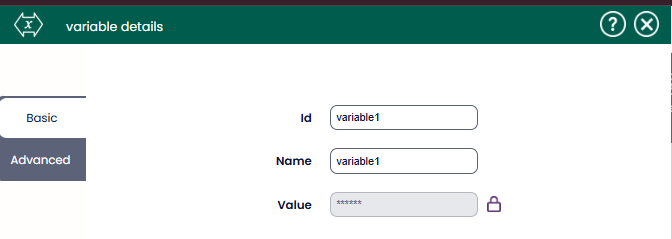
Go back to the Basic tab and click the lock icon next to Value to encrypt it. The value is then shown as asterisks and the lock is closed.
-
Switch the call flow editor to editor mode (View editor in the toolbar), and search the XML for the variable's Id or System Id.
-
Copy the encrypted text in the variable's
valueattribute, and paste it as thepid.client_secretvalue in the auth file.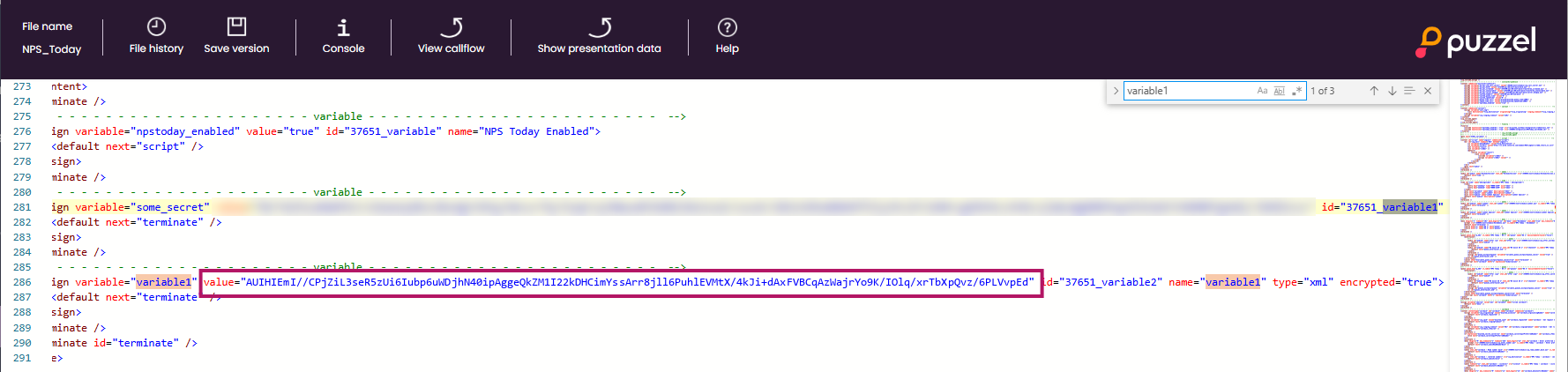
Step 5: Update the finally script
Who: your Puzzel certified partner or Puzzel Support
Done in the call flow editor in the Puzzel admin portal, usually together with Step 4. This section describes what they change in your call flow.
Your partner adds two lines to the finally script of the call flow that should trigger nps.today surveys. The finally script runs when the call has ended.
Where the finally script is changed: in the Puzzel admin portal at app.puzzel.com/admin, under Services → Call Flow. Open the call flow, click the start module at the top of the flow to open service details, and go to the Advanced tab. The lines go in Finally script.
The lines are:
<include expression="npstoday_enabled = true" src="/$(system_custkey)/Integration/puzzel_id_auth.xml"/>
<include expression="npstoday_enabled = true" src="/450893/Integration/NPSToday_CallEnded_v2.xml"/>
- The first line loads your auth file from Step 4 from your own solution (
$(system_custkey)). If the file has another name, this line uses that name. - The second line loads the nps.today script from the nps.today solution (
450893). It gets the token, looks up the agent and sends the call details to nps.today.
The auth file must be loaded first, so the lines are always in this order.

Both lines only run when the variable npstoday_enabled is true. To set it for all queues or only for some, see Inbound calls in the call flow guide. To survey after outbound calls, the same two lines also go in the Initial Script for outbound, see Outbound calls.
Step 6: Test the call flow
Who: you, together with your partner or Puzzel Support
You make the test call and check the result in nps.today. If the test fails, your partner or Puzzel Support checks the auth file and the call flow.
- Call a queue where nps.today is enabled, from a phone number that hasn't received an nps.today survey recently.
- Let an agent answer the call, then hang up.
- In app.nps.today, open the campaign linked to that queue and check that:
- the caller has been added as a new respondent, and
- the respondent has the agent's email address filled in.
If both are there, the call flow is set up correctly.
No respondent at all?
nps.today won't survey the same respondent twice within the P-GAP period set for the campaign. If you test with your own number, make sure it hasn't been surveyed recently, or use another number.
Send the change to your partner
Copy this to your Puzzel certified partner or to Puzzel Support when Steps 1 and 2 are done. Replace [link to this guide] with the address of this page from your browser. If you created the client secret yourself, share it through a secure channel, not in the ticket.
Subject: Change request: nps.today call flow integration with Puzzel ID

Hi,

Please set up our nps.today call flow integration with Puzzel ID,
as described in Steps 3 to 5 of this guide:
[link to this guide]

Solution ID: [your solution ID]
Client ID: [client ID from Step 1]
Call flow: [name of the call flow]
Outbound calls: [yes/no]

Please create the client secret yourselves (Step 3) and add it directly
to the auth file, so it doesn't have to be shared. Let us know the
expiration date you set.

When it's done, please make a test call with us (Step 6).

Thank you.
Troubleshooting
| Symptom | Likely cause | What to do |
|---|---|---|
| Respondent is added, but without the agent's email | The call flow can't get a token: a variable name is misspelled, a value is wrong, or the encrypted secret is missing type="xml" encrypted="true" |
Check the auth file against Step 4. |
| Respondent is added, but without the agent's email, right after go-live | The client's scope or product access isn't set up | Check the client against Step 1 and Step 2. |
| No respondent is added at all | The call flow isn't including the nps.today script, the auth file name in the finally script doesn't match the file, or npstoday_enabled is not true for the queue |
Check the two lines in the finally script (Step 5) and that the call flow is active. |
| No respondent, only for your test number | The number was surveyed within the P-GAP period | Test with another number. |
| The agent's email has been missing on every survey since a specific date | The client secret expired | Check the secret's expiration date, then see Plan for the expiration date. |
Test the client on its own
To rule out the call flow, your partner can request a token directly with the values from the auth file, as described in Puzzel's Contact Centre - API - Getting Started. If that fails too, the problem is in the client setup, not in the call flow.
FAQ
Do I need to change anything in nps.today? No. The call flow authentication is set up in Puzzel only. The widget configuration, the nps.today API key and your campaigns are set up as described in Widget and Call flow.
Can I do the setup myself? Partly. Steps 1 and 2 are yours, with administrator access to Organisation Settings. Steps 4 and 5 need access to the Editor and the call flow scripts, which is normally limited to Puzzel certified partners and Puzzel Support. You can create the client secret in Step 3 yourself, but when your partner or Puzzel Support creates it, it doesn't have to be shared.
Who maintains the nps.today script?
nps.today. All customers include the same NPSToday_CallEnded_v2.xml from the nps.today solution, so improvements reach you without changes in your solution.
Which token lifetime should the client have? The call flow requests a new token for every call, so you can leave the client's token lifetimes at Puzzel's defaults.
I already use the nps.today call flow with a username and password. What do I do?
If your finally script loads puzzel_auth.xml, see Migrate the Puzzel call flow to Puzzel ID.
Need help?
If the test call doesn't give the expected result, contact us at [email protected] and include your Puzzel solution ID and the time of the test call.
Last reviewed: November 2026.