Send surveys from a flow
Use the Send Surveys (nps.today) action to send surveys from a Salesforce flow. It sends to a list of records, e.g. the collection from a Get Records element in a screen flow, or to one record, e.g. the contact of a case that was closed. The action takes the whole list in one call and sends the rating requests to nps.today in the background.
Don't call the action inside a Loop element
Give it the whole collection instead. A loop fails at the 34th record at the latest, see Stay within Salesforce's limits.
Which flow should I use?
| What you want | Use |
|---|---|
| A survey when a record changes, e.g. a case is closed | A record-triggered flow |
| A user sends to a list, e.g. the members of a campaign | A screen flow, see Send surveys with a Screen Flow |
| A long list once, or a list every night | A scheduled flow |
How many records each flow can take is described in Stay within Salesforce's limits. Ways to send without a flow, e.g. a button on a contact, are in Choose how to send surveys.
Prerequisites
- An nps.today subscription that includes the Salesforce integration
- The nps.today package for Salesforce, updated to the latest version. Older versions don't have the action. See Packages & versions.
- A campaign in nps.today to send the surveys from, and its campaign ID
- A Salesforce user who can create and edit flows
Add the action to a flow
- In Flow Builder, add an Action element and search for survey.
- Choose Send Surveys (nps.today).
- Choose Send to first. The lists of fields stay closed until then, because the fields depend on what you send to.
- Set the Campaign ID. It is required: type the ID of the campaign in nps.today, or let it come from a field on each record or from the flow, e.g. to choose the campaign by country. See Campaign ID.
- Fill in the other settings. Each setting is one line: a list that says where the value comes from, and the value next to it. Each setting is described under Settings.
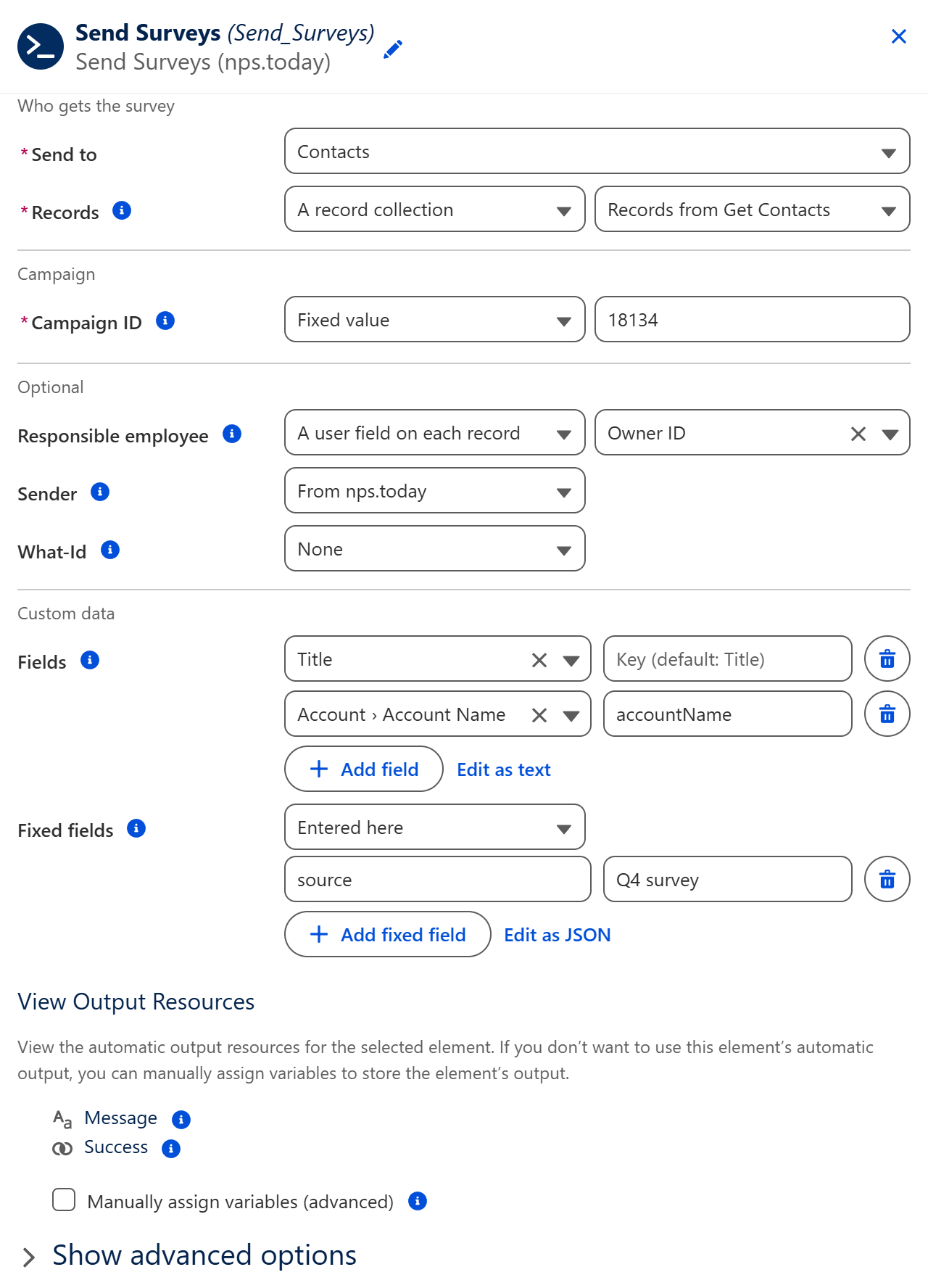
You set the action up by choosing from lists, so you don't need to know the API names of your fields.
- The lists only offer fields that fit, e.g. only user fields for the responsible employee, and a message under a setting tells you when something is missing.
- The lists read the fields from your org each time, so new fields, also your own custom fields, show up by themselves.
- A setting that is switched to another source keeps what you chose under the first one until you close the action, so you can switch back.
- The action reads the chosen fields itself, so Get Records doesn't need to store them.
Where a value comes from
The list on the left of each setting says where its value comes from. Some settings use their own words for the same choice:
| Where the value comes from | Meaning | Called for Responsible employee and Sender | Called for Fixed fields |
|---|---|---|---|
| Fixed value | You enter the value, and it is the same for every survey. | Fixed user ID | Entered here |
| From the flow | Something the flow has, e.g. an input on a screen, a variable, a field of the record that triggered the flow, or the user who runs it. See Values from the flow. | User ID from the flow | JSON from the flow |
| A field on each record | A field of each record that gets the survey. With One record the list says A field on the record. | A user field on each record | – |
| None | The setting is not used. | From nps.today for Sender: the survey gets the sender that is set on the campaign in nps.today. | – |
Settings
Send to
Who the surveys go to: Contacts, Leads or Person accounts. Business accounts are skipped.
Choose Send to first. The other lists stay closed until then, because the fields they offer depend on it.
Records
Who gets the survey. Choose a list of records or one record:
The list next to it shows the record collections of the Send to object in the flow, e.g.:
- Records from Get Contacts
- the result of a Collection Filter element
- the rows a user ticked in a data table on a screen (Selected Rows from and the name of the table)
A collection holds the records themselves: a list of record IDs doesn't work.
Choose where the record's ID comes from in the list next to it, e.g. Triggering record and then Contact ID for the contact of a case.
- Under a record, the list only offers fields that hold the ID of a record you can send to.
- If the ID is empty, e.g. a case without a contact, no survey is sent.
Campaign ID
The ID of the nps.today campaign the surveys are sent from.
- Fixed value: type the campaign ID. Every survey goes to the same campaign.
- A field on each record: choose the field that holds the campaign ID of each record, e.g. a field on the contact's account. A record without a campaign ID in that field gets no survey, and that is logged as an NPS Error record.
- From the flow: choose e.g. a formula resource, or Triggering record and a field that holds the campaign ID, e.g. a field on the case that triggered the flow, or through a lookup, e.g. Account and then a campaign ID field on the account.
Use case: pick the campaign for each record
The campaign ID doesn't have to be the same for every survey. A formula can pick it for each record, so one flow sends to several campaigns, e.g. by the customer's country, language, product or customer segment. The formula returns the campaign ID, and the action reads it like any other field or flow resource.
The example below chooses the campaign by country: each country has its own campaign in nps.today, e.g. a Danish, an English and a German one.
Give each record its campaign ID in a field. Create a formula field on the contact, lead or account that returns the campaign ID, e.g. from the mailing country of a contact:
CASE(MailingCountry, "Denmark", "14287", "Germany", "14288", "14289")
Next to Campaign ID, choose A field on each record and then that field. Every record is sent to the campaign of its own country, also when the list mixes countries.
The same formula field works. A formula resource in the flow works too: next to Campaign ID, choose From the flow and then the formula. In a flow on Case, the formula could be:
CASE({!$Record.Contact.MailingCountry}, "Denmark", "14287", "Germany", "14288", "14289")
When you create campaigns for more countries, you only add the country and its campaign ID to the formula.
Responsible employee
The Salesforce user who is responsible for the survey.
- A user field on each record: choose e.g. Owner ID, or a user field on a related record, e.g. the owner of the contact's account. See Fields on related records.
- User ID from the flow: choose e.g. the owner of a campaign that the flow has fetched, the owner of the case that triggered the flow, or the user who runs the flow.
- Fixed user ID: type the ID of one user.
If the responsible employee is a queue, e.g. the owner of a case, the survey is sent without a responsible employee.
Sender
The Salesforce user the survey is sent on behalf of. Use it to send surveys on behalf of an employee, such as the record owner or the customer's CSM, instead of creating a campaign per employee.
- A user field on each record: e.g. the record owner.
- User ID from the flow: e.g. the person who runs the flow.
- Fixed user ID: one user for every survey.
- From nps.today: keep the sender that is set on the campaign in nps.today.
nps.today uses the user's email, phone, first name and last name as the survey sender, and stores the Salesforce user ID as the employee's external ID. If nps.today has no employee with that email yet, one is created.
Send on behalf of the person who runs the flow
To send on behalf of e.g. the agent who closes a case or who clicks the button of a screen flow, choose User ID from the flow, then Running user and User ID.
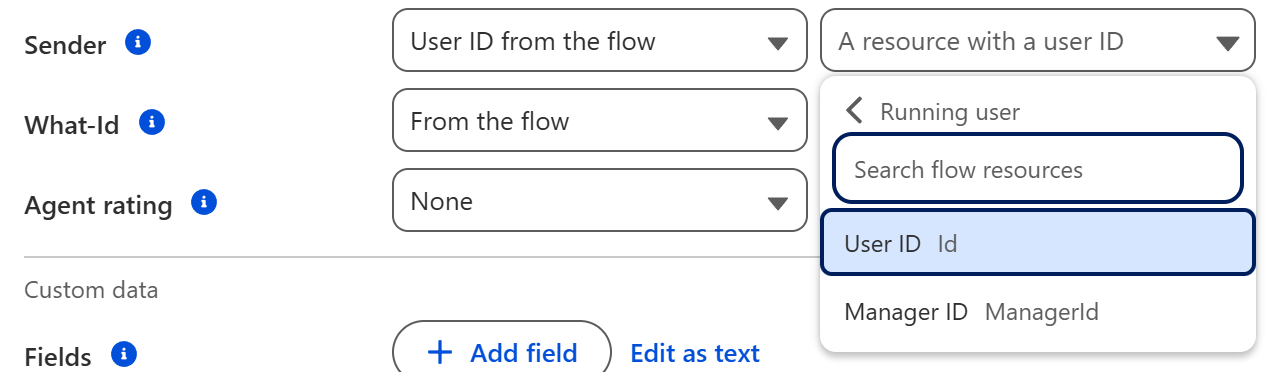
Rules for the sender
- The user must have an email address, because the survey is sent from it. If the sender is not a user (e.g. a queue that owns the record), cannot be found, or has no email address, that rating request is not sent and the reason is logged as an NPS Error record in Salesforce.
- If the campaign's sender has Always use this sender ticked in nps.today, the campaign's sender is used and the Sender setting is ignored.
What-Id
The value stored as the What-Id of the survey.
- A field on each record: e.g. the record's own ID, or a field on a related record, e.g. Account and then Parent Account ID.
- From the flow: e.g. the ID of a campaign, or of the case that triggered the flow, so each response is linked to its case.
Agent rating
Shown with One record. The rating your employee gave in a P-GAP period, as a whole number, e.g. a number field on the case, or an input on a screen with From the flow.
Custom data
Data that is stored with each record's survey. It has two settings, and a key can only be used in one of them. For more about custom data, see Send Salesforce data with each survey.
Fields
The fields whose values are stored with each record's survey, e.g. the contact's Title or the Account Name of its account. Click Add field and choose the field, or a lookup, marked with an arrow, to get to a field on a related record.
Fixed fields
Fields with the same value for every survey, e.g. the key source with the value Q4 survey.
Type a key and a value, and click Add fixed field for one more. The values are stored as text.
For a number, a list or a nested value, click Edit as JSON and write a JSON object, e.g.:
{"year": 2026}
The JSON object comes from a flow resource, e.g. a formula.
A key can only be used once, and not under Fields as well.
Picking a value
This chapter describes the lists you pick a value from, when a setting takes it from the records or from the flow.
The responsible employee and the sender need a user ID
The responsible employee and the sender are Salesforce users, and the action needs their user ID, not a name or an email address. A user field always holds one, and a fixed user ID is checked right away. With User ID from the flow, a record only offers its user fields. A variable, an input on a screen or an output of another element can hold anything, so make sure it holds a user ID: the action rejects the call if it holds something else.
Fields on related records
With A field on each record, the list also shows the record's lookups, each with an arrow, e.g. Account. Choose a lookup to get to the fields of that record, through up to five lookups. For example, choose Account and then Owner ID to use the owner of each contact's account. The action reads the field for every record itself, so the flow doesn't need a loop or a Get Records that stores it.
Which fields the lists show
For Responsible employee and Sender, the list only shows user fields, and a lookup is only listed when its object has user fields. The lists for Campaign ID, What-Id and custom data show every field.
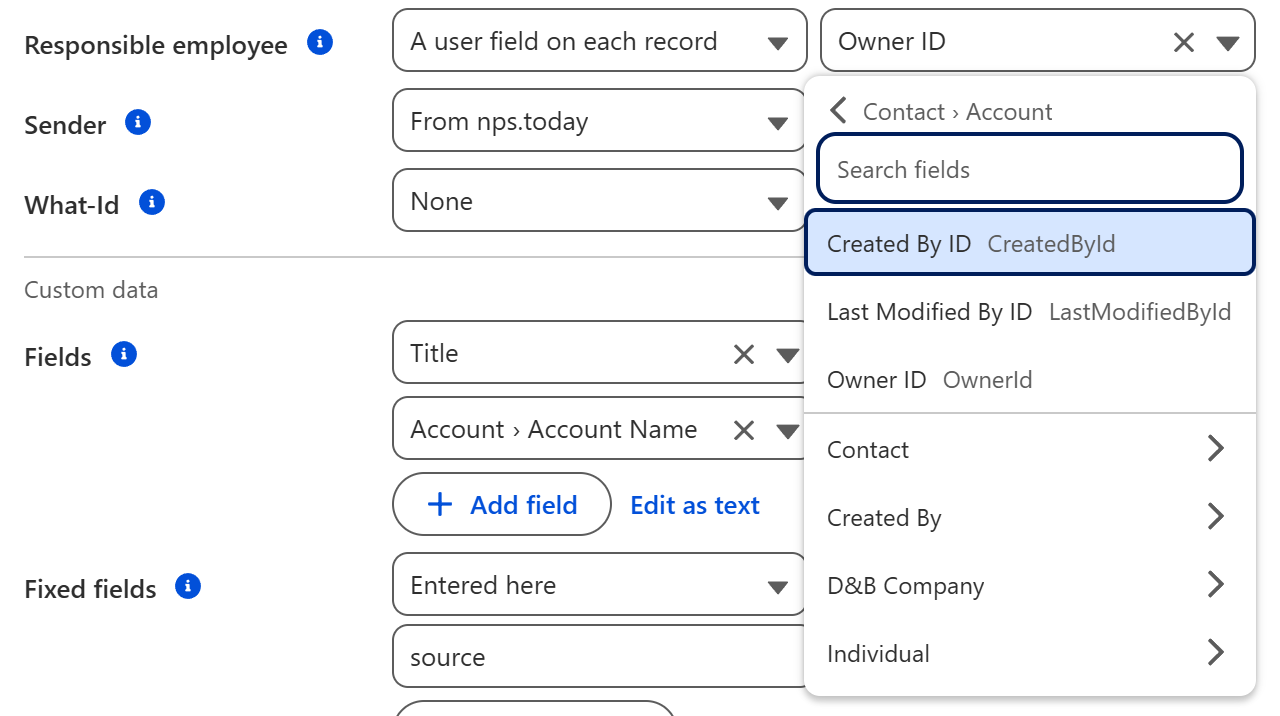
Values from the flow
With From the flow, or User ID from the flow, the list next to it shows the resources of your flow, e.g. variables, screen inputs, the triggering record and the running user. An entry with an arrow opens its fields in the same list, also through lookups, e.g. Triggering record, Owner and then Manager ID.
- In a scheduled flow, Running user is the Default Workflow User, not a person. Keep that in mind when you use it as Sender.
- To use a resource that isn't listed, choose Other resource… and type its API name, e.g.
$Flow.CurrentRecord.
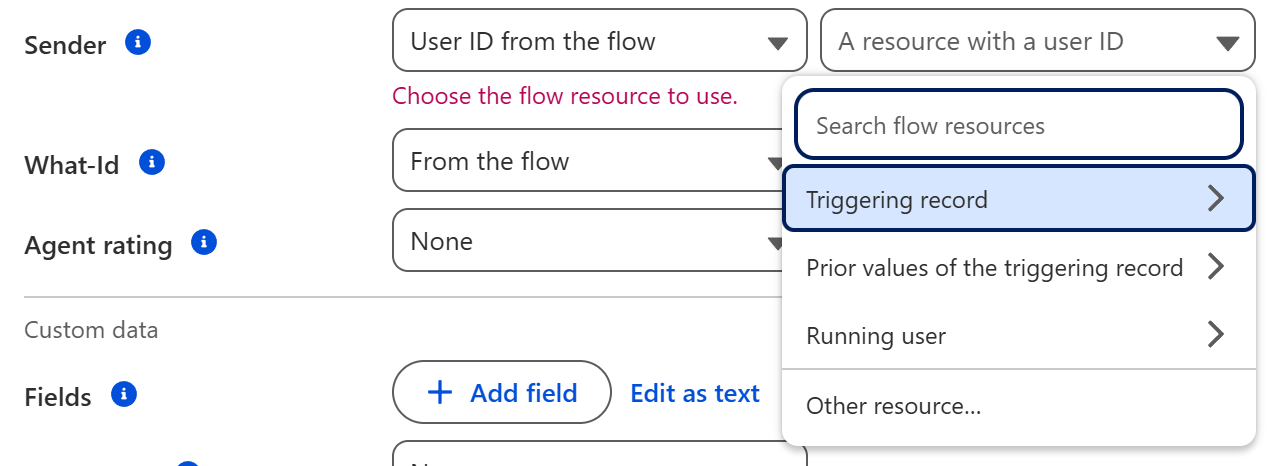
Outputs
The action has two outputs that a screen flow can show:
| Output | Meaning |
|---|---|
| Success | True when a rating request was queued for every record. |
| Message | How many rating requests were queued and how many records were skipped, e.g. Queued 198 rating requests and skipped 2. The reasons are logged as NPS Error records. |
If the list is empty, e.g. because Get Records found no records, the action queues nothing and Message is Queued 0 rating requests. The same goes for One record when its ID is empty.
When the action rejects the call
The action sends nothing and gives the reason in Message when:
- a field doesn't exist, e.g. because it was deleted after the flow was built, or a field path that was typed is wrong
- the ID for One record doesn't belong to a contact, lead or person account
- the sender or the responsible employee, from the flow or as a fixed user ID, is something else than a user ID. A queue as the responsible employee is accepted, see Responsible employee.
- the agent rating is not a whole number
- the fixed fields, written as JSON or taken from the flow, are not a JSON object
- a typed field path goes through a relationship that can point to more than one object, such as a lead's Owner
Send to the same contact again
By default, nps.today doesn't send a survey to the same contact more than once on a campaign. To send to the same contact again, allow duplicates on the campaign.
To show Message to the user on a screen after the action, see The Result Message in Send surveys with a Screen Flow.
Send surveys from a record-triggered flow
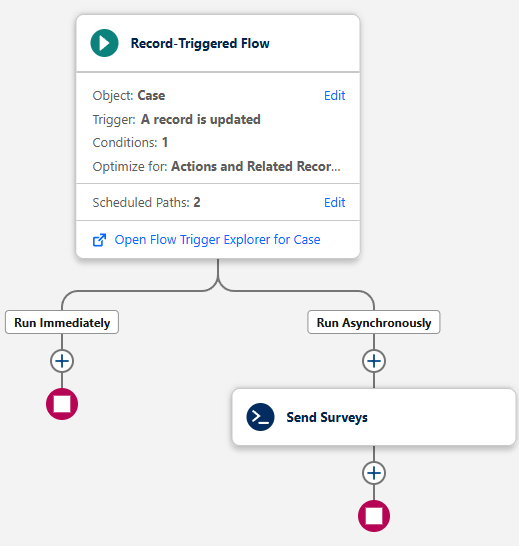
To send a survey when something happens to a record, e.g. a case is closed, use a Record-Triggered Flow. Send the survey on the flow's Run Asynchronously path, so the request runs after the record is saved and can't slow down or fail the save.
- Create a Record-Triggered Flow on the object that triggers the survey, e.g. Case. Set the entry conditions that pick the records to survey, e.g. Status equals Closed, and for updates choose Only when a record is updated to meet the condition requirements, so a record isn't surveyed again on every later save.
- Choose Actions and Related Records, and add a Run Asynchronously path.
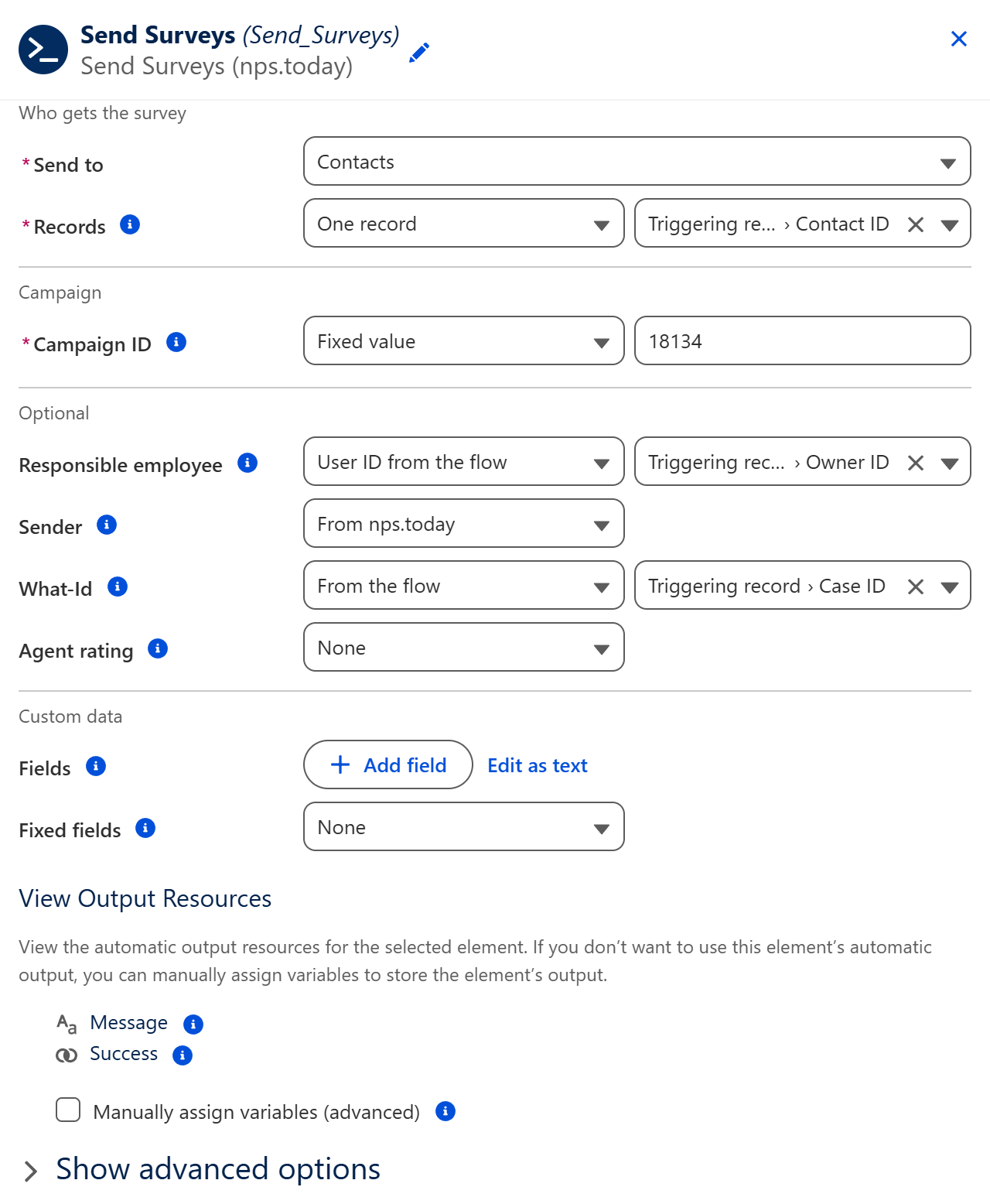
- On that path, add the Send Surveys (nps.today) action. Under Send to, choose who gets the survey, e.g. Contacts. Next to Records, choose One record, then Triggering record and the field with that record's ID, e.g. Contact ID (
ContactId) for the contact of the case. Type your Campaign ID. - Optional: next to Responsible employee, choose User ID from the flow, then Triggering record and Owner ID. Next to What-Id, choose From the flow, then Triggering record and Case ID (
Id), so each response is linked to its case.
A flow on Contact, Lead or Account
In a flow on Contact, Lead or Account itself, choose the record's own ID next to One record, e.g. Contact ID (Id). The responsible employee can then be A user field on the record, e.g. Owner ID.
Good to know
- A record without that ID, e.g. a case without a contact, gets no survey.
- When many records are saved at once, e.g. by a data import, Salesforce runs the path in batches of 200 records and calls the action once per batch.
- The path runs as the user who saved the records. That user needs read access to the contacts, leads and users the flow uses.
Send surveys from a scheduled flow
A scheduled flow is the recommended way to send many surveys, e.g. to a large list once, or every night. Use a Schedule-Triggered Flow with the Send Surveys (nps.today) action:
- Create a Schedule-Triggered Flow. Set its object to Contact, Lead or Account, and set the conditions that select the records to survey.
- Add the Send Surveys (nps.today) action. Under Send to, choose the same object. Next to Records, choose One record, then Triggering record and the record's own ID, e.g. Contact ID (
Id). Type your Campaign ID, and e.g. next to Responsible employee choose A user field on the record and Owner ID.
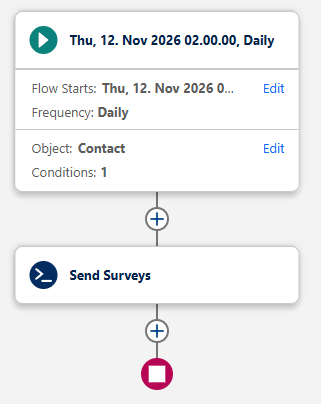
Salesforce runs a scheduled flow in batches of 200 records and calls the action once per batch, so the limit of 50,000 records read doesn't apply, and each batch is sent to nps.today as one request. Failed requests are logged as NPS Error records, see Outputs.
A scheduled flow on Campaign Member
For a scheduled flow on another object, e.g. Campaign Member:
- Next to One record, choose the field with the contact's ID: Triggering record and Contact ID (
ContactId). - For the responsible employee, choose User ID from the flow, then Triggering record, Campaign and Owner ID.
- For the What-Id, choose From the flow, then Triggering record and Campaign ID (
CampaignId).
A campaign member that is a lead has no contact ID and gets no survey from this flow. Create a second flow with Send to set to Leads and Lead ID (LeadId) for the leads.
Good to know
- Scheduled flows run as the Default Workflow User (Setup -> Process Automation Settings). That user needs read access to the contacts, leads and users the flow uses.
- Salesforce runs at most 250,000 scheduled flow interviews per 24 hours, or 200 × the number of user licenses if that is more. Records beyond the limit are not processed that day.
- On a schedule that repeats, add a condition that leaves out records you have already surveyed, or the next run sends to them again.
Stay within Salesforce's limits
Salesforce limits what a flow may do in one go, called a transaction: at most 100 queries, 50,000 records read and 50 background jobs. Send Surveys (nps.today) is built for that. One call costs three or four queries and one background job, whether it gets one record or thousands. So the rule is one call for the whole list, and the flow you choose decides how long the list can be:
| What you want | Use | How many records |
|---|---|---|
| A survey when a record changes, e.g. a case is closed | A record-triggered flow with One record | As many as are saved. When many records are saved at once, Salesforce calls the action once per 200 records. |
| A user sends to a list, e.g. the members of a campaign | A screen flow with A record collection, see Send surveys with a Screen Flow | About 16,000 when one Get Records delivers the list. About 4,000 in the flow of that guide, where a loop collects the contact IDs first. |
| A long list once, or a list every night | A scheduled flow with One record | 250,000 a day, or 200 × your user licenses if that is more. Salesforce calls the action once per 200 records. |
What to do, and what to avoid:
- Give the action the whole collection, and don't call it inside a Loop element. Every call costs three or four queries, so a loop fails at the 34th call at the latest, with Too many SOQL queries: 101. It fails sooner when the flow runs other queries, e.g. a Get Records, in the same transaction.
- Fetch the list once. A record counts against the 50,000 every time it is read: once for each Get Records that fetches it, and once or twice by the action. The action reads a record twice when a setting takes a field from the records, or when you pick custom data fields. With three reads per record, one call takes about 16,000 records. With more, the flow fails with Too many query rows: 50001.
- Use a scheduled flow for longer lists. Salesforce splits the list into batches of 200, and each batch is a transaction of its own.
- In a record-triggered flow, use the Run Asynchronously path, so the survey can't slow down or fail the save. On the Run Immediately path, the calls for records that are saved together add up in one transaction: 100 queries are enough for 25 to 33 calls, i.e. 5,000 to 6,600 records saved in one go.
- Check the result. Requests that nps.today rejects or that can't reach nps.today, and respondents that nps.today doesn't add (e.g. without an email address or phone number), are logged as NPS Error records with the respondents' Salesforce IDs.
The numbers behind this
| Value | Where it comes from | |
|---|---|---|
| Queries per call | 3, or 4 when a setting takes a field from the records | Measured |
| Background jobs per call | 1, and one more for every further 250 respondents, one after another | Measured |
| Respondents per request to nps.today | 250 | Set by the action |
| Records per call | About 16,000 | Measured, against Salesforce's 50,000 records read |
| Records per call in Developer Edition and trial orgs | 1,250. The rest are logged as NPS Error records. | Measured. Salesforce allows a chain of 5 background jobs there. |
| Calls in one transaction, e.g. in a loop | 33, or 25 when a setting takes a field from the records | Measured with three queries per call, against Salesforce's 100 queries |
| Records per call in a record-triggered or scheduled flow | 200 | Salesforce's batch size, measured |
| Scheduled flow interviews per 24 hours | 250,000, or 200 × user licenses | Salesforce's limit |
| Background jobs per 24 hours | 250,000, or 200 × user licenses, shared with all other background Apex in your org | Salesforce's limit |
We measured in a Salesforce scratch org in November 2026. Salesforce's own limits can change, see Execution Governors and Limits.
Test your setup
Before you send to a long list, try the flow on one record you control, e.g. a test contact with your own email address.
- Run the flow for that record: in a screen flow, choose the test contact; in a record-triggered flow, save a test record that meets the entry conditions.
- In a screen flow, show Message on a screen after the action, and check that one rating request was queued and none were skipped.
- Check that the survey arrives.
- If it doesn't, look for NPS Error records in Salesforce. They hold the reason, see Outputs.