Send a survey from a contact (button)
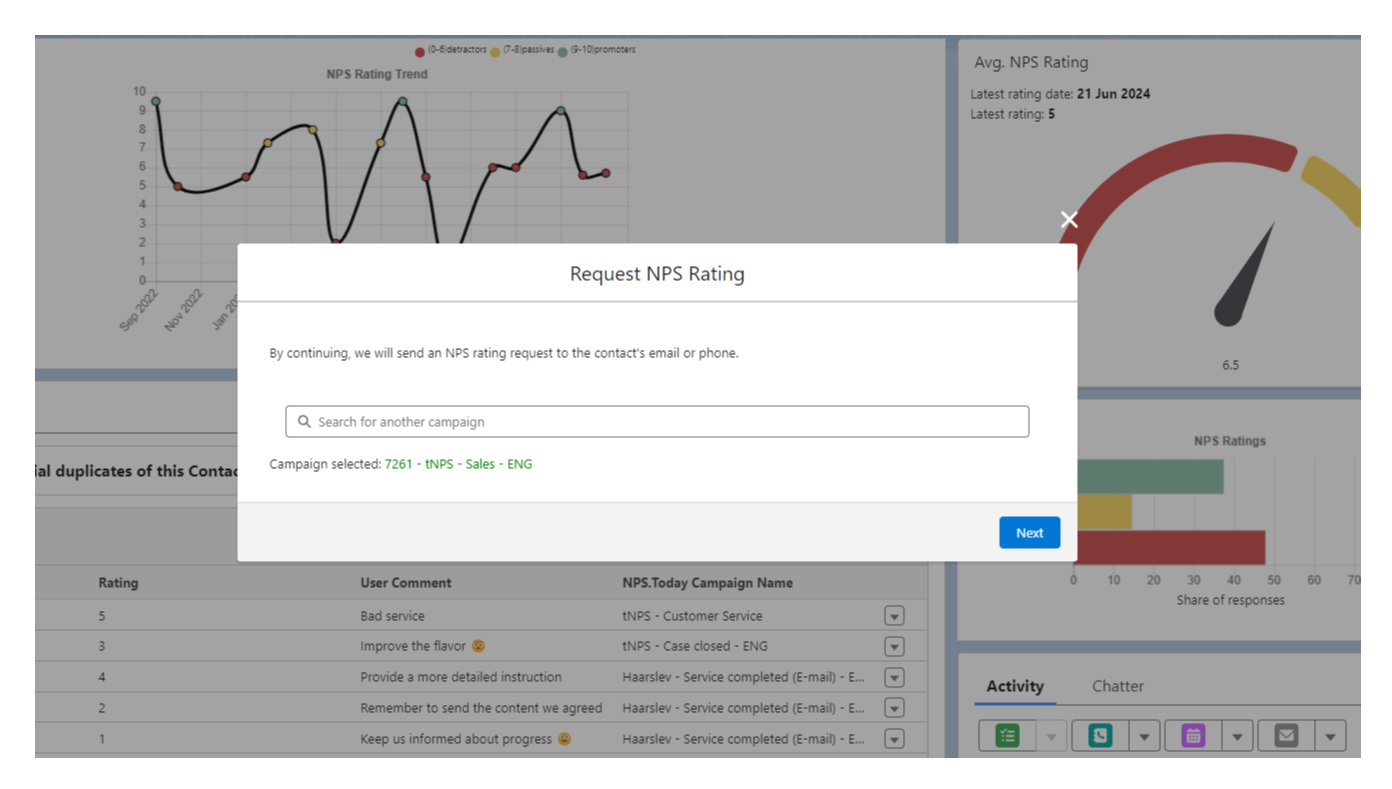
Add a button to the contact page, so users can send a survey to that contact with one click, e.g. after a meeting or a delivery. The button opens the flow Request NPS Rating for Contact, which comes with the nps.today package. The user picks the campaign and sends.
Before you start
- The nps.today package is installed and connected, see Install the package.
- The users who send surveys have the
nps.today requesterpermission set, see Assign permission sets. - Optional: set a Default NPS Campaign Id on the nps.today Admin tab. That campaign is preselected when the user clicks the button. See Configure the package.
Step 1: Create the action
- Go to Setup → Object Manager → Contact → Buttons, Links, and Actions.
-
Click New Action.

-
Fill in the action:
Action Type:
Flow
Flow:Request NPS Rating for Contact
Standard Label Type:--None--
Label: e.g.Request NPS Rating
Name: e.g.Request_NPS_Rating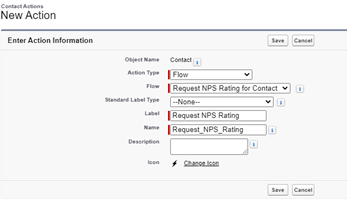
-
Click Save.
Step 2: Add the button to the contact page
- Go to Setup → Object Manager → Contact → Page Layouts, and open the layout your users use, e.g. Contact Layout.
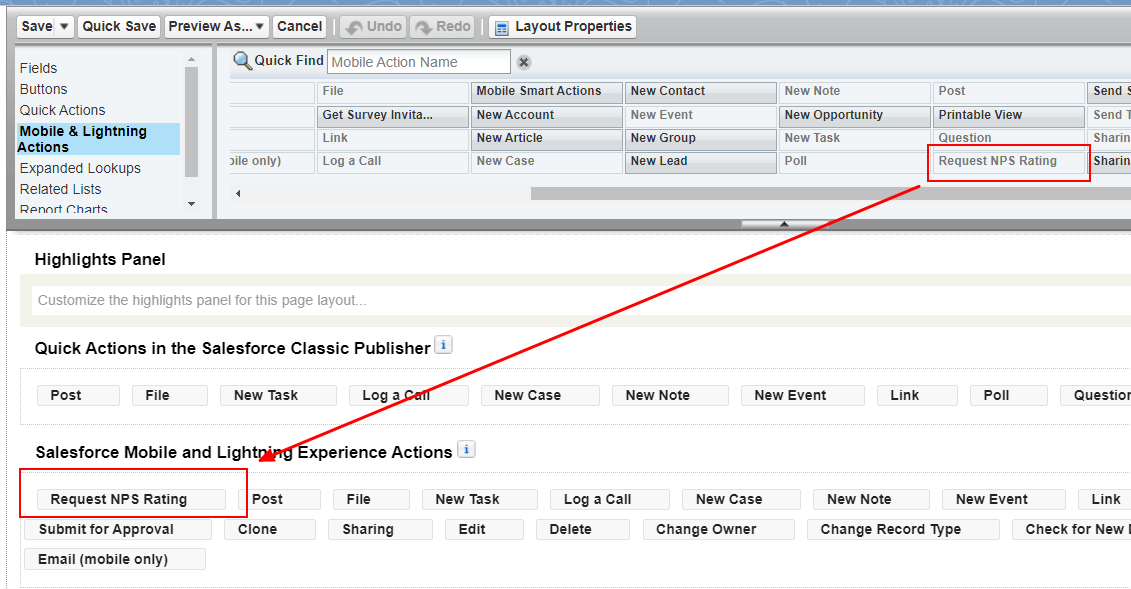
- Click Mobile & Lightning Actions in the palette at the top.
-
Drag Request NPS Rating into the Salesforce Mobile and Lightning Experience Actions section.
-
Click Save. Repeat for other contact layouts.
Lightning page with Dynamic Actions?
If the contact's Lightning page uses Dynamic Actions, add the action in Lightning App Builder instead: select the highlights panel, click Add Action, and choose Request NPS Rating.
Step 3: Test it
- Open a test contact with your own email address.
-
Click Request NPS Rating.

-
Choose the campaign and send.
- Check that the survey arrives in your inbox.
No survey?
By default, nps.today sends one survey per contact per campaign. If you already sent to the test contact, allow duplicates on the campaign or use another contact. More causes are in Troubleshooting.