Show feedback in Salesforce
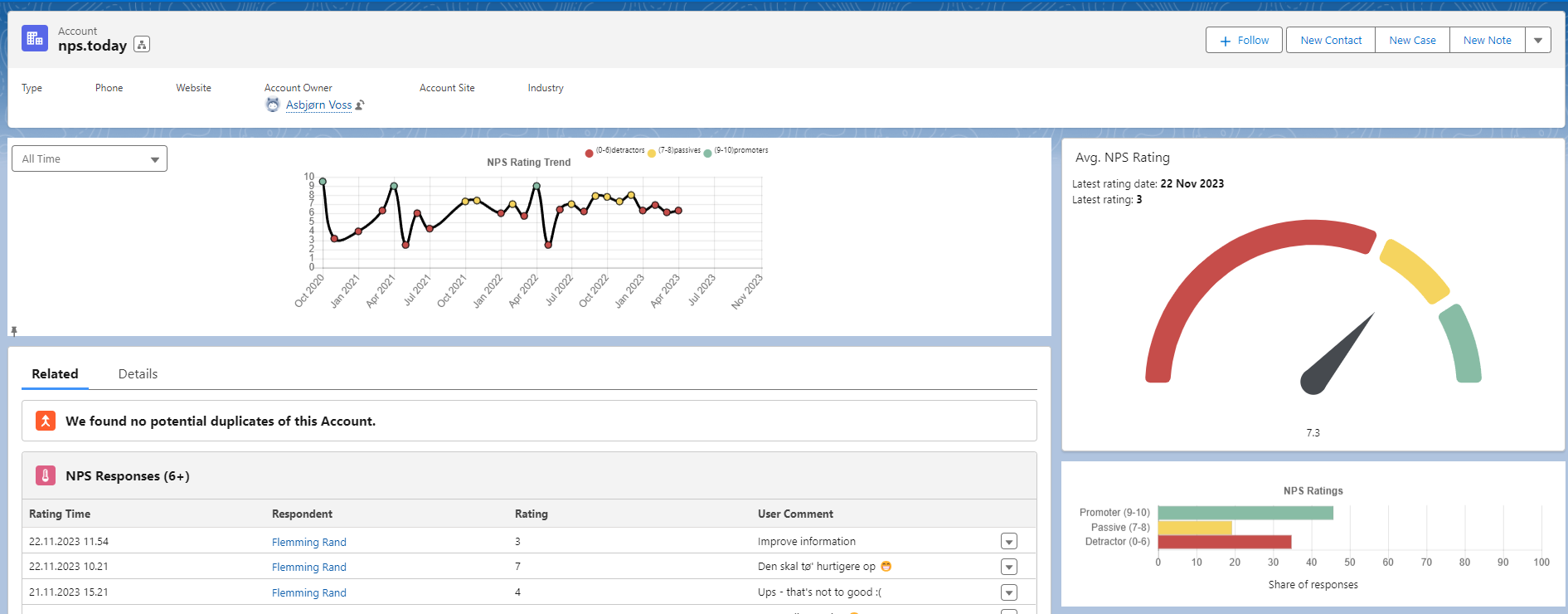
Show your users how their customers rate you, right on the contact and account pages: charts with the NPS trend, and a list of the responses with their comments.
Before you start
- The nps.today package is installed, and the first sync has run, see Install the package.
- The users who should see the feedback have the
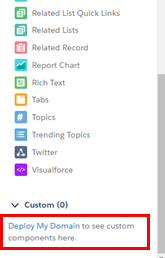
nps.today viewerpermission set. - Your org has a deployed My Domain. Without it, the nps.today components aren't listed in Lightning App Builder.
Add charts to account and contact pages
-
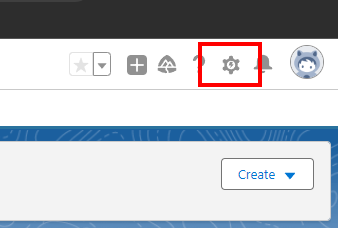
Open any account, click the gear icon at the top right, and click Edit Page. You can also go through Setup → Lightning App Builder.
-
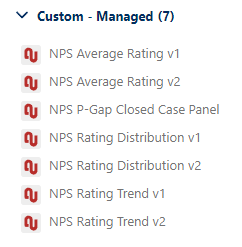
In the Components panel, scroll to Custom - Managed. The nps.today components are listed there.
-
Drag the charts you want onto the page:
Component Shows NPS Average Rating The average rating NPS Rating Distribution The share of promoters, passives and detractors NPS Rating Trend How the ratings develop over time. The user can choose the period (all time, last 6 months, last 3 months, last month or last week) and pin it for the page. NPS P-Gap Closed Case Panel For case pages only, see P-GAP -
Click Save, then Activate, and choose Assign as Org Default to show the charts on all accounts. You can also assign the page to specific apps, record types or profiles.
- Do the same on a contact page.
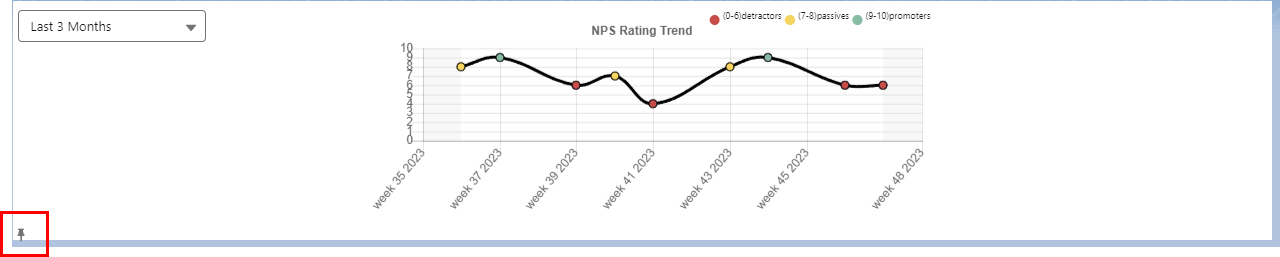
To change the default period of NPS Rating Trend on a page, choose the period and click the pin:
Don't see the components?
Deploy My Domain: Setup → My Domain, follow the steps and click Deploy to Users. Then open Lightning App Builder again.
Add the list of responses to contacts
The NPS Responses related list shows each response of the contact, with its rating and comment.
-
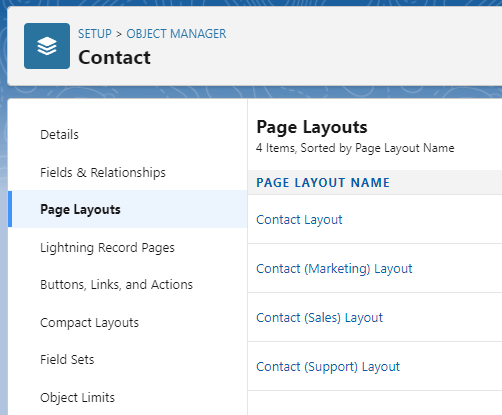
Go to Setup → Object Manager → Contact → Page Layouts, and open the layout your users use. For B2C Person Accounts, use Person Account instead.
-
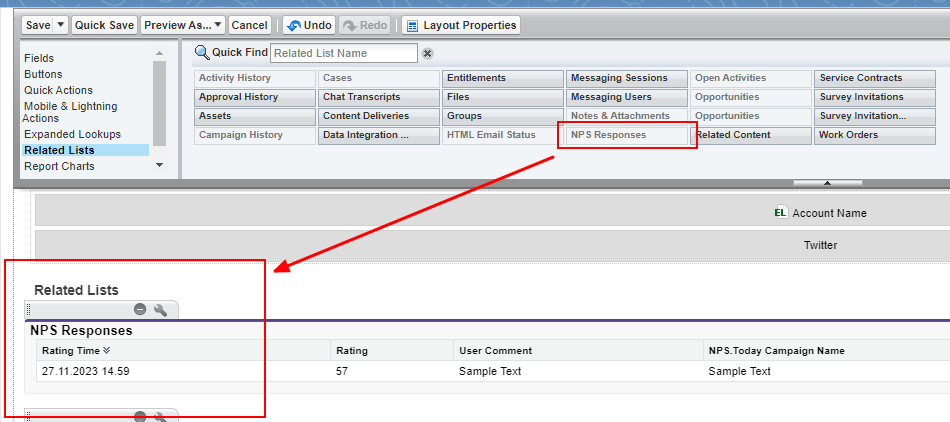
Click Related Lists in the palette, and drag NPS Responses onto the layout.
-
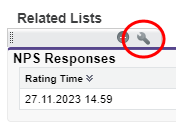
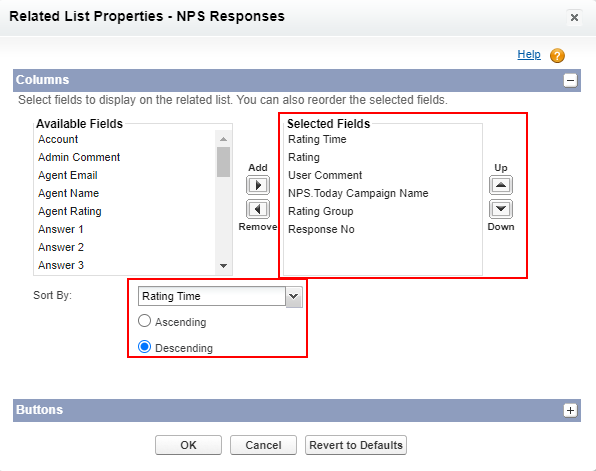
Click the wrench icon on the related list to choose its columns.
-
Choose the columns. The ones below are a good start. Sort by Rating Time, descending, so the newest response comes first.
-
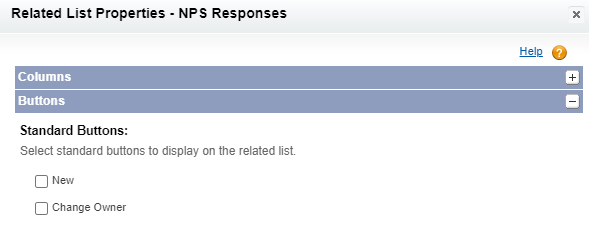
Under Buttons, untick the standard buttons, so users don't create responses by hand.
-
Click OK, then Save.
Click a response in the list to open it. What the response page shows is described in The NPS Response record.
Check it
Open a contact that has answered a survey. The charts and the NPS Responses list show the response. If a contact has answered and nothing shows, see Troubleshooting.
Show feedback on other records
- Responses are linked to the contact or person account who answered. To show them on the contact's account, or another record, see Show responses on other records.
- To report on the NPS score across many records, see NPS score in reports and dashboards.
- For responses in Salesforce Messaging sessions, see View responses on a Messaging session.